Gemini_Generated_Image_xpiph5xpiph5xpip

Building a Raspberry Pi NUT Server for an Online Rack UPS (Proxmox, TrueNAS & Linux Clients)

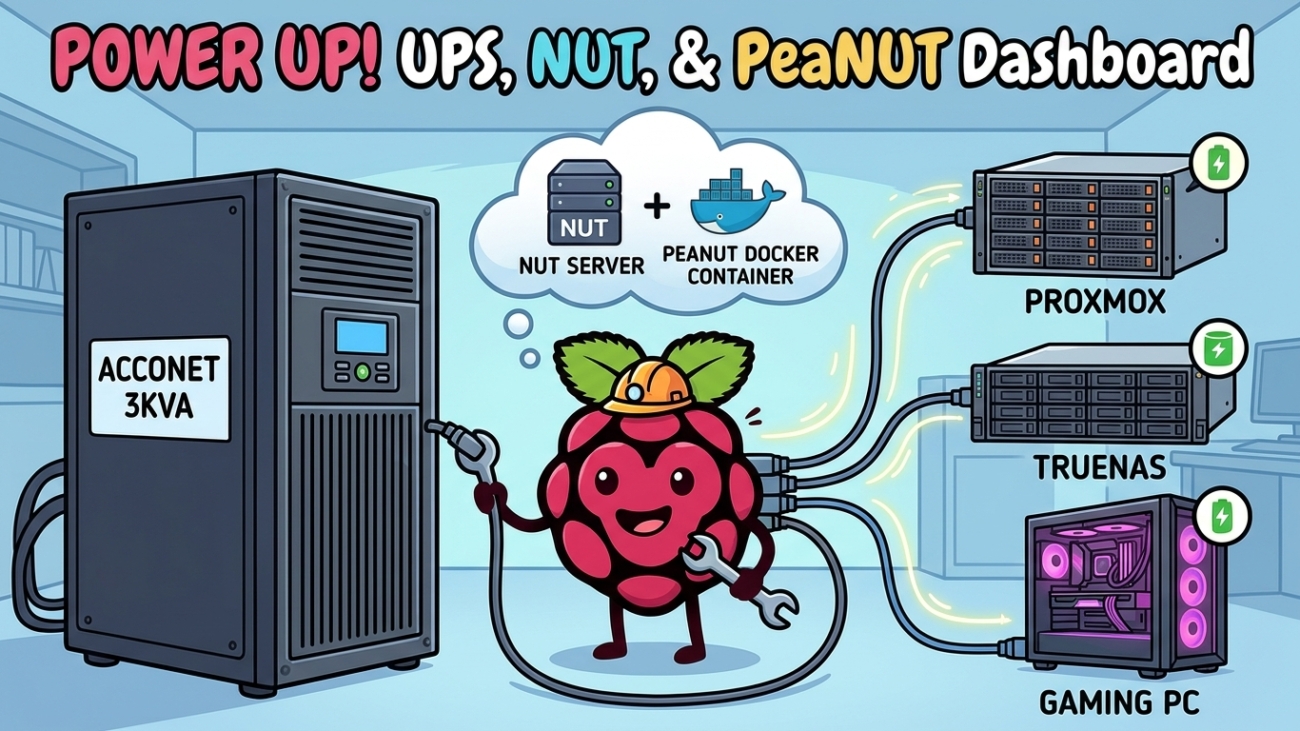
I finally bought a proper UPS for the homelab: an Acconet 3kVA/2700W online double-conversion rack UPS (AC-UPS-O3000-R) from Miro. A UPS on its own only buys you time, though. What I actually wanted was for every machine in the rack to shut down cleanly when the battery runs low, and then come back up by itself when the power returns.

This post covers the whole process: rack-mounting the UPS, building a dedicated NUT (Network UPS Tools) server on a Raspberry Pi 3B, adding a web dashboard with PeaNUT, and connecting Proxmox, TrueNAS SCALE and a CachyOS desktop as clients. I also cover the problems I hit along the way, because this UPS needed a bit of coaxing.

What we’re building

  • The UPS connects to a Raspberry Pi 3B over USB. The Pi runs the NUT server and is the only machine that talks to the UPS directly.
  • The clients (Proxmox, TrueNAS and my CachyOS PC) watch the Pi over the network.
  • When the battery drops below 40% while on battery power, the Pi tells every client to shut down, then shuts itself down. The UPS then cuts its outputs.
  • When mains power returns, the UPS turns its outputs back on and everything boots by itself.
  • PeaNUT runs on the Pi as a web dashboard for monitoring.

Why a separate Pi instead of running NUT on the Proxmox host? The NUT server should be the last thing to go down. A Pi draws very little power, boots on its own the moment it gets power, and doesn’t depend on any VM or container being up.

Part 1: Rack-mounting the UPS

The rail kit (AC-UPS-RMKIT) confused me for a while, so here’s the short version. Each rail is an L-shaped shelf that adjusts in length. At every post, front and back, the stack from the outside in is:

3-hole flat strip → rack post → rail flange (threaded holes)

The screws go through the strip and through the square hole in the post, then thread into the rail flange. That clamps the post between the strip and the flange, so the rail is held firmly rather than hanging off the screws. The UPS then slides in and rests on the rails’ lips.

The supplied cage nuts are for the UPS’s own rack ears, which screw into the front posts wherever there isn’t a threaded rail hole behind them. The ears just stop the UPS from sliding out; the rails carry the weight. Use every screw hole, and get a second person to help lift the UPS in, because it weighs about 26 kg.

One more tip: the large “High Current Output” socket on the back is an IEC C19 (16 A) outlet. It’s on the same protected output as the other sockets and shares the same 2700 W total. You’ll need a lead with a C20 plug, such as a C20-to-multi-plug strip or a PDU, to use it.

Part 2: Flashing Raspberry Pi OS

I flashed the SD card from my CachyOS desktop using Raspberry Pi Imager. Install it with either of these:

sudo pacman -S rpi-imager
# or, as a Flatpak:
flatpak install flathub org.raspberrypi.rpi-imager

The app menu lists it as “Raspberry Pi Imager”, so search for “Raspberry” rather than “rpi”. On Windows, download the installer from raspberrypi.com/software instead.

Pick Raspberry Pi 3 as the device.

For the OS, go to Raspberry Pi OS (other) and choose Raspberry Pi OS Lite (64-bit). You don’t need a desktop on a headless NUT server.

Select your SD card, checking its size so you know it’s the right one. Leave Exclude system drives ticked so you can’t pick the wrong disk.

OS customisation

Imager lets you preconfigure everything, so the Pi is reachable over SSH on first boot without ever connecting a screen. I used these settings:

  • Hostname: nut
  • Localisation: your time zone and keyboard layout
  • User: your username and password
  • Wi-Fi: skipped, because this box is on Ethernet
  • SSH: enabled with password authentication. Public-key authentication is more secure if you prefer it, but a password is fine on a LAN-only box.

On Linux, Imager asks for your password through a polkit prompt before it writes to the card. Approve it, wait for the write to finish, and remove the card.

Part 3: First boot and updates

Put the card in the Pi, plug the Pi’s power supply into a UPS output, and connect Ethernet and the UPS’s USB cable. Find the Pi’s IP in your router’s DHCP list and set a DHCP reservation for it there, so the address never changes.

ssh <user>@<pi-ip>

Update everything and turn on automatic security updates:

sudo apt update && sudo apt full-upgrade -y
sudo apt install -y unattended-upgrades
sudo dpkg-reconfigure -plow unattended-upgrades # choose Yes
sudo reboot

Part 4: Installing NUT and detecting the UPS

sudo apt install -y nut nut-client nut-server
lsusb
sudo nut-scanner -U

The UPS appears as 0001:0000 Fry's Electronics MEC0003. That’s a generic USB chip used in many OEM online UPSes. nut-scanner suggests the nutdrv_qx driver, which turns out to be correct. The “Cannot load SNMP/XML/AVAHI/IPMI library” warnings are harmless; they only disable scan types you don’t need.

Gotcha #1: USB permissions

The first driver start failed with this error:

libusb1: Could not open any HID devices: insufficient permissions on everything

The NUT driver runs as the nut user, and NUT’s bundled udev rules don’t include this chip’s 0001:0000 ID. Adding a rule fixes it:

sudo nano /etc/udev/rules.d/90-nut-ups.rules
SUBSYSTEM=="usb", ATTR{idVendor}=="0001", ATTR{idProduct}=="0000", MODE="0664", GROUP="nut"
sudo udevadm control --reload-rules
sudo udevadm trigger
ls -l /dev/bus/usb/001/ # the UPS device should now be group "nut"

After that, sudo upsdrvctl start acconet reported Using protocol: Megatec 0.07, so the driver was talking to the UPS.

Gotcha #2: Battery charge stuck at 0%

With the driver running, upsc acconet showed battery.voltage: 2.26 and battery.charge: 0. The UPS reports per-cell voltage (2.26 V × 36 cells ≈ 81 V for the 6 × 12 V battery bank), but the driver was comparing it against a whole-pack range of 62.4–78 V.

NUT has a battery_voltage_reports_one_pack flag for this, but on NUT 2.8.1 with this UPS it was accepted and then had no effect. The fix that worked was to define the battery range per cell instead: 2.26 V is full (the float voltage the UPS sits at) and 1.75 V is empty (the usual lead-acid cut-off).

Part 5: The complete NUT server config

/etc/nut/ups.conf

[acconet]
driver = nutdrv_qx
port = auto
vendorid = 0001
productid = 0000
desc = "Acconet 3kVA"

# battery reports per-cell voltage
default.battery.voltage.high = 2.26
default.battery.voltage.low = 1.75

# runtime estimate
runtimecal = 240,100,720,50
chargetime = 14400
idleload = 5

# shut everything down at 40% on battery
ignorelb
override.battery.charge.low = 40

# after the Pi halts, cut UPS output in 600 s; restore 60 s after mains returns
offdelay = 600
ondelay = 60

What each section does:

  • Runtime estimate: this UPS doesn’t report runtime, so runtimecal gives NUT a rough calibration: about 4 minutes at 100% load and 12 minutes at 50%. It’s a ballpark figure for 6 × 9 Ah batteries; tune it after a real outage. chargetime is 4 hours to full, per the datasheet.
  • Shutdown threshold: ignorelb with override.battery.charge.low = 40 means the low-battery signal triggers at 40%, not whenever the UPS decides. The charge percentage is estimated from voltage, so I kept a generous buffer.
  • Power cycling: offdelay and ondelay are both in seconds for this driver. The reason for them is explained in Part 8.

/etc/nut/nut.conf

MODE=netserver

/etc/nut/upsd.conf

LISTEN 0.0.0.0 3493

/etc/nut/upsd.users

[admin]
password = <strong-password-1>
upsmon primary
actions = SET
instcmds = ALL

[monuser]
password = <strong-password-2>
upsmon secondary

[peanut]
password = <strong-password-3>
upsmon secondary
instcmds = beeper.toggle
instcmds = test.battery.start.quick
instcmds = test.battery.start
instcmds = test.battery.stop
instcmds = shutdown.stop

Each account has a different job:

  • admin is used by the Pi’s own monitor.
  • monuser is the account every client logs in with.
  • peanut is a deliberately limited account for the dashboard. It can run battery tests and toggle the beeper, but it can’t run load.off or shutdown.stayoff, which cut power to the whole rack instantly. Those are not buttons you want one misclick away. It still needs upsmon secondary, though: without it, PeaNUT’s credential check fails with “Invalid credentials” even when the password is correct. That line only allows it to log in as a monitor; it grants no extra commands.

Tip: use letters and numbers only in these passwords. TrueNAS rejected my login until I removed the special characters.

/etc/nut/upsmon.conf

MONITOR acconet@localhost 1 admin <strong-password-1> primary

Start and verify

sudo systemctl enable --now nut-driver-enumerator nut-server nut-monitor
sudo systemctl restart nut-driver@acconet nut-server nut-monitor
upsc acconet

You should now see ups.status: OL, battery.charge: 100, and real input and output voltages. Note that restarting nut-driver-enumerator does not restart the driver itself. After editing ups.conf, always run sudo systemctl restart nut-driver@acconet.

Part 6: A web dashboard with PeaNUT

NUT has no web UI of its own. PeaNUT fills that gap well, and it has ARM64 images, so it runs fine on the Pi 3B. Running it on the Pi also means the dashboard stays up while everything else shuts down.

curl -fsSL https://get.docker.com | sh
sudo usermod -aG docker $USER # log out and back in afterwards
sudo mkdir -p /opt/stacks/peanut

/opt/stacks/peanut/compose.yaml:

services:
peanut:
image: brandawg93/peanut:latest
container_name: peanut
restart: unless-stopped
network_mode: host
volumes:
- ./config:/config
environment:
- NUT_HOST=127.0.0.1
- NUT_PORT=3493
- WEB_PORT=8080
logging:
options:
max-size: "5m"
max-file: "2"
cd /opt/stacks/peanut
sudo docker compose up -d

Because the folder was created with sudo, the config directory is owned by root, but PeaNUT runs as a normal user inside the container. Its logs then show config directory /config still not writable, and any settings you change in the UI are lost on restart. Give the folder to the container’s user:

sudo chown -R $(sudo docker exec peanut id -u):$(sudo docker exec peanut id -g) config
sudo docker compose restart

Two settings in that file matter. network_mode: host lets the container reach NUT on 127.0.0.1 without extra networking setup. The log limits keep Docker from wearing out the SD card. Browse to http://<pi-ip>:8080, then in Settings → Manage Servers give the server a name and enter the peanut username and password. The status dot should turn green.

If it stays red, check sudo docker logs peanut --tail 30. A quick way to separate a connection problem from a login problem is to clear the username and password and apply again: green without credentials means NUT is reachable and only the login is failing. And no, 127.0.0.1 isn’t the issue here. With network_mode: host, it points at the Pi, not the container.

If the runtime card shows N/A after you add runtimecal, run upsc acconet battery.runtime on the Pi first. If that returns a number, PeaNUT just needs a hard refresh.

Part 7: Connecting the clients

Every client gets the same minimal config. The shutdown policy lives on the Pi, so there’s nothing to tune per machine.

Proxmox (Debian)

apt install -y nut-client

/etc/nut/nut.conf:

MODE=netclient

/etc/nut/upsmon.conf:

MONITOR acconet@<pi-ip> 1 monuser <strong-password-2> secondary
systemctl enable --now nut-monitor
systemctl restart nut-monitor
journalctl -u nut-monitor -n 10 --no-pager

Make sure you replace the <pi-ip> placeholder with the real address. If you don’t, the log fills up with connect failed: No such host.

TrueNAS SCALE (GUI)

Go to System → Services → UPS → Edit and set:

  • Identifier: acconet
  • UPS Mode: Slave
  • Remote Hostname: <pi-ip>, Port: 3493
  • Monitor User / Password: monuser and its password
  • Shutdown Mode: UPS reaches low battery
  • Power Off UPS: unticked, because the Pi handles that

Turn the service on and tick Start Automatically. If it doesn’t connect, check from System → Shell:

upsc acconet@<pi-ip> ups.status
sudo journalctl -u nut-monitor -n 20 --no-pager

An ERR ACCESS-DENIED error means TrueNAS can reach the Pi but the login is wrong. In my case, that was special characters in the password.

CachyOS / Arch

sudo pacman -S nut
# /etc/nut/nut.conf -> MODE=netclient
# /etc/nut/upsmon.conf -> same MONITOR ... secondary line as above
sudo systemctl enable --now nut-monitor

Check every client is connected

On the Pi, this lists every connected monitor:

upsc -c acconet

Part 8: How the shutdown and power-on sequence works

The Pi doesn’t send shutdown commands to the clients. It raises a status flag. When the UPS is on battery and below 40%, the status becomes OB LB and the Pi adds FSD (forced shutdown). Each client’s upsmon polls the Pi, sees the flag, and runs its own local SHUTDOWNCMD, which by default is a normal OS shutdown. On Proxmox, that shutdown stops VMs and containers properly before powering off.

The full sequence:

  1. The UPS goes on battery and the charge drops below 40%.
  2. The Pi raises FSD, and every client starts a clean shutdown.
  3. The Pi waits briefly for the clients to disconnect, then shuts itself down.
  4. The UPS cuts its outputs after offdelay (600 seconds).
  5. When mains returns, the outputs come back after ondelay (60 seconds), and everything boots.

Why the UPS needs to cut power at the end

Here’s the trap. If mains comes back after everything has shut down but before the battery runs flat, the UPS output never actually turned off. Your servers would sit powered off until someone pressed their buttons. Cutting the output and then restoring it makes the machines see a real power cycle.

For that to work, set this in the BIOS of every server:

  • Find the option called something like Restore on AC Power Loss, After Power Failure or AC Power Recovery.
  • Set it to Power On.
  • Don’t choose “Last State”. After a clean shutdown, the last state was off, so the machine stays off.

The Pi needs nothing; it always boots when it gets power.

Sizing offdelay for a busy Proxmox host

The Pi doesn’t wait for the clients to finish shutting down. So the time Proxmox actually gets is roughly 20 seconds, plus the Pi’s own halt time, plus offdelay. Measure your host’s real shutdown time from its previous boot’s journal:

journalctl -b -1 -o short-precise | grep -E "Stopping|Reached target.*Power-Off" | head -n 3
journalctl -b -1 -o short-precise | tail -n 3

My host took 6 minutes 35 seconds, which is a sign that a guest was hitting Proxmox’s 180-second shutdown timeout. So I set offdelay = 600, the maximum this UPS accepts. To speed things up:

  • Enable the QEMU guest agent on your VMs.
  • Tune each guest’s Start/Shutdown order and timeout in the Proxmox GUI.

Part 9: Testing

Quick test: pull the UPS’s wall plug. upsc acconet ups.status should change from OL to OB, and every client should log the event. Plug it back in.

Full test: do this when a complete shutdown is acceptable. This triggers the whole sequence on purpose:

sudo upsmon -c fsd

Everything should shut down, the UPS should cut power about 10 minutes later, and then everything should boot back up. Afterwards, check that all the clients reconnected with upsc -c acconet.

Troubleshooting cheat sheet

SymptomCauseFix
insufficient permissions on everythingNo udev rule for 0001:0000Add the udev rule from Part 4
battery.charge: 0 with battery.voltage: 2.26The UPS reports per-cell voltageSet default.battery.voltage.high/low to 2.26 / 1.75
ups.conf changes not applyingOnly the enumerator was restartedsudo systemctl restart nut-driver@acconet
Battery runtime shows N/AThe UPS doesn’t report runtimeAdd runtimecal, then refresh PeaNUT
PeaNUT: Invalid credentialsThe peanut user can’t log in as a monitorAdd upsmon secondary to [peanut], restart nut-server
PeaNUT: /config still not writableConfig folder owned by rootchown it to the container’s user
connect failed: No such hostPlaceholder left in MONITORUse the Pi’s real IP address
ERR ACCESS-DENIEDWrong or mangled passwordUse a password with letters and numbers only
Servers stay off after an outageBIOS set to Off or Last StateSet “Restore on AC Power Loss” to Power On

Wrapping up

For the cost of a Raspberry Pi 3B I had lying around, the rack now handles outages without me: a clean shutdown at 40%, a proper power cycle, and an automatic boot when power returns, with a dashboard to keep an eye on it all. If you have a similar OEM online UPS that shows up as MEC0003, the udev rule and the per-cell battery voltage fix are the two pieces you’ll most likely need.

Gemini_Generated_Image_529gir529gir529g

Storj’s $50 Minimum Fee Killed It for Me — Here’s What I Switched To

Migrating from Storj.io to Z1 Storage on TrueNAS SCALE

Here’s the updated post with that corrected throughout:


Ditching Storj: How I Moved My TrueNAS Backups to a Local SA Alternative for a Fraction of the Price

If you’ve been using Storj for cloud backups, you’ve probably received the email by now. From 1 July 2026, Storj is introducing a $50 per month minimum fee — regardless of how much storage you actually use. For homelab users and small self-hosters backing up less than 7TB, that’s a significant and unwelcome change.

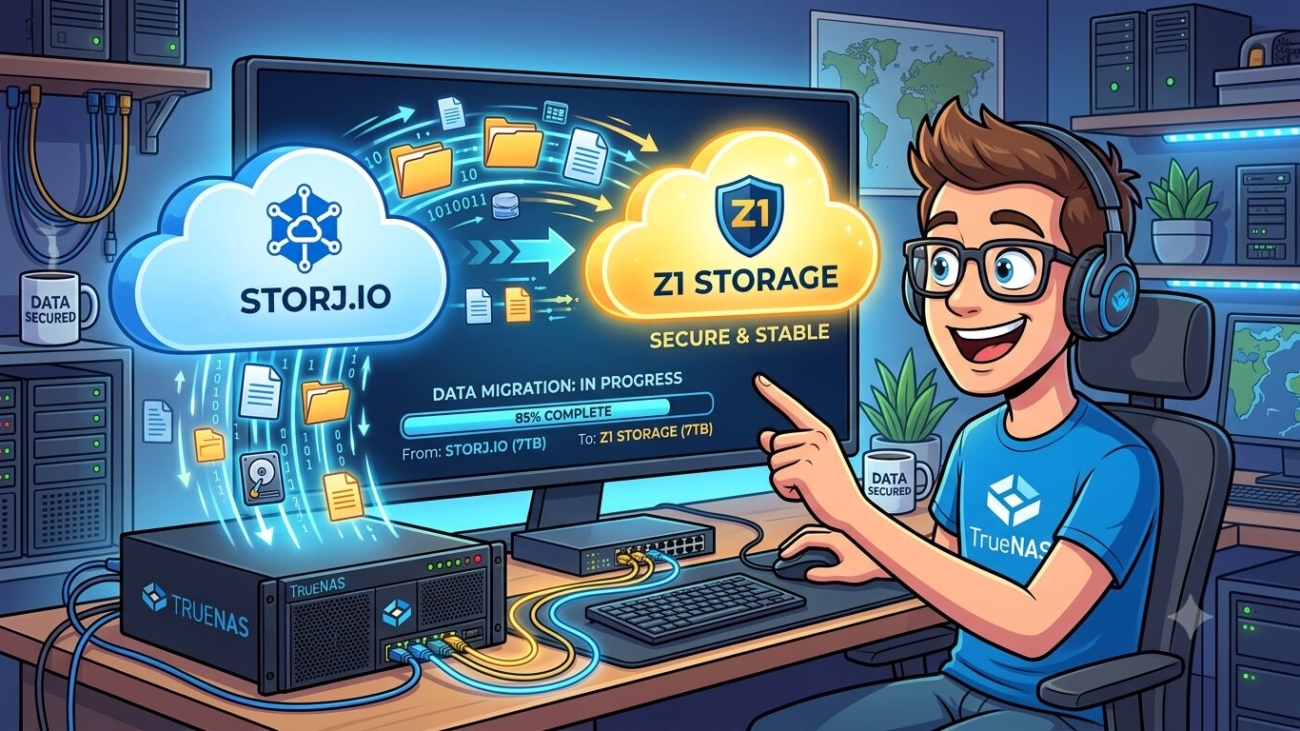
This post covers how I migrated my TrueNAS SCALE backup setup away from Storj to Z1 Storage, a South African S3-compatible object storage provider — and why it ended up being a better fit than the more commonly recommended Backblaze B2.


What Changed with Storj

Storj’s new pricing structure, effective 1 July 2026, introduces two tiers (Standard at $7/TB and Advanced at $10/TB) and eliminates the old segment fees. On paper that sounds reasonable — but the $50/month minimum is the dealbreaker for most homelab users. If your backup footprint is under 7TB, you’re paying more than your actual usage warrants, with no credit for the difference.

Accounts that don’t opt in before the deadline will be frozen and data deleted within 45 days, so this isn’t something you can ignore.


Why Not Backblaze B2?

Backblaze B2 is the most commonly recommended Storj alternative — no minimum fee, $6/TB/month, and free egress via the Cloudflare Bandwidth Alliance. For many users it’s the right choice.

However, Backblaze only operates datacenters in the US and EU. If you’re based in South Africa, you’re routing every backup upload across an international link. For small incremental backups that’s probably fine, but when a local alternative exists at a similar price point, it’s worth considering.


Enter Z1 Storage

Z1 Storage is a South African S3-compatible object storage provider with datacenters in Johannesburg and Cape Town. It’s priced at R0.30/GB per month (roughly R300/TB), includes free ingress, and egress equal to your stored data per month at no charge. There’s no minimum monthly fee.

It’s fully S3-compatible — meaning rclone, TrueNAS Cloud Sync tasks, BackWPup, and virtually any other S3-aware tool works with it out of the box. For a sub-1TB backup footprint you’re looking at well under R200/month, billed in Rands with no USD/ZAR exchange rate exposure.


The Migration: TrueNAS SCALE

My setup consisted of several TrueCloud Backup Tasks (Storj’s Restic-based integration) and one Cloud Sync task. The key thing to understand is that TrueCloud Backup Tasks are Storj-specific — you can’t simply swap the credential to Z1 Storage. They need to be replaced with standard Cloud Sync tasks.

Step 1: Add Z1 as a Cloud Credential

Go to Credentials → Backup Credentials → Cloud Credentials → Add and fill in:

  • Provider: Amazon S3
  • Endpoint URL: https://s3.z1storage.com
  • Access Key ID: your Z1 Storage access key
  • Secret Access Key: your Z1 Storage secret key
  • Region: leave blank, check Disable Endpoint Region

Click Verify Credential before saving. The endpoint needs the full https:// prefix — s3.z1storage.com alone or with :443 appended will throw a validation error.

Step 2: Disable Old TrueCloud Tasks

Toggle off all existing TrueCloud Backup Tasks in Data Protection. Don’t delete them yet — keep them until Z1 Storage is confirmed working.

Step 3: Create Your Buckets

I created a dedicated bucket in Z1 Storage for each dataset I was backing up, rather than using subfolders inside a single bucket. This keeps things clean and makes it easy to see per-dataset usage at a glance in the Z1 Storage console. For example:

  • personal-storage → one bucket
  • immich-library → one bucket
  • audiobookshelf → one bucket
  • Each WordPress site → its own bucket

It’s a personal preference — one bucket with subfolders works just as well technically — but separate buckets make storage reporting and cleanup much more straightforward.

Step 4: Create Cloud Sync Tasks

For each dataset, create a new Cloud Sync Task under Data Protection with:

  • Direction: PUSH
  • Transfer Mode: SYNC
  • Credential: Z1 Storage
  • Bucket: the dedicated bucket for that dataset
  • Folder: / (root of the bucket)

Under Advanced Options, set Transfers to High Bandwidth (16) and ensure Use –fast-list is ticked. This significantly improves throughput on datasets with large numbers of small files — particularly relevant for photo libraries.

Step 5: Run and Verify

Run each task manually first and verify in the Z1 Storage File Explorer that files are landing in the correct buckets. The initial upload will take longer than subsequent runs — after that, only new or changed files are transferred.

One gotcha: Z1 Storage occasionally returns a 502 Bad Gateway during the final cleanup phase of a sync, even after all files have transferred successfully. If this happens, simply rerun the task — it completes the verification pass quickly and exits cleanly.


WordPress Backups with BackWPup

For WordPress sites, BackWPup (free) supports S3-compatible storage natively. I created a dedicated Z1 Storage bucket per WordPress site, keeping each site’s backups completely isolated. In your job’s To: S3 Service tab, configure it as follows:

  • S3 Service: Custom
  • S3 Server URL: https://s3.z1storage.com
  • Region: us-east-1 (dummy value — Z1 Storage doesn’t require it but the field can’t be left blank)
  • Signature: v4
  • Access Key / Secret Key: your Z1 Storage credentials
  • S3 Bucket: the dedicated bucket for that WordPress site
  • Max backups to retain: 14–15

Hit Save & Test Connection and you’re done.


Cost Comparison

ProviderPriceMinimum FeeLocation
Storj$7/TB$50/monthGlobal
Backblaze B2$6/TBNoneUS / EU
Z1 StorageR0.30/GBNoneSouth Africa

For a ~500GB backup footprint, Z1 Storage works out to approximately R150/month — no surprises, no minimums, billed locally.


Final Thoughts

The Storj pricing change is a real problem for anyone running sub-7TB homelab backups. If you’re in South Africa, Z1 Storage is worth serious consideration — local latency, Rand-denominated billing, full S3 compatibility, and no minimum fee make it a compelling fit for exactly this use case.

The migration from TrueCloud to Cloud Sync tasks takes an hour or two, and the initial upload is the only slow part. Once that’s done, incremental daily backups are fast and cheap.

Gemini_Generated_Image_uyxy5suyxy5suyxy

Self-Hosting 2FAuth: Never Lose Your 2FA Codes Again

I recently went through the frustrating experience of switching phones and discovering that all my Google Authenticator codes had vanished. No backup, no export, just gone. If you’ve been through this, you know the panic. It sent me down a rabbit hole looking for a better solution — one that wouldn’t leave me stranded every time I changed devices.

The result is a self-hosted 2FA setup using 2FAuth, a lightweight open-source web app for managing two-factor authentication codes. Here’s how I set it up and why I think it’s the right approach for anyone running a homelab.

Why Not Just Use Google Authenticator?

Google Authenticator has improved over the years and does support Google account sync now, but it’s still a black box. You’re trusting Google with your 2FA secrets, the export/import story is clunky, and if something goes wrong during a phone switch you’re in trouble. I wanted something I owned and controlled.

My requirements were simple:

  • Open source
  • Self-hosted — my data, my server
  • Cloud sync so a broken phone doesn’t lock me out of everything
  • A proper mobile app that communicates via API, not just a browser wrapper
  • Offline support — codes should work even when away from home

2FAuth ticks every one of those boxes.

What Is 2FAuth?

2FAuth is a self-hosted web application for managing TOTP and HOTP two-factor authentication accounts. It stores your 2FA secrets on your own server in a SQLite database, provides a clean web UI, and exposes a REST API that third-party apps can use to sync and generate codes.

For Android there’s a companion app — 2FAuth for Android — that connects to your self-hosted instance via API token, caches all your accounts locally in an encrypted vault, and generates codes even when your server isn’t reachable. It’s not on the Play Store yet but is available as a sideloadable APK from the GitHub releases page.

The Stack

I run everything on a Proxmox homelab with a dedicated Docker LXC managed by Dockge. The 2FAuth setup is a single container with a SQLite database — no Postgres, no Redis, no extra services to manage.

Setting It Up

1. Create the stack directory

mkdir -p /opt/stacks/2fauth/data
chown -R 1000:1000 /opt/stacks/2fauth/data

The chown is important — the container runs as UID 1000 and needs write access to the data directory.

2. Compose file

In Dockge, create a new stack called 2fauth with the following:

services:
  2fauth:
    image: 2fauth/2fauth
    container_name: 2fauth
    restart: unless-stopped
    ports:
      - 8082:8000
    volumes:
      - ./data:/2fauth
    environment:
      - APP_NAME=2FAuth
      - APP_ENV=local
      - APP_DEBUG=false
      - [email protected]
      - APP_URL=https://2fa.yourdomain.com
      - APP_KEY=
      - DB_CONNECTION=sqlite
      - CACHE_DRIVER=file
      - SESSION_DRIVER=file
networks: {}

Leave APP_KEY blank on first deploy — 2FAuth generates one automatically. After first boot, grab the generated key and add it to your compose so it persists across container recreations:

docker exec 2fauth php artisan key:generate --show

Copy the output and set it as APP_KEY in your compose, then redeploy.

3. Reverse proxy

I use NPMPlus (nginx Proxy Manager Plus) with Cloudflare for SSL. Add a proxy host pointing 2fa.yourdomain.com at your Docker host on port 8082, enable SSL, done.

4. Create your account

Open https://2fa.yourdomain.com in a browser and click Register to create the first user account. Once registered, go to Settings → Administration and disable open registration so no one else can sign up.

5. Add SMTP for email notifications (optional)

2FAuth can send login notification emails. Add your SMTP details to the environment block:

- MAIL_MAILER=smtp
- MAIL_HOST=mail.yourdomain.com
- MAIL_PORT=587
- [email protected]
- MAIL_PASSWORD=yourpassword
- MAIL_ENCRYPTION=tls
- [email protected]
- MAIL_FROM_NAME=2FAuth

Setting Up the Android App

The 2FAuth for Android app isn’t on the Play Store yet, so you’ll need to sideload it:

  1. Download the latest APK from the GitHub releases page
  2. On your Android device, go to Settings → Apps → Special app access → Install unknown apps and allow your browser to install APKs
  3. Open the downloaded APK and install it

To connect the app to your server:

  1. In the 2FAuth web UI, go to Settings → Personal Access Tokens and generate a new token
  2. Open the Android app and add a new account/server
  3. Enter your server URL (https://2fa.yourdomain.com) and paste the API token

The app will sync all your 2FA accounts from the server, store them locally in an AES-256-GCM encrypted vault, and generate codes even when you’re not connected to your server. You can unlock the vault with a PIN or biometrics.

The Key Benefit: Phone Switches Are No Longer a Problem

This is the whole point. When you get a new phone:

  1. Install the APK
  2. Point it at your server
  3. Paste your API token
  4. Done — all your codes are back

Your 2FA secrets live on your server, not on any individual device. The devices are just clients.

A Note on Security

Putting your 2FA server on the internet does expose a login page. A few ways to harden this:

  • Cloudflare Access — put the domain behind Cloudflare Access so there’s an additional identity check before anyone reaches the 2FAuth login page. Free tier covers this.
  • Strong password + disable registration — at minimum, use a strong unique password and turn off open registration immediately after setup.
  • VPN only — don’t expose it publicly at all. The Android app works offline anyway, so you only need server connectivity when syncing new accounts.

Note that the Android app connects via API token, not through the web login page — so day-to-day use doesn’t touch the login page at all.

Final Thoughts

2FAuth is exactly what I was looking for — simple, self-hosted, open source, and genuinely useful. The Android app’s offline-first approach means I get the convenience of local code generation with the safety net of server-side backup. No more losing all my 2FA codes when I change phones.

If you’re running a homelab and rely on two-factor authentication, this setup is worth the hour it takes to get running.


2FAuth: github.com/Bubka/2FAuth
2FAuth for Android: github.com/ryosoftware/2fauth-for-android

874c482b-17cb-4c23-9011-9e94b379e367

Ditch the App Password: WordPress + Microsoft 365 Email Done Right

Background

I recently set up a WordPress site for a small business that uses Microsoft 365 for email. The obvious first attempt was to use WP Mail SMTP with basic SMTP auth — set the host to smtp.office365.com, port 587, STARTTLS, drop in an app password, and call it done. That didn’t work.

The SMTP debug log told the story clearly:

535 5.7.139 Authentication unsuccessful, user is locked by your organization's security defaults policy.

Microsoft 365 tenants have Security Defaults enabled by default, which blocks basic/legacy authentication — including SMTP AUTH with app passwords — across the whole tenant. Even after disabling Security Defaults and enabling per-mailbox SMTP AUTH, the propagation delay and Microsoft’s ongoing deprecation of basic auth makes this an unreliable path. OAuth 2.0 is the right solution.


What you’ll need

  • A WordPress site
  • A Microsoft 365 account with a licensed mailbox
  • An admin account on the Microsoft 365 tenant (Global Administrator role)
  • Access to the Microsoft Entra admin centre

In my case the business had a licensed user mailbox for day-to-day email and a shared mailbox for general enquiries (e.g. [email protected]). The goal was to send WordPress emails from the shared mailbox. More on how that works below.


Step 1 — Install FluentSMTP

FluentSMTP is a free, open-source WordPress plugin that supports Microsoft 365 OAuth 2.0 at no cost — unlike WP Mail SMTP and Post SMTP, which gate the Microsoft 365 OAuth option behind a paid plan.

Install it from the WordPress plugin directory:

  1. Go to Plugins → Add New
  2. Search for FluentSMTP
  3. Install and activate
  4. Go to Settings → FluentSMTP
  5. Select Microsoft as your email provider

Before doing anything else, copy the App Callback URL shown on the settings page — you’ll need it in the next step. Leave this tab open.


Step 2 — Register an app in Microsoft Entra

FluentSMTP authenticates via an Azure app registration. You need to create one in the Microsoft Entra admin centre.

  1. Go to entra.microsoft.com and sign in with your admin account
  2. Navigate to Identity → Applications → App registrations
  3. Click + New registration
  4. Fill in the form:
    • Name: anything descriptive, e.g. WordPress Mail
    • Supported account types: select “Accounts in any organizational directory (Any Azure AD directory – Multitenant) and personal Microsoft accounts” — this is required by FluentSMTP
    • Redirect URI: set the dropdown to Web and paste the App Callback URL from FluentSMTP
  5. Click Register
  6. On the overview page, copy the Application (client) ID

⚠️ Pitfall: wrong account type

If you select single-tenant instead of multitenant, the OAuth redirect will fail with AADSTS50194: Application is not configured as a multi-tenant application and the access token box in FluentSMTP will come back empty. If this happens, go to Authentication in your app registration and change the supported account types, then try again.


Step 3 — Create a client secret

  1. In your app registration, click Certificates & secrets in the left sidebar
  2. Click + New client secret
  3. Give it a description and set expiry to 24 months
  4. Click Add
  5. Copy the Value immediately — it is only shown once and will be masked on your next visit

⚠️ Pitfall: secret expiry

The client secret will expire after 24 months and WordPress emails will silently stop sending. Set a calendar reminder for around 22 months from now to come back and renew it under Certificates & secrets.


Step 4 — Add API permissions

The app needs explicit Microsoft Graph permissions to send mail.

  1. In your app registration, click API permissions
  2. Click + Add a permission → Microsoft Graph → Delegated permissions
  3. Search for and tick each of the following:
    • Mail.Send
    • Mail.Send.Shared (needed if sending from a shared mailbox)
    • offline_access (needed for token refresh)
  4. Click Add permissions
  5. Click Grant admin consent for [your organisation] and confirm

All permissions should show a green Granted status in the configured permissions list.


Step 5 — Configure FluentSMTP and authenticate

  1. Go back to Settings → FluentSMTP in WordPress
  2. Fill in:
    • Sender Name: your business name
    • Sender Email: the address emails should come from
    • Application Client ID: the Application ID from Step 2
    • Application Client Secret: the Value from Step 3
  3. Click Authenticate with Office 365 & Get Access Token

A Microsoft login popup will appear. A few important things here:

  • Sign in with an account that has Global Administrator rights on the tenant
  • On the consent screen, tick “Consent on behalf of your organization” before clicking Accept — if you skip this, other users on the tenant won’t be covered
  • Make sure you are doing this in the same browser profile that is logged into Entra — if WordPress is open in one profile and Entra in another, it will authenticate the wrong account

After accepting, you’ll be redirected back to a page showing your access token. Copy it, paste it into the Access Token field in FluentSMTP, and click Save Connection Settings.


A note on shared mailboxes

If you want WordPress to send from a shared mailbox (e.g. [email protected]) rather than a licensed user mailbox, this is fully supported — but the OAuth authentication still happens via a licensed user account. You cannot authenticate directly as a shared mailbox since it has no password or OAuth credentials of its own.

The correct approach is:

Microsoft 365 will honour the shared mailbox as the from address as long as the licensed user has Send As permissions on the shared mailbox. You can verify this in the Microsoft 365 admin centre under Teams & groups → Shared mailboxes → [your mailbox] → Send As permissions. This is also why you need Mail.Send.Shared in your API permissions.


Step 6 — Test it

  1. Go to the Email Test tab in FluentSMTP
  2. Set From to your sender address
  3. Set Send To to an address you can check
  4. Click Send Test Email

If it goes through, you’re done. FluentSMTP hooks into WordPress’s core wp_mail() function, which means every plugin that sends email through WordPress — WPForms, WooCommerce, comment notifications, password resets — will automatically use this setup without any additional configuration.


Troubleshooting summary

ErrorCauseFix
535 5.7.139 Authentication unsuccessful, user is locked by your organization's security defaults policySecurity Defaults enabled on tenantDisable Security Defaults in Entra under Identity → Overview → Properties
AADSTS50194 — empty access token boxApp registered as single-tenantChange supported account types to Multitenant in Authentication settings
Need admin approval screenUser account is not a Global AdminClick “Have an admin account?” and sign in with an admin account
Not Found on test emailMissing API permissionsAdd Mail.Send, Mail.Send.Shared, offline_access and grant admin consent
Forbidden on test emailWrong account authenticated or consent not granted for organisationRe-authenticate, ensure same browser profile, tick “Consent on behalf of your organization”

Once it’s working, WordPress email is one less thing to worry about. The OAuth token refreshes automatically via the offline_access permission — the only maintenance required is renewing the client secret every 24 months.

unnamed

Why Invoice Ninja Kept Logging Me Out — And How CrowdSec Was the Culprit

I set up Invoice Ninja for my business invoicing needs. After logging in, refreshing the page would immediately kick me back to the login screen. After a deep troubleshooting session, the culprit turned out to be a CrowdSec AppSec rule designed for Langflow AI — misfiring on Invoice Ninja’s /api/v1/refresh endpoint. Here’s exactly how I found it and fixed it

unnamed

Your Backups Need a Backup: Syncing PBS to Storj for Offsite Peace of Mind

A guide to implementing offsite homelab backups by syncing a local Proxmox Backup Server (PBS) directly to Storj’s decentralized S3-compatible cloud storage. Taking advantage of PBS’s native S3 support and Storj’s free egress, the author explains how to configure S3 endpoints with path-style access, create a remote datastore, and set up a pull-based sync job to automatically upload deduplicated and doubly-encrypted backups every night.

Gemini_Generated_Image_lqpvj0lqpvj0lqpv

Supercharge Your Photo Library: Hosting Immich on Proxmox LXC with TrueNAS & NVIDIA

A technical walkthrough on self-hosting the Immich photo library inside a lightweight, unprivileged Proxmox LXC container. It covers securely mapping a TrueNAS NFS share to bypass unprivileged LXC permission errors, passing through an NVIDIA GPU (GTX 1080ti) to the container, and using Dockge for deployment. The result is a highly secure, hardware-accelerated photo backup system with blazing-fast video transcoding and AI facial recognition.

Gemini_Generated_Image_bta7q3bta7q3bta7

From Wasted Space to Unified Storage

How to repurpose an underutilized bare-metal backup machine into a TrueNAS Scale NAS to create unified, shared storage. To keep backup capabilities without virtualization overhead, Proxmox Backup Server (PBS) is hosted natively on top of TrueNAS inside a lightweight Debian 12 container. The guide explains dataset mapping, bridge networking, and installation steps to create a highly efficient, low-resource backup and storage solution.

In the homelab world, it’s easy to fall into the trap of over-provisioning hardware for a single task. Until recently, I had a dedicated bare-metal machine running Proxmox Backup Server (PBS). It had 2TB of usable storage, but my actual Proxmox VE backups only totaled around 350GB.

Leaving all that unused space locked strictly to backups felt like a massive waste. At the same time, I didn’t have a dedicated NAS appliance on my network. I really needed a centralized place for shared storage—dropping family photos, storing videos, and keeping all my Batocera save files synced up.

The solution? Nuke the bare-metal PBS installation, turn the hardware into a TrueNAS Scale appliance, and run Proxmox Backup Server on top of TrueNAS inside a lightweight Linux container. Here is a detailed look at how I pulled it off.

Screenshot_20260216_022334

Converting an Old NTFS Drive to ext4 on Arch Linux (The “Nuke and Pave” Method)

A practical, step-by-step guide on wiping a Windows NTFS hard drive and preparing it for native Arch Linux use. The post walks you through using cfdisk to recreate the partition table, forcing a format with mkfs.ext4 to overwrite stubborn NTFS signatures, configuring auto-mounting via /etc/fstab, and resolving the common ext4 root-ownership permission block so that the drive is fully usable by your user account

unnamed

Switching from Windows 11 to CachyOS Linux

After growing tired of Microsoft’s aggressive pop-ups and forced features, the author shares their experience migrating their primary AMD gaming rig (Ryzen 7 7700X, Radeon 7900 GRE) from Windows 11 to CachyOS, an Arch-based Linux distribution known for speed and performance. The post details the smooth gaming experience (easily hitting 165 FPS in EVE Online out of the box), adapting to KDE Plasma and package managers like Flatpak, and a clever workaround using a Proxmox-hosted Windows 10 VM via Remmina for their daily work needs. Ultimately, the author highly recommends the switch for enthusiasts looking to take back control of their hardware.