Gemini_Generated_Image_4kzcl04kzcl04kzc

When MikroTik Cloud DDNS Breaks: Moving WireGuard to Cloudflare DDNS

I rebooted my home MikroTik router, and both of my site-to-site WireGuard tunnels went quiet. Both remote sites (two small family-run locations I look after) dial into my home router, and neither would reconnect. This post covers how I tracked it down, why MikroTik’s built-in Cloud DDNS let me down, and how I replaced it with a Cloudflare DDNS updater running in Docker, plus a small RouterOS script so the tunnels heal themselves next time.

The setup

  • Home router: MikroTik on RouterOS 7.20, PPPoE WAN with a dynamic public IP.
  • Two remote sites, each with a MikroTik running a WireGuard peer that points back to my home router.
  • The remote peers found my home router using MikroTik’s free *.sn.mynetname.net Cloud DDNS hostname.

The home router only listens. The remote sites always initiate the connection, so if they can’t find my current IP, nothing works.

Step 1: Both sites down means look at your own end

When two independent sites drop at the same moment, the common factor is the home router. The most likely cause after a reboot is a WAN IP change: PPPoE reconnects, the ISP hands out a new address, and the remote peers keep sending to the old one.

A quick comparison confirmed it. The DDNS hostname still resolved to my old IP, while a “what’s my IP” site showed a different one:

nslookup yourname.sn.mynetname.net 1.1.1.1
# Returned the OLD address, not the current one

In Winbox under IP → Cloud, the Public Address field was blank and the status was stuck on updating....

Step 2: Fix the clock first

The reboot was caused by a power outage, and the router’s clock was wrong when it came back up. The NTP client was disabled with no servers configured, so nothing was correcting it. A badly wrong clock can break the router’s cloud services, so this had to be fixed before anything else.

  1. Go to System → NTP Client and tick Enabled.
  2. Add servers, e.g. time.cloudflare.com and za.pool.ntp.org (use your local pool).
  3. Apply and wait for the status to change to synchronized.
  4. Check System → Clock has the correct time zone.

NTP syncing also proved that DNS and outbound UDP from the router itself were working, which narrowed the problem down further.

Step 3: Confirm it’s MikroTik’s side, not yours

With the clock fixed, Force Update still did nothing. Toggling DDNS to auto and back to yes didn’t help either. To see whether the update traffic was actually getting out, I used Tools → Torch on the PPPoE interface, filtered on port 15252 (the port MikroTik Cloud uses), and hit Force Update.

Torch showed traffic between my router and MikroTik’s cloud server, so the packets were reaching them and coming back. The router was doing its job; MikroTik’s backend just wasn’t publishing the new address. The MikroTik forums have plenty of threads describing this exact symptom over the years. Sometimes it clears up on its own; sometimes it doesn’t. Either way, it’s not something you can fix from your end.

Tip: the Winbox Ping tool only accepts IP addresses. To test name resolution from the router, use the terminal:

:put [:resolve cloud2.mikrotik.com]
/ping cloud2.mikrotik.com count=3

Step 4: Replace it with Cloudflare DDNS

My domains are already on Cloudflare, so the cleaner fix was to run my own DDNS updater and stop depending on a service I can’t troubleshoot. I used favonia/cloudflare-ddns, a small, well-maintained container.

Create a scoped API token

  1. In the Cloudflare dashboard, go to My Profile → API Tokens → Create Token.
  2. Use the Edit zone DNS template. The only permission needed is Zone → DNS → Edit.
  3. Under Zone Resources, limit it to the one zone you’re using.
  4. Copy the token and store it in your password manager. Cloudflare only shows it once.

Add it to your Docker stack

I already run cloudflared for a Cloudflare Tunnel on my entry host, so I added the DDNS updater to the same Compose stack (managed in Dockge). The only downside is that redeploying the stack restarts both containers; if that bothers you, give it its own stack.

services:
  cloudflared:
    image: cloudflare/cloudflared:latest
    container_name: cloudflared
    restart: unless-stopped
    command: tunnel --no-autoupdate run
    network_mode: host
    environment:
      - TUNNEL_TOKEN=${TUNNEL_TOKEN}

  cloudflare-ddns:
    image: favonia/cloudflare-ddns:latest
    container_name: cloudflare-ddns
    restart: unless-stopped
    network_mode: host
    user: "1000:1000"
    read_only: true
    cap_drop: [all]
    security_opt: [no-new-privileges:true]
    environment:
      - CLOUDFLARE_API_TOKEN=${CLOUDFLARE_API_TOKEN}
      - DOMAINS=yourrandomname.example.com
      - PROXIED=false
      - IP6_PROVIDER=none
      - UPDATE_CRON=@every 5m
      - TZ=Africa/Johannesburg
networks: {}

Put the token in the stack’s .env file rather than in the Compose file:

CLOUDFLARE_API_TOKEN=your_token_here

A few things worth knowing:

  • PROXIED=false is essential. WireGuard is UDP and won’t work through Cloudflare’s orange-cloud proxy. The record must be DNS only (grey cloud).
  • The container detects your public IP via Cloudflare’s own trace endpoint, so the host must reach the internet through your normal WAN, not through a VPN or exit node.
  • Check the container logs after deploying. You should see it detect your IP and create the A record.

Doesn’t this publish my IP?

Yes, but so did the MikroTik DDNS name, and internet-wide scanners will find your IP regardless. What a DNS record adds is a link between your IP and your domain, and a name that can be guessed. Two easy mitigations:

  • Don’t call it home or vpn. Those are the first names subdomain enumeration tools try. Pick something silly and made up. Since you won’t issue a TLS certificate for it, it won’t show up in Certificate Transparency logs either.
  • WireGuard doesn’t reveal itself. It silently drops any packet not signed by a known peer key, so a port scan can’t tell it’s even there.

The real protection is a tight input firewall on your WAN, not hiding your IP. More on that below.

Step 5: Point the remote peers at the new name

On each remote MikroTik, in Winbox:

  1. Go to WireGuard → Peers and open the peer that points back home.
  2. Change Endpoint to your new Cloudflare hostname. Leave the port as it is.
  3. Make sure Persistent Keepalive is set (e.g. 25s). The remote side has to keep the tunnel alive, because the home router can’t initiate to it.
  4. Apply, then disable and re-enable the peer so it resolves the new name.

Last Handshake should show a recent time within seconds. Nothing changes on the home router.

One catch: if the tunnels are already down, you need another way into the remote routers to make this change, such as a remote support tool on a PC at the site. Lesson learned: always have a second way in that doesn’t depend on the VPN you’re trying to fix.

Step 6: Make the tunnels heal themselves

Even with DNS correct, a RouterOS WireGuard peer can hold onto the IP it resolved earlier. This script checks the peer’s last handshake and, if it’s stale, disables and re-enables the peer to force a fresh DNS lookup. It finds the peer by endpoint name, so nothing else needs labelling.

:local endpoint "yourrandomname.example.com"
:local maxAge 00:05:00

:foreach p in=[/interface wireguard peers find where endpoint-address=$endpoint] do={
    :local hs [/interface wireguard peers get $p last-handshake]
    :if (([:typeof $hs] != "time") || ($hs > $maxAge)) do={
        /interface wireguard peers disable $p
        :delay 2s
        /interface wireguard peers enable $p
        :log warning "WireGuard: handshake stale, re-resolved $endpoint"
    }
}

Set it up on each remote router:

  1. Go to System → Scripts → New. Name it wg-reresolve, tick the read, write and test policies, and paste the script.
  2. Go to System → Scheduler → New. Name it wg-reresolve, set Interval to 00:05:00, On Event to wg-reresolve, and use the same three policies.
  3. To test it, temporarily set maxAge to 00:00:01, run the script, and check the warning appears in the Log and the tunnel comes straight back. Then set it back to 00:05:00.

With a 25s keepalive, a healthy tunnel handshakes roughly every two minutes, so a five-minute threshold won’t trigger falsely. After an IP change, the sites reconnect by themselves within about ten minutes.

Step 7: Turn off MikroTik Cloud DDNS

With nothing depending on it anymore, disable it on the home router. In IP → Cloud, set DDNS Enabled to auto (only active when Back To Home needs it) and untick Update Time, since NTP handles the clock now. Or from the terminal:

/ip cloud set ddns-enabled=no update-time=no

Bonus: Check your logs while you’re in there

While troubleshooting, I opened the router’s log and found millions of hidden entries, almost all of them failed FTP login attempts from random internet IPs. If you see the same thing, a service is reachable from the WAN that shouldn’t be.

  • In IP → Services, disable everything you don’t use (ftp, telnet, www, api).
  • Restrict winbox and ssh with Available From to your LAN and VPN subnets.
  • Make sure your input chain on the WAN interface ends in a drop, allowing only established/related traffic, your WireGuard port, and ICMP.

Takeaways

  • If several sites drop at once, start with the hub.
  • Enable NTP on every MikroTik. Routers without a battery-backed clock come back from a power cut with the wrong time.
  • Don’t rely on a DDNS service you can’t see into. If your domain is on Cloudflare, running your own updater takes five minutes.
  • Make remote peers re-resolve on their own, and always keep a second way into remote sites.
Gemini_Generated_Image_m8w50cm8w50cm8w5

One Night, 63,000 Spam Accounts, and Closing My Homelab’s Front Door

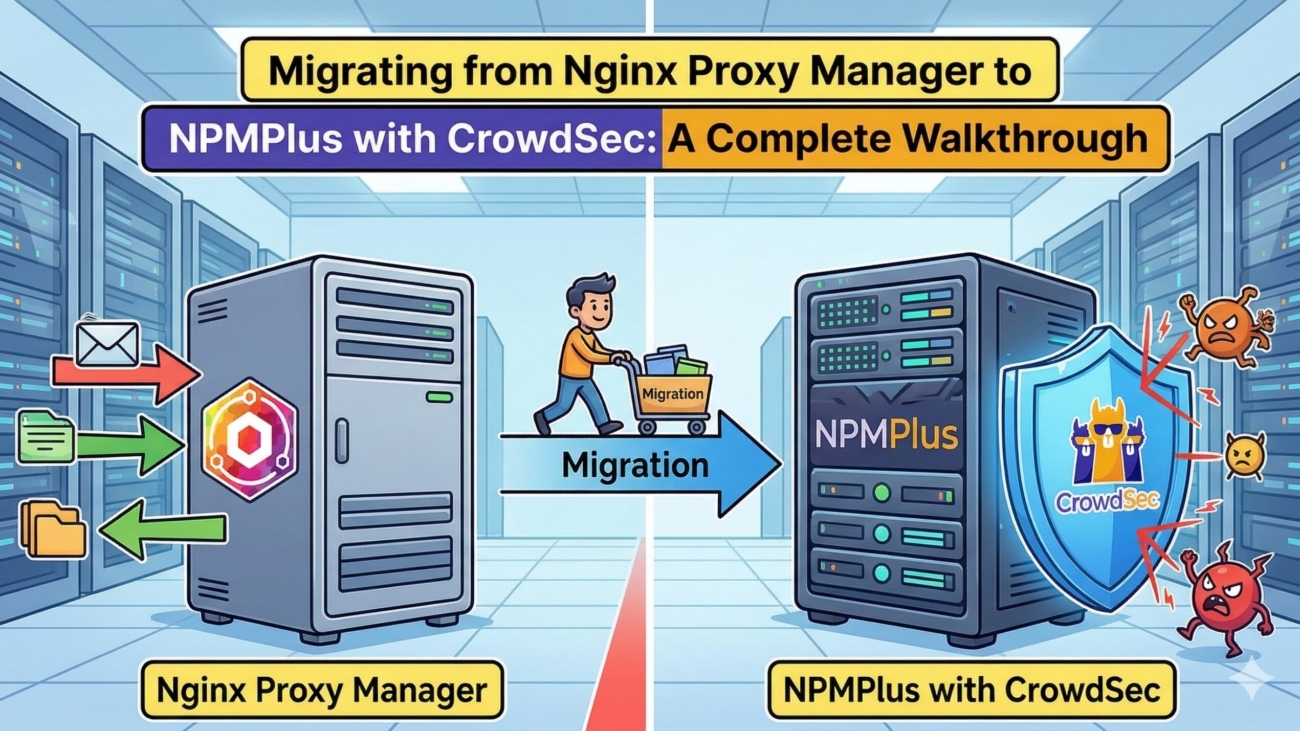
What started as “let’s move two Docker stacks to a new LXC” turned into one long night of finding (and fixing) things I really should have spotted sooner. By the end of it I had a spam-free Git server, a WAF that could actually see who was attacking it, Zero Trust gates in front of my admin tools, and no open web ports on my home connection at all.

This post walks through the whole thing in roughly the order it happened, including the mistakes. If you run a similar self-hosted setup, there’s a decent chance at least one of these applies to you too.

The starting point

My homelab runs on a single Proxmox node with several Debian LXCs, each running Docker with Dockge managing the stacks under /opt/stacks. TrueNAS SCALE handles storage. Public traffic worked like this:

  • DNS on Cloudflare, every hostname orange-clouded (proxied), pointing at a DDNS name for my home IP
  • Ports 80 and 443 forwarded on my MikroTik to NPMplus (ZoeyVid’s Nginx Proxy Manager fork) with CrowdSec and its AppSec WAF
  • A small Cloudflare Tunnel publishing a handful of admin panels, protected by Cloudflare Access

It worked. It just wasn’t as tight as I thought it was.

Part 1: One job per LXC

Over time, services had landed wherever there was room. I finally gave each LXC a clear role:

HostRoleExamples
sabreEntry / edgeNPMplus, CrowdSec, cloudflared
proteusCore opsUptime Kuma, Beszel, ntfy, Vaultwarden
archonBusiness toolsTicketing, invoicing, Guacamole
talosPersonal toolsMealie, Stirling PDF, Navidrome
gnosisAI / GPUOllama, Open WebUI, Immich
revelationPublic websitesWordPress sites

One deliberate choice: the password vault does not live on the edge host. If anything on the internet-facing box ever gets popped, I don’t want my secrets sitting next to it.

Moving a stack without breaking permissions

Database containers (Postgres, MariaDB) own their data folders as UIDs like 999, not root. Copy a stack folder with a plain cp -r or through a file manager and those owners get reset, and the database won’t start. The fix is to tar it with numeric owners preserved, and use pct on the Proxmox host to move the archive between containers, so no SSH is needed anywhere:

# On the source LXC (stack stopped first)
cd /opt/stacks && tar --numeric-owner -cpzf STACK.tar.gz STACK

# On the Proxmox host
pct pull SOURCE-ID /opt/stacks/STACK.tar.gz /var/tmp/STACK.tar.gz
pct push TARGET-ID /var/tmp/STACK.tar.gz /opt/stacks/STACK.tar.gz

# On the target LXC
cd /opt/stacks && tar --numeric-owner -xpzf STACK.tar.gz

Mount points moved too. Bind mounts from the Proxmox host (my NFS music library, for example) are just pct set <id> -mp0 ... on the new container and pct set <id> -delete mp0 on the old one.

The gotcha: IP-based allow rules

Guacamole moved fine and came up instantly, but couldn’t reach any machines across a site-to-site WireGuard link. The old host could. The new host couldn’t even ping the remote router.

The cause was three separate places on the remote MikroTik that had been written for the old host’s IP: the WireGuard peer’s allowed addresses, a forward firewall rule using a /31, and a static route back through the tunnel also using a /31. A /31 is exactly two addresses, so the new host fell just outside it. Worth knowing: RouterOS does not create routes from WireGuard allowed addresses. Routing is a separate, manual step.

Lesson: when you move a service to a new IP, grep every firewall rule, route and VPN peer for the old address before you start.

Part 2: My WAF couldn’t see anyone

While planning the rest of the work, I checked NPMplus’s access log:

tail -n 15 /opt/stacks/npmplus/npmplus-data/nginx/logs/access.log

Every single client IP was a Cloudflare address. Because all my traffic is proxied through Cloudflare, NPMplus needs to be told to trust Cloudflare and read the real visitor IP from the forwarded headers. NPMplus has an environment variable for exactly this, TRUST_CLOUDFLARE=true, and I had set it… under the crowdsec service in my compose file instead of npmplus.

That meant CrowdSec was seeing a few hundred Cloudflare edge servers instead of real attackers. Best case, it couldn’t ban anyone useful. Worst case, it could have banned Cloudflare itself and taken down random visitors. Moving one line and redeploying fixed it, and the next log check showed real IPs.

services:
  npmplus:
    environment:
      - TZ=Africa/Johannesburg
      - LOGROTATE=true
      - TRUST_CLOUDFLARE=true   # belongs HERE, not under crowdsec

Lesson: if you run a WAF behind a proxy, look at your access log once and check that the IPs are real visitors.

Part 3: 63,021 spam accounts on my Git server

Those now-correct logs immediately showed something ugly. My Forgejo instance was full of bots loading /user/sign_up, editing account settings, and crawling repos with names advertising casinos and pharmaceuticals. I’d seen spam signups before, but hadn’t realised registration was still open.

A count from the Forgejo CLI said it all:

docker exec <forgejo-container> forgejo admin user list \
  --config /var/lib/gitea/custom/conf/app.ini | wc -l
# 63023  (header line + me + 63,021 spammers)

My server was hosting SEO spam for strangers.

Step 1: Stop the bleeding

Forgejo reads settings from environment variables in the format FORGEJO__section__KEY. On the TrueNAS app, I added two under Additional Environment Variables:

FORGEJO__service__DISABLE_REGISTRATION=true
FORGEJO__service__REQUIRE_SIGNIN_VIEW=true

The first stops new accounts. The second hides everything from anonymous visitors, which instantly took every spam page offline. My own pushes and pulls use tokens, so they weren’t affected.

Step 2: Rebuild instead of purge

Deleting 63,000 accounts one CLI call at a time would have taken over a day. I only had five real repos and one wiki, so a clean rebuild was faster and guaranteed a clean database. It also got me onto the latest Forgejo version without walking through a pile of upgrade steps.

First, mirror everything out. A wiki in Forgejo is just another Git repo, <repo>.wiki.git, so it comes along too:

mkdir -p ~/forgejo-migration && cd ~/forgejo-migration
read -s TOKEN   # paste a read-only token, nothing echoes

for r in repo-one repo-two repo-three; do
  git -c http.extraHeader="Authorization: token $TOKEN" \
    clone --mirror "http://forgejo.lan:6012/USER/$r.git"
done
git -c http.extraHeader="Authorization: token $TOKEN" \
  clone --mirror "http://forgejo.lan:6012/USER/repo-one.wiki.git"

Then verify the mirrors before deleting anything:

for d in *.git; do
  echo "== $d"
  git -C "$d" fsck --no-progress 2>&1 | tail -n 2
  echo "refs: $(git -C "$d" for-each-ref | wc -l)"
  git -C "$d" log --all -1 --format='latest: %h %ci %s'
done

Once every repo matched what the web UI showed, I deleted the app and its datasets and reinstalled Forgejo fresh, with both lockdown variables set from the very first boot. Then I created empty repos (no README, no “initialize repository”) and pushed everything back:

git -C "repo-one.git" -c http.extraHeader="Authorization: token $TOKEN" \
  push --mirror "http://forgejo.lan:6012/USER/repo-one.git"

One quirk: Forgejo refuses a push to a wiki that hasn’t been started yet. Create a placeholder first page in the web UI, then push --mirror overwrites it with the real wiki and its full history.

Two small things that caught me out along the way:

  • On a TrueNAS app, docker exec -u git fails because the app runs as UID 568. Just leave off -u and pass --config.
  • If your Linux shell is fish (CachyOS’s default), bash snippets like read -rs won’t work. Type bash first.
  • Deleting a dataset in TrueNAS deletes its snapshots too. Your verified mirrors become your only copy, so back those up somewhere else before you go further.

Lesson: if you self-host Forgejo or Gitea for yourself, disable registration on day one.

Part 4: Auditing what’s actually exposed

With that fright fresh, I went through every Cloudflare Tunnel route and compared it against my Access applications. Two findings:

  • One route had no Access application at all. It was a leftover RDP route to a remote machine, open to anyone who found the hostname. I’d replaced it with Guacamole long ago and forgotten to remove it. Deleted.
  • The device enrollment policy was far too broad. My admin panels require a WARP-enrolled device, but enrollment itself allowed “any email ending in” several domains, including ones where other people have mailboxes. Anyone covered could have enrolled a phone and passed the check. It’s now restricted to my own email address only.

In the newer Cloudflare One dashboard, enrollment permissions live under Team & Resources → Devices → Device profiles → Management → Device enrollment permissions. Every Include rule is an OR, so one broad line opens the whole thing.

Three lanes

To make decisions simpler, I sorted every hostname into one of three lanes:

LaneWho uses itProtection
1. PublicVisitors, family, apps with native clientsThe app’s own login, plus CrowdSec
2. GatedJust me, in a browserCloudflare Access with an email one-time code
3. AdminJust me, on my own devicesCloudflare Access requiring a WARP-enrolled device

Lane 1 exists because native apps (Home Assistant, Bitwarden, Immich, ntfy) can’t complete Cloudflare’s browser login. For those, the app’s own authentication plus a WAF is the realistic option.

Gating n8n without breaking webhooks

n8n was the interesting Lane 2 case: I want the editor behind a login, but external services need to hit its webhooks unauthenticated. Cloudflare Access applies the most specific matching application, so the answer is two apps:

  • n8n.example.com/api with a Bypass – Everyone policy, for my webhook path
  • n8n.example.com with my email policy, for everything else

Create the bypass app first, so webhooks never break. If you use n8n Forms or Wait nodes later, their paths (/form, /webhook-waiting) need bypass entries too.

A second lock on Guacamole

Guacamole holds the keys to remote machines, so it got TOTP on top of Access. The official 1.6.0 image has it built in, and it’s two environment variables on the guacamole service:

      TOTP_ENABLED: "true"
      TOTP_ISSUER: My Guacamole

The next login shows a QR code to enroll. Two tips: keep a logged-in session open in another tab while you test, and store the TOTP seed somewhere other than the vault holding the Guacamole password.

Part 5: Closing the front door

Here’s the uncomfortable truth about “orange cloud plus port forward”: Cloudflare only hides your IP from DNS lookups. Ports 80 and 443 still accept connections from anyone. Scanners find home IPs quickly, and once someone connects directly with the right Host header, they skip Cloudflare’s WAF and every Access policy you’ve set up.

There are two fixes. You can lock the port forward to Cloudflare’s published IP ranges, or you can stop forwarding ports altogether and bring everything in through a Cloudflare Tunnel. I went with the tunnel: no listening ports at all, and no dependency on DDNS or a stable public IP.

Why keep NPMplus behind the tunnel?

Worth flagging: the NPMplus README itself advises against putting Cloudflare’s proxy or tunnel in front of it, for reasons like Cloudflare decrypting traffic, overriding headers, and its 100 MB upload limit. Every one of those already applied to me, because I was orange-clouded. The tunnel only changes how Cloudflare reaches NPMplus, not whether it sits in the middle.

I chose tunnel → NPMplus → services rather than pointing the tunnel straight at each app, because NPMplus still earns its place:

  • CrowdSec AppSec inspects every request.
  • One place for routing. Each tunnel route is identical, and NPMplus does the real work.
  • HTTPS at home. DNS rewrites in AdGuard Home point my hostnames straight at NPMplus on the LAN, with valid certificates and no trip out to Cloudflare. This also sidesteps the 100 MB limit for Immich uploads at home.

A new tunnel

Rather than reconfigure the existing tunnel in place, I built the migration on a brand-new one. The old tunnel kept serving the admin panels untouched while I moved and tested everything else, so nothing went down along the way. Once it was empty, I deleted it. The new connector keeps its token in Dockge’s .env file instead of in the compose file:

services:
  cloudflared:
    image: cloudflare/cloudflared:latest
    container_name: cloudflared
    restart: unless-stopped
    command: tunnel --no-autoupdate run
    network_mode: host
    environment:
      - TUNNEL_TOKEN=${TUNNEL_TOKEN}

network_mode: host lets the tunnel reach NPMplus on 127.0.0.1:443 and the LAN admin devices directly. Running the old and new connectors side by side meant nothing broke while I moved things over.

The route settings that matter

Every public hostname gets the same route:

SettingValueWhy
ServiceHTTPS 127.0.0.1:443Pointing at NPMplus on port 80 causes a redirect loop when Force SSL is on
Origin Server NameThe full hostnameThe tunnel verifies NPMplus’s certificate against this name
Match SNI to HostOnNPMplus knows which site, and which certificate, the request is for
No TLS VerifyOffKeep verification on, since the Let’s Encrypt certificates are valid

Real visitor IPs through the tunnel

I expected to need custom nginx config here, but didn’t. NPMplus ships with real_ip_header X-Forwarded-For, real_ip_recursive on, and trusts the private ranges including 127.0.0.0/8. Cloudflare puts the visitor’s IP into X-Forwarded-For, so nginx walks past the trusted local hop and lands on the real visitor. One test hostname and a grep of the access log confirmed it before I moved anything else.

Migrating, one hostname at a time

For each hostname: delete its old CNAME (Cloudflare won’t let the tunnel create a record while one exists), add the tunnel route, then test from my phone on mobile data. About 25 hostnames later, everything was on the tunnel, with roughly a minute of downtime each.

Some practical notes:

  • Test from outside your network. Split DNS at home means home testing never touches Cloudflare. And if your mobile carrier caches the old “doesn’t exist” answer, setting Android’s Private DNS to one.one.one.one gets around it.
  • Bare domain and www need one route each.
  • Access apps follow the hostname, not the path traffic takes to reach it, so existing gates kept working through the move.

Admin panels

Proxmox, Proxmox Backup Server and TrueNAS now also go through NPMplus. That means CrowdSec inspects them and I get valid certificates at home. They stay behind the WARP-only Access policy, and I moved them onto my business domain while I was at it. The Proxmox console works through NPMplus because it handles websockets automatically.

The one exception is the NPMplus admin page itself. It goes straight from the tunnel to port 81, not through NPMplus’s proxying, because if NPMplus ever breaks I still need a way in to fix it.

To keep these hostnames protected throughout, I added each new name to its Access application before creating its route. A hostname should never exist publicly, even for a minute, without its gate.

Closing the ports

With every public record moved to the tunnel, I searched each DNS zone for the old DDNS name, found nothing left, then disabled (not deleted) the 80/443 dst-nat rules on the MikroTik. Disabling is a one-click rollback if something breaks.

Two final tests: the sites all still loaded from mobile data, and hitting my home IP directly on 80 or 443 now just times out.

One thing I deliberately kept: MikroTik’s DDNS. Nothing web-facing uses it anymore, but a site-to-site WireGuard peer still connects to that name.


Lessons learned

  • Read your proxy’s access log once in a while. If every client IP is Cloudflare, your WAF is blind.
  • Self-hosted Git should have registration disabled from day one.
  • Orange-clouding hides your IP. It doesn’t close your ports.
  • Audit Access against your routes. Leftover routes are where the holes hide.
  • Every Include rule in a Zero Trust policy is an OR. Keep them narrow.
  • Moving a service? Grep for its old IP in firewall rules, routes and VPN peers first.
  • Keep secrets out of compose files. Put tokens in a .env file so they don’t end up in shared configs or screenshots.
  • Verify backups before deleting anything, and keep an off-box copy.

What’s next

Next up is moving from Dockge to Dockhand for centralised stack management across all the LXCs. The compose files are already reviewed. The main job is converting relative ./ bind mounts to absolute paths, since Dockhand’s remote agent keeps compose files in its own folder. That’ll be its own post.

Gemini_Generated_Image_xpiph5xpiph5xpip

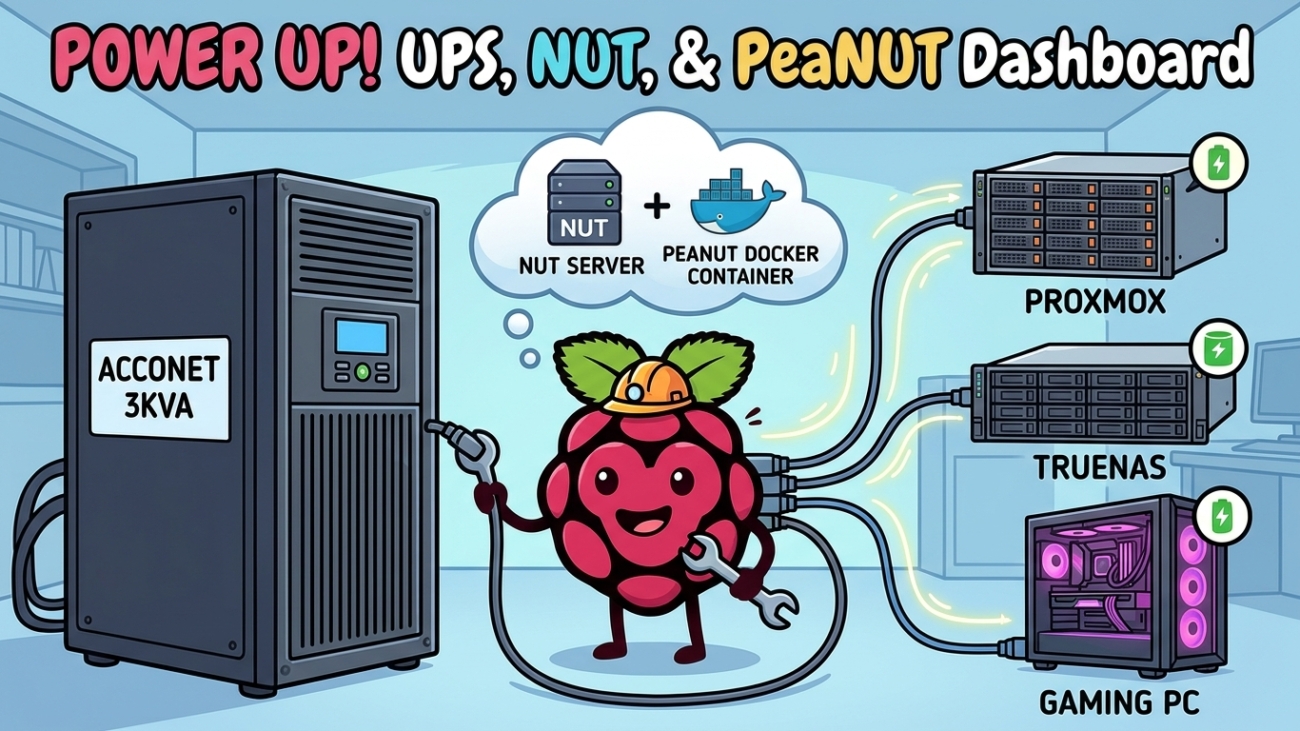
Building a Raspberry Pi NUT Server for an Online Rack UPS (Proxmox, TrueNAS & Linux Clients)

I finally bought a proper UPS for the homelab: an Acconet 3kVA/2700W online double-conversion rack UPS (AC-UPS-O3000-R) from Miro. A UPS on its own only buys you time, though. What I actually wanted was for every machine in the rack to shut down cleanly when the battery runs low, and then come back up by itself when the power returns.

This post covers the whole process: rack-mounting the UPS, building a dedicated NUT (Network UPS Tools) server on a Raspberry Pi 3B, adding a web dashboard with PeaNUT, and connecting Proxmox, TrueNAS SCALE and a CachyOS desktop as clients. I also cover the problems I hit along the way, because this UPS needed a bit of coaxing.

What we’re building

  • The UPS connects to a Raspberry Pi 3B over USB. The Pi runs the NUT server and is the only machine that talks to the UPS directly.
  • The clients (Proxmox, TrueNAS and my CachyOS PC) watch the Pi over the network.
  • When the battery drops below 40% while on battery power, the Pi tells every client to shut down, then shuts itself down. The UPS then cuts its outputs.
  • When mains power returns, the UPS turns its outputs back on and everything boots by itself.
  • PeaNUT runs on the Pi as a web dashboard for monitoring.

Why a separate Pi instead of running NUT on the Proxmox host? The NUT server should be the last thing to go down. A Pi draws very little power, boots on its own the moment it gets power, and doesn’t depend on any VM or container being up.

Part 1: Rack-mounting the UPS

The rail kit (AC-UPS-RMKIT) confused me for a while, so here’s the short version. Each rail is an L-shaped shelf that adjusts in length. At every post, front and back, the stack from the outside in is:

3-hole flat strip → rack post → rail flange (threaded holes)

The screws go through the strip and through the square hole in the post, then thread into the rail flange. That clamps the post between the strip and the flange, so the rail is held firmly rather than hanging off the screws. The UPS then slides in and rests on the rails’ lips.

The supplied cage nuts are for the UPS’s own rack ears, which screw into the front posts wherever there isn’t a threaded rail hole behind them. The ears just stop the UPS from sliding out; the rails carry the weight. Use every screw hole, and get a second person to help lift the UPS in, because it weighs about 26 kg.

One more tip: the large “High Current Output” socket on the back is an IEC C19 (16 A) outlet. It’s on the same protected output as the other sockets and shares the same 2700 W total. You’ll need a lead with a C20 plug, such as a C20-to-multi-plug strip or a PDU, to use it.

Part 2: Flashing Raspberry Pi OS

I flashed the SD card from my CachyOS desktop using Raspberry Pi Imager. Install it with either of these:

sudo pacman -S rpi-imager
# or, as a Flatpak:
flatpak install flathub org.raspberrypi.rpi-imager

The app menu lists it as “Raspberry Pi Imager”, so search for “Raspberry” rather than “rpi”. On Windows, download the installer from raspberrypi.com/software instead.

Pick Raspberry Pi 3 as the device.

For the OS, go to Raspberry Pi OS (other) and choose Raspberry Pi OS Lite (64-bit). You don’t need a desktop on a headless NUT server.

Select your SD card, checking its size so you know it’s the right one. Leave Exclude system drives ticked so you can’t pick the wrong disk.

OS customisation

Imager lets you preconfigure everything, so the Pi is reachable over SSH on first boot without ever connecting a screen. I used these settings:

  • Hostname: nut
  • Localisation: your time zone and keyboard layout
  • User: your username and password
  • Wi-Fi: skipped, because this box is on Ethernet
  • SSH: enabled with password authentication. Public-key authentication is more secure if you prefer it, but a password is fine on a LAN-only box.

On Linux, Imager asks for your password through a polkit prompt before it writes to the card. Approve it, wait for the write to finish, and remove the card.

Part 3: First boot and updates

Put the card in the Pi, plug the Pi’s power supply into a UPS output, and connect Ethernet and the UPS’s USB cable. Find the Pi’s IP in your router’s DHCP list and set a DHCP reservation for it there, so the address never changes.

ssh <user>@<pi-ip>

Update everything and turn on automatic security updates:

sudo apt update && sudo apt full-upgrade -y
sudo apt install -y unattended-upgrades
sudo dpkg-reconfigure -plow unattended-upgrades # choose Yes
sudo reboot

Part 4: Installing NUT and detecting the UPS

sudo apt install -y nut nut-client nut-server
lsusb
sudo nut-scanner -U

The UPS appears as 0001:0000 Fry's Electronics MEC0003. That’s a generic USB chip used in many OEM online UPSes. nut-scanner suggests the nutdrv_qx driver, which turns out to be correct. The “Cannot load SNMP/XML/AVAHI/IPMI library” warnings are harmless; they only disable scan types you don’t need.

Gotcha #1: USB permissions

The first driver start failed with this error:

libusb1: Could not open any HID devices: insufficient permissions on everything

The NUT driver runs as the nut user, and NUT’s bundled udev rules don’t include this chip’s 0001:0000 ID. Adding a rule fixes it:

sudo nano /etc/udev/rules.d/90-nut-ups.rules
SUBSYSTEM=="usb", ATTR{idVendor}=="0001", ATTR{idProduct}=="0000", MODE="0664", GROUP="nut"
sudo udevadm control --reload-rules
sudo udevadm trigger
ls -l /dev/bus/usb/001/ # the UPS device should now be group "nut"

After that, sudo upsdrvctl start acconet reported Using protocol: Megatec 0.07, so the driver was talking to the UPS.

Gotcha #2: Battery charge stuck at 0%

With the driver running, upsc acconet showed battery.voltage: 2.26 and battery.charge: 0. The UPS reports per-cell voltage (2.26 V × 36 cells ≈ 81 V for the 6 × 12 V battery bank), but the driver was comparing it against a whole-pack range of 62.4–78 V.

NUT has a battery_voltage_reports_one_pack flag for this, but on NUT 2.8.1 with this UPS it was accepted and then had no effect. The fix that worked was to define the battery range per cell instead: 2.26 V is full (the float voltage the UPS sits at) and 1.75 V is empty (the usual lead-acid cut-off).

Part 5: The complete NUT server config

/etc/nut/ups.conf

[acconet]
driver = nutdrv_qx
port = auto
vendorid = 0001
productid = 0000
desc = "Acconet 3kVA"

# battery reports per-cell voltage
default.battery.voltage.high = 2.26
default.battery.voltage.low = 1.75

# runtime estimate
runtimecal = 240,100,720,50
chargetime = 14400
idleload = 5

# shut everything down at 40% on battery
ignorelb
override.battery.charge.low = 40

# after the Pi halts, cut UPS output in 600 s; restore 60 s after mains returns
offdelay = 600
ondelay = 60

What each section does:

  • Runtime estimate: this UPS doesn’t report runtime, so runtimecal gives NUT a rough calibration: about 4 minutes at 100% load and 12 minutes at 50%. It’s a ballpark figure for 6 × 9 Ah batteries; tune it after a real outage. chargetime is 4 hours to full, per the datasheet.
  • Shutdown threshold: ignorelb with override.battery.charge.low = 40 means the low-battery signal triggers at 40%, not whenever the UPS decides. The charge percentage is estimated from voltage, so I kept a generous buffer.
  • Power cycling: offdelay and ondelay are both in seconds for this driver. The reason for them is explained in Part 8.

/etc/nut/nut.conf

MODE=netserver

/etc/nut/upsd.conf

LISTEN 0.0.0.0 3493

/etc/nut/upsd.users

[admin]
password = <strong-password-1>
upsmon primary
actions = SET
instcmds = ALL

[monuser]
password = <strong-password-2>
upsmon secondary

[peanut]
password = <strong-password-3>
upsmon secondary
instcmds = beeper.toggle
instcmds = test.battery.start.quick
instcmds = test.battery.start
instcmds = test.battery.stop
instcmds = shutdown.stop

Each account has a different job:

  • admin is used by the Pi’s own monitor.
  • monuser is the account every client logs in with.
  • peanut is a deliberately limited account for the dashboard. It can run battery tests and toggle the beeper, but it can’t run load.off or shutdown.stayoff, which cut power to the whole rack instantly. Those are not buttons you want one misclick away. It still needs upsmon secondary, though: without it, PeaNUT’s credential check fails with “Invalid credentials” even when the password is correct. That line only allows it to log in as a monitor; it grants no extra commands.

Tip: use letters and numbers only in these passwords. TrueNAS rejected my login until I removed the special characters.

/etc/nut/upsmon.conf

MONITOR acconet@localhost 1 admin <strong-password-1> primary

Start and verify

sudo systemctl enable --now nut-driver-enumerator nut-server nut-monitor
sudo systemctl restart nut-driver@acconet nut-server nut-monitor
upsc acconet

You should now see ups.status: OL, battery.charge: 100, and real input and output voltages. Note that restarting nut-driver-enumerator does not restart the driver itself. After editing ups.conf, always run sudo systemctl restart nut-driver@acconet.

Part 6: A web dashboard with PeaNUT

NUT has no web UI of its own. PeaNUT fills that gap well, and it has ARM64 images, so it runs fine on the Pi 3B. Running it on the Pi also means the dashboard stays up while everything else shuts down.

curl -fsSL https://get.docker.com | sh
sudo usermod -aG docker $USER # log out and back in afterwards
sudo mkdir -p /opt/stacks/peanut

/opt/stacks/peanut/compose.yaml:

services:
peanut:
image: brandawg93/peanut:latest
container_name: peanut
restart: unless-stopped
network_mode: host
volumes:
- ./config:/config
environment:
- NUT_HOST=127.0.0.1
- NUT_PORT=3493
- WEB_PORT=8080
logging:
options:
max-size: "5m"
max-file: "2"
cd /opt/stacks/peanut
sudo docker compose up -d

Because the folder was created with sudo, the config directory is owned by root, but PeaNUT runs as a normal user inside the container. Its logs then show config directory /config still not writable, and any settings you change in the UI are lost on restart. Give the folder to the container’s user:

sudo chown -R $(sudo docker exec peanut id -u):$(sudo docker exec peanut id -g) config
sudo docker compose restart

Two settings in that file matter. network_mode: host lets the container reach NUT on 127.0.0.1 without extra networking setup. The log limits keep Docker from wearing out the SD card. Browse to http://<pi-ip>:8080, then in Settings → Manage Servers give the server a name and enter the peanut username and password. The status dot should turn green.

If it stays red, check sudo docker logs peanut --tail 30. A quick way to separate a connection problem from a login problem is to clear the username and password and apply again: green without credentials means NUT is reachable and only the login is failing. And no, 127.0.0.1 isn’t the issue here. With network_mode: host, it points at the Pi, not the container.

If the runtime card shows N/A after you add runtimecal, run upsc acconet battery.runtime on the Pi first. If that returns a number, PeaNUT just needs a hard refresh.

Part 7: Connecting the clients

Every client gets the same minimal config. The shutdown policy lives on the Pi, so there’s nothing to tune per machine.

Proxmox (Debian)

apt install -y nut-client

/etc/nut/nut.conf:

MODE=netclient

/etc/nut/upsmon.conf:

MONITOR acconet@<pi-ip> 1 monuser <strong-password-2> secondary
systemctl enable --now nut-monitor
systemctl restart nut-monitor
journalctl -u nut-monitor -n 10 --no-pager

Make sure you replace the <pi-ip> placeholder with the real address. If you don’t, the log fills up with connect failed: No such host.

TrueNAS SCALE (GUI)

Go to System → Services → UPS → Edit and set:

  • Identifier: acconet
  • UPS Mode: Slave
  • Remote Hostname: <pi-ip>, Port: 3493
  • Monitor User / Password: monuser and its password
  • Shutdown Mode: UPS reaches low battery
  • Power Off UPS: unticked, because the Pi handles that

Turn the service on and tick Start Automatically. If it doesn’t connect, check from System → Shell:

upsc acconet@<pi-ip> ups.status
sudo journalctl -u nut-monitor -n 20 --no-pager

An ERR ACCESS-DENIED error means TrueNAS can reach the Pi but the login is wrong. In my case, that was special characters in the password.

CachyOS / Arch

sudo pacman -S nut
# /etc/nut/nut.conf -> MODE=netclient
# /etc/nut/upsmon.conf -> same MONITOR ... secondary line as above
sudo systemctl enable --now nut-monitor

Check every client is connected

On the Pi, this lists every connected monitor:

upsc -c acconet

Part 8: How the shutdown and power-on sequence works

The Pi doesn’t send shutdown commands to the clients. It raises a status flag. When the UPS is on battery and below 40%, the status becomes OB LB and the Pi adds FSD (forced shutdown). Each client’s upsmon polls the Pi, sees the flag, and runs its own local SHUTDOWNCMD, which by default is a normal OS shutdown. On Proxmox, that shutdown stops VMs and containers properly before powering off.

The full sequence:

  1. The UPS goes on battery and the charge drops below 40%.
  2. The Pi raises FSD, and every client starts a clean shutdown.
  3. The Pi waits briefly for the clients to disconnect, then shuts itself down.
  4. The UPS cuts its outputs after offdelay (600 seconds).
  5. When mains returns, the outputs come back after ondelay (60 seconds), and everything boots.

Why the UPS needs to cut power at the end

Here’s the trap. If mains comes back after everything has shut down but before the battery runs flat, the UPS output never actually turned off. Your servers would sit powered off until someone pressed their buttons. Cutting the output and then restoring it makes the machines see a real power cycle.

For that to work, set this in the BIOS of every server:

  • Find the option called something like Restore on AC Power Loss, After Power Failure or AC Power Recovery.
  • Set it to Power On.
  • Don’t choose “Last State”. After a clean shutdown, the last state was off, so the machine stays off.

The Pi needs nothing; it always boots when it gets power.

Sizing offdelay for a busy Proxmox host

The Pi doesn’t wait for the clients to finish shutting down. So the time Proxmox actually gets is roughly 20 seconds, plus the Pi’s own halt time, plus offdelay. Measure your host’s real shutdown time from its previous boot’s journal:

journalctl -b -1 -o short-precise | grep -E "Stopping|Reached target.*Power-Off" | head -n 3
journalctl -b -1 -o short-precise | tail -n 3

My host took 6 minutes 35 seconds, which is a sign that a guest was hitting Proxmox’s 180-second shutdown timeout. So I set offdelay = 600, the maximum this UPS accepts. To speed things up:

  • Enable the QEMU guest agent on your VMs.
  • Tune each guest’s Start/Shutdown order and timeout in the Proxmox GUI.

Part 9: Testing

Quick test: pull the UPS’s wall plug. upsc acconet ups.status should change from OL to OB, and every client should log the event. Plug it back in.

Full test: do this when a complete shutdown is acceptable. This triggers the whole sequence on purpose:

sudo upsmon -c fsd

Everything should shut down, the UPS should cut power about 10 minutes later, and then everything should boot back up. Afterwards, check that all the clients reconnected with upsc -c acconet.

Troubleshooting cheat sheet

SymptomCauseFix
insufficient permissions on everythingNo udev rule for 0001:0000Add the udev rule from Part 4
battery.charge: 0 with battery.voltage: 2.26The UPS reports per-cell voltageSet default.battery.voltage.high/low to 2.26 / 1.75
ups.conf changes not applyingOnly the enumerator was restartedsudo systemctl restart nut-driver@acconet
Battery runtime shows N/AThe UPS doesn’t report runtimeAdd runtimecal, then refresh PeaNUT
PeaNUT: Invalid credentialsThe peanut user can’t log in as a monitorAdd upsmon secondary to [peanut], restart nut-server
PeaNUT: /config still not writableConfig folder owned by rootchown it to the container’s user
connect failed: No such hostPlaceholder left in MONITORUse the Pi’s real IP address
ERR ACCESS-DENIEDWrong or mangled passwordUse a password with letters and numbers only
Servers stay off after an outageBIOS set to Off or Last StateSet “Restore on AC Power Loss” to Power On

Wrapping up

For the cost of a Raspberry Pi 3B I had lying around, the rack now handles outages without me: a clean shutdown at 40%, a proper power cycle, and an automatic boot when power returns, with a dashboard to keep an eye on it all. If you have a similar OEM online UPS that shows up as MEC0003, the udev rule and the per-cell battery voltage fix are the two pieces you’ll most likely need.

Gemini_Generated_Image_itfa1qitfa1qitfa

Retro Gaming From the NAS: RGSX on TrueNAS, Batocera, and Sunshine Streaming on KDE Wayland

I wanted a proper retro gaming setup for the lounge: download games from a nice web interface, store everything on the NAS, play it all on a Batocera box under the TV, keep save files safe and backed up, and, as a bonus, stream my modern PC games from my desktop to the same TV. After an evening of tinkering it all works, and it works well. This post walks through the whole build, including every wall I hit along the way, because the gotchas are where the real value is.

The end result

  • RGSX runs as a custom app on TrueNAS SCALE and downloads ROMs and BIOS files straight into NAS datasets.
  • Batocera on a small lounge PC mounts the ROMs, BIOS and saves folders from the NAS over SMB. Nothing game-related lives on the lounge PC itself.
  • Saves are snapshotted and backed up off-site along with the rest of the NAS.
  • Sunshine on my CachyOS desktop (KDE Plasma on Wayland) streams Steam Big Picture to Moonlight on the Batocera box, with my ultrawide monitor switching to a 16:9 resolution automatically while streaming.

The lounge PC and the NAS sit on different VLANs, which adds a firewall step or two. I’ve included those too.

Part 1: RGSX on TrueNAS SCALE

RGSX is a ROM download manager built for Batocera, Knulli and RetroBat. Most people run it on the console itself, but the repo also ships a Docker setup that runs it headless with a web UI. That’s perfect for a NAS: downloads land directly on the storage, with no copying step.

Datasets

I created a parent dataset called Retro with three children, plus a config dataset for the app:

tank/Retro/ROMs      # games, one folder per platform
tank/Retro/BIOS      # BIOS files
tank/Retro/Saves     # Batocera save files and states
tank/Apps-Config/rgsx   # RGSX settings, history, API keys

I shared Retro over SMB and gave both the TrueNAS apps user (UID/GID 568) and my SMB user Full Control on the ROMs and BIOS datasets. Running the container as apps saved me from fighting parent-folder traverse permissions, because that user already owns the app config datasets.

The app YAML

TrueNAS SCALE 24.10 and later can run any Docker Compose file under Apps → Discover Apps → ⋮ → Install via YAML. RGSX has no published image, so the compose file builds it from the GitHub repo:

services:
  rgsx:
    build:
      context: https://github.com/RetroGameSets/RGSX.git#main
      dockerfile: docker/Dockerfile
    image: rgsx:local
    container_name: rgsx
    restart: unless-stopped
    ports:
      - "30500:5000"
    environment:
      - PUID=568
      - PGID=568
    volumes:
      - /mnt/tank/Apps-Config/rgsx:/config
      - /mnt/tank/Retro/ROMs:/data/roms
      - /mnt/tank/Retro/BIOS:/data/bios

The web UI is then at http://NAS-IP:30500. On first load, click Update games list and refresh. Until you do that, it shows “No platforms found”, which looks alarming but just means the lists haven’t been fetched yet.

Gotchas I hit

The app showed “Deploying”, then “Stopped”, with no containers and no logs. If the Workloads panel says “No containers are available”, the container was never created, which means the build failed. Check the job in Task Manager (the clipboard icon at the top right) for the reason. If your TrueNAS version won’t build from a build: block, build the image on another machine, push it to a registry (Docker Hub, or your own Forgejo/Gitea registry over HTTPS), and swap build: for image: youruser/rgsx:latest.

mkdir: cannot create directory '/config': Permission denied. The container was running as a UID that couldn’t get into the config dataset. Running as apps (568) fixed it.

BIOS downloads vanished. RGSX doesn’t put BIOS files in a ROMs platform folder. It extracts them into the data root, which is /data in Docker. If you only mount /data/roms, BIOS files end up inside the container and are lost on the next update. Mounting a dataset at /data/bios catches them, because the BIOS pack extracts into a bios/ folder.

Downloads failed at 95–100% with [Errno 1] Operation not permitted. This was the sneaky one. The file downloads fine, then RGSX runs chmod 644 on it, and that chmod is refused. Datasets created with TrueNAS’s SMB preset use the ZFS ACL mode Restricted, which rejects every chmod call, no matter how much access you grant in the ACL. The fix is to set the dataset’s ACL Mode to Discard under Edit → Advanced Options. Chmod calls then succeed silently without touching your ACL. Don’t use Passthrough: chmod 644 would rewrite the ACL and strip write access.

# If the ACL Mode dropdown is locked, one-off from System → Shell:
zfs set aclmode=discard tank/Retro/ROMs
zfs set aclmode=discard tank/Retro/BIOS

You’ll also see warnings about a missing rom_extensions.json and “no system found for /data/roms/…” in the logs. These are harmless in Docker: RGSX normally reads Batocera’s system list, which doesn’t exist inside the container.

Part 2: Batocera reading everything from the NAS

Batocera can mount individual userdata folders from network shares. RGSX already uses Batocera’s folder names (psx, snes, megadrive and so on), so the ROMs folder drops straight in.

Getting in over SSH

The user is root. Newer Batocera versions may not use the old default password. The current one is shown under Main Menu → System Settings → Security.

batocera-boot.conf

mount -o remount,rw /boot
cp /boot/batocera-boot.conf /boot/batocera-boot.conf.bak
nano /boot/batocera-boot.conf

Change sharedevice=INTERNAL to sharedevice=NETWORK, then add:

sharenetwork_smb1=ROMS@NAS-IP:Retro/ROMs:username=SMBUSER,password=SMBPASS,vers=3.0
sharenetwork_smb2=BIOS@NAS-IP:Retro/BIOS:username=SMBUSER,password=SMBPASS,vers=3.0
sharenetwork_smb3=SAVES@NAS-IP:Retro/Saves:username=SMBUSER,password=SMBPASS,vers=3.0
sharewait=30

The ROMS@, BIOS@ and SAVES@ prefixes mount only those folders, so the rest of Batocera’s config stays local. Use the NAS’s IP rather than its hostname, especially across VLANs, and avoid commas in the password because they break the line. After a reboot, check the mounts:

mount | grep cifs

You should see /userdata/roms, /userdata/bios and /userdata/saves. System Settings → Storage Device showing blank is normal with this setup.

Reading the mount errors

If nothing mounts, grep -i cifs /var/log/messages tells you why:

  • return code = -101 (network unreachable) in the first few seconds of boot is harmless. The network just isn’t up yet, and sharewait covers it.
  • return code = -13 (permission denied) means the login was rejected. In my case the user had dataset permissions but wasn’t on the SMB share ACL, which TrueNAS checks first. Test the login from another machine with smbclient //NAS-IP/Retro -U SMBUSER -m SMB3 -c 'ls' to separate a credentials problem from a permissions problem.

Crossing VLANs on a MikroTik

Batocera only needs TCP 445 to the NAS. One forward rule is enough, because the standard “accept established, related” rule handles the replies. In Winbox: IP → Firewall → Filter Rules → +, chain forward, source the Batocera box (give it a static DHCP lease first), destination the NAS, protocol tcp, dst-port 445, action accept. Then drag it above any inter-VLAN drop rules. To test it from Batocera:

timeout 3 bash -c '</dev/tcp/NAS-IP/445' && echo "SMB reachable" || echo "blocked"

Part 3: Multi-disc games

Batocera groups multi-disc games using an .m3u playlist. Per the Batocera wiki, each game can live in its own normal folder with the playlist inside:

psx/
└── Metal Gear Solid/
    ├── Metal Gear Solid.m3u
    ├── Metal Gear Solid (USA) (Disc 1) (Rev 1).chd
    └── Metal Gear Solid (USA) (Disc 2) (Rev 1).chd

The .m3u holds one bare filename per line. Use no ./ prefix: Batocera only hides the individual disc entries when the playlist uses plain filenames in the same folder. The easiest way to avoid copy-paste whitespace problems is to write the file over SSH:

printf '%s\n' "Metal Gear Solid (USA) (Disc 1) (Rev 1).chd" "Metal Gear Solid (USA) (Disc 2) (Rev 1).chd" \
  > "/userdata/roms/psx/Metal Gear Solid/Metal Gear Solid.m3u"
cat -A "/userdata/roms/psx/Metal Gear Solid/Metal Gear Solid.m3u"

That cat -A check is there because of my own mistake: my first playlist had three leading spaces on each line. The game showed a black screen and dropped straight back to the menu. /userdata/system/logs/es_launch_stderr.log gave it away. The emulator was looking for a file literally named " Metal Gear Solid…". Each line in cat -A output should start with the filename and end in $, with no ^M (Windows line endings) and no leading spaces.

Swapping discs in-game: Hotkey + B opens the RetroArch menu, then go to Disc Control.

Part 4: Scraping box art

TheGamesDB matches by name only, so oddly named files miss. ScreenScraper matches most ROMs by checksum, and a free account is plenty for a home library. Two tips:

  • Log in with your ScreenScraper username, not your email. The website accepts either, but the API only accepts the username, and the error you get (“Erreur de login : Vérifier les identifiants utilisateurs !”) is in French.
  • Long passwords are painful to type on an on-screen keyboard. Stop EmulationStation and paste them into the settings file over SSH instead:
/etc/init.d/S31emulationstation stop
nano /userdata/system/configs/emulationstation/es_settings.cfg
#   <string name="ScreenScraperUser" value="your_username" />
#   <string name="ScreenScraperPass" value="your_password" />
/etc/init.d/S31emulationstation start

Some sources also give files a prefix like Nintendo - Nintendo Entertainment System_Game Name.zip. Renaming them to just the game name helps the fallback name search and looks much cleaner in the list.

Part 5: Streaming PC games with Sunshine on KDE Wayland

I’d tried this before, given up, and blamed Wayland. It turns out the tooling has caught up. Sunshine v2026.516 added native KWin screencast capture, and Sunshine’s own docs now recommend kwin capture with vulkan encoding for KDE Plasma. No KMS hacks are needed.

Install and verify

First, confirm your GPU can hardware-encode:

sudo pacman -S --needed libva-utils
vainfo | grep -i enc     # look for VAEntrypointEncSlice on H264 / HEVC

CachyOS’s own repo already carried a version newer than 2026.516, so sudo pacman -S sunshine was enough. On plain Arch, LizardByte’s official pacman repo is the alternative. Then check that the package includes the KWin permission file. That .desktop entry is what authorises Sunshine to use KDE’s restricted screencast protocol:

pacman -Qi sunshine | grep Version
ls /usr/share/applications | grep -i sunshine   # needs ...Sunshine.kwin.desktop
getcap $(readlink -f /usr/bin/sunshine)         # cap_sys_admin,cap_sys_nice (KMS fallback)

sudo usermod -aG input $USER    # virtual gamepads; reboot afterwards
systemctl --user enable --now app-dev.lizardbyte.app.Sunshine

In the web UI at https://localhost:47990, the capture and encoder options are on the Advanced tab (not Audio/Video): set Force a Specific Capture Method to KWin Screencast and Force a Specific Encoder to Vulkan. A healthy log shows Found H.264 encoder: h264_vulkan [vulkan] and the same for HEVC and AV1.

If KWin capture ever misbehaves, Sunshine documents two fallbacks: portal capture, pre-approved with flatpak permission-set kde-authorized remote-desktop dev.lizardbyte.app.Sunshine yes (this works for non-Flatpak installs too), or kms, which the package’s capabilities already allow.

An ultrawide host and a 16:9 TV

Streaming a 3440×1440 desktop to a 16:9 TV gives you a short, letterboxed picture. Sunshine’s Command Preparations fix that by switching the monitor’s mode for the duration of the stream using kscreen-doctor. First find your output name and modes:

kscreen-doctor -o
# Output name is right after "Output: N", e.g. DP-2
# The current mode is marked with *, e.g. 3440x1440@165

Test both commands by hand, because a failing Do command blocks the stream from launching. Then add them under Configuration → General → Command Preparations:

StepCommand
Dokscreen-doctor output.DP-2.mode.1920x1080@60
Undokscreen-doctor output.DP-2.mode.3440x1440@165

With two monitors, also set Audio/Video → Display Id to the ultrawide’s output so Sunshine captures the right screen. Games open on the primary display, so streaming the primary one avoids “the game opened on the other monitor” surprises.

Firewall

Moonlight needs these ports from the Batocera box to the PC:

ProtocolPortsPurpose
TCP47984, 47989, 48010Pairing, HTTPS, RTSP
UDP47998–48000Video, control, audio

On the MikroTik, that’s two more forward rules alongside the SMB one. On the PC, my previous attempt had left ufw rules in place, including 47990/tcp (the Sunshine admin page) open to anyone. You only ever use that page via localhost, so close it:

sudo ufw delete allow 47990/tcp

Moonlight on Batocera

On Batocera v43, Moonlight is the full Moonlight Qt client. Enable it with:

mkdir -p /userdata/roms/moonlight
touch /userdata/roms/moonlight/Moonlight.moonlight

Update gamelists and launch it. Across VLANs, the PC won’t be auto-discovered (mDNS doesn’t cross subnets), so use Add PC manually with its IP, then enter the PIN in Sunshine’s PIN tab. Streaming 1080p60 HEVC at around 20 Mbps works well. The lounge PC’s old Intel iGPU decodes HEVC in hardware, but not AV1, so avoid AV1 on older clients.

Steam Big Picture

This is Sunshine’s documented Linux app setup. Steam restarts itself on launch, so it has to be a detached command:

FieldValue
Application NameSteam Big Picture
Detached Commandssetsid steam steam://open/bigpicture
Command Preparations → Undosetsid steam steam://close/bigpicture
Imagesteam.png

Disconnect is not quit

This one caught me out. In Moonlight, L1 + R1 + Start + Select disconnects but leaves the app running on the host, so the Undo commands never run and the monitor stays at 1080p. When I then picked a different app, Moonlight started crashing every time I selected the PC. The fixes:

  • Turn on “Quit app on host PC after ending stream” in Moonlight’s settings. The controller combo then ends the session properly, and the resolution switches back.
  • If a session gets stuck, use Troubleshooting → Force Close in Sunshine’s web UI (this runs the Undo too), then Restart.
  • As a last resort, run the Undo kscreen-doctor command by hand.

Odds and ends

  • Protect the saves. Retro/Saves is now the only copy of every save file. I snapshot the whole Retro dataset daily and include Saves in my off-site cloud sync. ROMs can be re-downloaded; saves can’t.
  • Back up batocera-boot.conf to the NAS so a reinstall takes two minutes: cp /boot/batocera-boot.conf /userdata/saves/.
  • PS1 upscaling on weak hardware: switching to SwanStation’s hardware renderer on an Intel HD 530 gave me audio with a black screen. PCSX-ReARMed (the default) with its own enhanced-resolution option is the safer route on an old iGPU.
  • Restart time: RGSX’s Docker entrypoint runs a recursive ownership change over /data on every start. That’s harmless with a small library, but expect slower app restarts as it grows.

Wrapping up

The finished workflow is lovely: pick a game in RGSX’s web UI from my phone, it lands on the NAS, I hit “Update gamelists” on the TV, and it’s there with box art. Saves follow the games, and the NAS backs them up. When I want something modern, Steam Big Picture is one menu away. Most of the friction along the way came from permissions (ZFS ACL modes, share ACLs, parent traverse) and from small details like whitespace in a playlist, so if you build something similar, those are the places to look first.

References

Gemini_Generated_Image_rhtenyrhtenyrhte

Self-Hosted Password Management with Vaultwarden: From Compose File to Mobile App

I’ve been meaning to self-host my password manager for a while, and this week I finally moved it onto my homelab properly. This post walks through how I deployed Vaultwarden (the lightweight, Bitwarden-compatible server written in Rust) in Docker, put it behind my reverse proxy, got email and mobile push notifications working, and sorted out backups. I’ve also included the handful of gotchas that tripped me up along the way, so hopefully they don’t trip you up too.

My setup

For context, here’s what my homelab looks like for this project:

  • Proxmox hosting several Docker LXCs, with stacks managed through Dockge and living under /opt/stacks/ with bind mounts
  • proteus – the LXC that runs my auth and monitoring services (and now Vaultwarden)
  • sabre – the LXC running NPMPlus (with CrowdSec) as my reverse proxy
  • Cloudflare for DNS, AdGuard Home for local DNS, and Proxmox Backup Server for backups

Throughout this post I’ll use vault.example.com as the domain, 192.168.1.121 for the Docker host and 192.168.1.120 for the reverse proxy. Swap in your own.

Hardware requirements (spoiler: basically none)

Vaultwarden is a single Rust binary backed by SQLite. For a personal or family instance it sits at around 10–50 MB of RAM and is effectively idle on CPU. The heavy key-derivation work for your master password happens on your devices, not the server. The database for a few users with thousands of entries is only a few MB. It runs happily on a Raspberry Pi, so I didn’t bother bumping my LXC’s resources at all. Compare that with the official Bitwarden server, which wants 2 GB+ of RAM.

Step 1: Generate a hashed admin token

Vaultwarden has an admin panel at /admin. Rather than a plaintext token, give it an Argon2 hash:

docker run --rm -it vaultwarden/server /vaultwarden hash --preset owasp

Enter a strong password (this is what you’ll type at /admin), and it spits out a string beginning with $argon2id$.... Keep the password somewhere safe outside the vault you’re about to build.

Step 2: The Docker Compose stack

In Dockge I created a new stack called vaultwarden with this compose file:

services:
  vaultwarden:
    image: vaultwarden/server:latest
    container_name: vaultwarden
    restart: unless-stopped
    ports:
      - "8222:80"
    volumes:
      - ./data:/data
    environment:
      DOMAIN: "https://vault.example.com"
      SIGNUPS_ALLOWED: "true"          # flip to false after creating your account
      INVITATIONS_ALLOWED: "true"
      SHOW_PASSWORD_HINT: "false"
      ADMIN_TOKEN: "${ADMIN_TOKEN}"
      TZ: "Africa/Johannesburg"
      LOG_LEVEL: "warn"
      # SMTP
      SMTP_HOST: "mail.example.com"
      SMTP_PORT: "465"
      SMTP_SECURITY: "force_tls"
      SMTP_FROM: "[email protected]"
      SMTP_FROM_NAME: "My Vault"
      SMTP_USERNAME: "${SMTP_USERNAME}"
      SMTP_PASSWORD: "${SMTP_PASSWORD}"
      # Mobile push notifications
      PUSH_ENABLED: "true"
      PUSH_INSTALLATION_ID: "${PUSH_ID}"
      PUSH_INSTALLATION_KEY: "${PUSH_KEY}"

All the secrets live in the stack’s .env file (Dockge has an editor for it right under the compose file):

ADMIN_TOKEN='$argon2id$v=19$m=65540,t=3,p=4$...your-hash...'
[email protected]
SMTP_PASSWORD='your-mailbox-password'
PUSH_ID=your-installation-id
PUSH_KEY=your-installation-key

A couple of notes on that:

  • Single quotes are your friend. Inside single quotes in the .env, Compose treats everything literally: $, #, !, spaces, the lot. That matters for both the Argon2 hash and any password with “funny” characters. The only character that breaks it is a single quote inside the value itself.
  • If you paste the hash straight into the compose file instead, you have to double every $ to $$, or Compose will mangle it and your admin login will silently fail. Keeping it in .env avoids that headache entirely.
  • No port 3012 needed. Older guides tell you to expose a separate WebSocket port. Modern Vaultwarden serves live sync on the main port, so ignore that advice.

Deploy the stack and confirm http://192.168.1.121:8222 loads on your LAN before moving on.

Step 3: SMTP (cPanel-style hosting)

Email is needed for user invites, email verification and email-based 2FA. My mail is on a typical cPanel host, which offers SMTP on port 465. The key detail is that 465 uses implicit TLS, so the setting is SMTP_SECURITY: "force_tls", not starttls. If your ISP blocks outbound 465, try port 587 with starttls instead.

Also make sure SMTP_FROM matches the mailbox you’re authenticating as. cPanel mail servers generally reject or flag mail sent “from” a different address.

Step 4: Mobile push notifications

Without push, the mobile apps only pick up changes when they sync. To get instant updates:

  1. Go to bitwarden.com/host, enter an admin email and choose the United States data region.
  2. Copy the Installation ID and Installation Key into your .env as PUSH_ID and PUSH_KEY.
  3. Redeploy, then log out and back in on your phone so it registers for push.

If you pick the EU region instead, you also need to set PUSH_RELAY_URI and PUSH_IDENTITY_URI to the bitwarden.eu endpoints. With the US region the defaults just work.

Step 5: DNS and the reverse proxy

In Cloudflare I added a proxied DNS record for vault.example.com. Then in NPMPlus I created a proxy host:

  • Forward to: http → 192.168.1.121 : 8222
  • Websockets Support: on (needed for live sync)
  • Block Common Exploits: on
  • SSL: a proper certificate, with Force SSL, HTTP/2 and HSTS enabled

Locking the admin panel to the LAN

There’s no reason for /admin to be reachable from the internet. In the proxy host’s Advanced tab I added:

location /admin {
    allow 192.168.1.0/24;
    allow 192.168.0.0/24;
    deny all;
    proxy_pass http://192.168.1.121:8222;
    proxy_set_header Host $host;
    proxy_set_header X-Real-IP $remote_addr;
    proxy_set_header X-Forwarded-For $proxy_add_x_forwarded_for;
    proxy_set_header X-Forwarded-Proto $scheme;
}

Two things caught me here:

  • Allow every subnet you’ll admin from. My servers and my PC live on different subnets, so allowing only the server subnet would have locked me out with a 403. If your router NATs between subnets, check the NPMPlus access log to see which source IP actually arrives.
  • Your LAN traffic has to hit the proxy directly. If your PC resolves the domain via public DNS, the request goes out through Cloudflare and comes back from a public IP, which gets denied. I added a DNS rewrite in AdGuard Home pointing vault.example.com at the proxy’s LAN IP. That fixes it and makes local access snappier too.

Step 6: Create your account, then close the doors

  1. Browse to https://vault.example.com and create your account. The master password cannot be recovered, so choose it carefully.
  2. Set SIGNUPS_ALLOWED: "false" and redeploy.
  3. Log in at /admin and use SMTP → Send test email to confirm mail works.
  4. Turn on two-step login for your vault account (Settings → Security). Store that TOTP somewhere other than the vault itself, and keep the recovery code offline.

Gotcha: anything you save in the admin panel is written to data/config.json, and it overrides your compose environment variables. If you change something in compose and it “doesn’t take”, that file is why.

Step 7: Managing users

With signups closed, everything happens in the admin panel’s Users tab:

  • Invite users by email. They set their own master password from the link.
  • Deauthorize sessions to log someone out everywhere (handy for a lost phone).
  • Disable/Enable, Remove 2FA for someone locked out, or Delete.

What you can’t do is see anyone’s passwords or reset a master password, because everything is end-to-end encrypted. To protect against a forgotten password, have users set up Emergency Access. Put shared logins (family, Wi-Fi, etc.) in an Organization with Collections, so they don’t disappear with one person’s account.

If you’d rather let people self-register from your own domain only, SIGNUPS_DOMAINS_WHITELIST: "example.com" does exactly that.

Step 8: Connecting the apps

In the Bitwarden browser extension, desktop app or mobile app, pick Self-hosted on the login screen and enter your server URL. Then log in as normal. To migrate from another password manager, use Tools → Import data in the web vault.

Gotcha (a.k.a. the most embarrassing one): my first mobile login failed with a java.net.UnknownHostException. The cause? I’d typed .co.zs instead of .co.za in the server URL. If you see “Unable to resolve host”, read the hostname in the error very carefully before you start debugging DNS. Also make sure the URL you use everywhere matches the DOMAIN variable exactly, or you’ll get odd login and attachment issues later.

Step 9: Backups

Everything important lives in ./data: db.sqlite3 (and its -wal/-shm files), attachments/, sends/, the rsa_key* files and config.json.

One thing not to do is rsync or rclone the live SQLite files. I’ve been bitten by that before: it copies files one at a time while they’re changing, and you end up with an inconsistent database.

Because my stacks use bind mounts inside an LXC, my existing Proxmox Backup Server jobs already capture the whole thing. A snapshot-mode backup is a crash-consistent, point-in-time copy of the filesystem, and SQLite in WAL mode is designed to survive exactly that. PBS also supports file-level restore, so I can pull just the data folder back without rolling back every other service on the host. Things worth doing if you go this route:

  • Use Snapshot mode, which needs ZFS or LVM-thin storage under the LXC.
  • Test a file-level restore once and check db.sqlite3 is there.
  • Occasionally do an encrypted Export vault from the web vault and keep it somewhere separate, in case your backup server is down on the day you need it.

If you don’t have PBS, the ttionya/vaultwarden-backup container is a nice alternative. It takes a consistent SQLite backup, zips it with a password and ships it anywhere rclone can reach, including S3-compatible storage.

Updating

Updating is just hitting Update on the stack in Dockge to pull the latest image. Take a backup before major version bumps, and glance at the Vaultwarden release notes on GitHub every so often.

Wrapping up

All in, this was one of the smoother self-hosting projects I’ve done. Vaultwarden is tiny, the Bitwarden clients are excellent, and it slots neatly into an existing Docker + reverse proxy setup. The gotchas were all small (quoting in .env, the TLS mode for port 465, subnet rules on the admin lock, and one very silly typo), but each one could eat an afternoon if you didn’t know to look for it. Hopefully this saves you that afternoon.

Gemini_Generated_Image_3s11sn3s11sn3s11

Ditching Spotify: Self-Hosting My Own Music Streaming Service with Navidrome

I’ve been slowly replacing subscription services in my homelab with self-hosted alternatives, and music streaming was the next one on the list. This post walks through how I set up Navidrome, an open-source, Subsonic-API-compatible music server, on my Proxmox homelab — including the NFS permissions rabbit hole I fell into along the way, and the client apps I landed on to actually listen to the thing.

Why Navidrome?

Navidrome is a lightweight, open-source music server written in Go. It indexes a personal music library and serves it up through a clean web player, plus it’s compatible with the Subsonic API — which means there’s a huge ecosystem of third-party client apps (desktop, iOS, Android) that can connect to it. No subscription, no algorithmic playlists, no losing access to an album because a licensing deal expired. Just your own library, streamed on your own terms.

It’s also refreshingly light on resources. The server’s job is mostly scanning files for metadata, serving a web UI, and streaming bytes — it doesn’t decode or “play” audio itself, the client device does that. The only time it gets CPU-hungry is if you configure on-the-fly transcoding (e.g. converting FLAC down to a lower bitrate for a bandwidth-constrained mobile client), and even then it’s only for the duration of that one stream. A single CPU core and well under a gigabyte of RAM is plenty for a home setup.

Where to run it: container host vs. NAS

My music library lives on my NAS, so the first question was whether to run Navidrome directly on the NAS itself (to be “close to the storage”) or on one of my Docker LXC hosts. Since the server’s CPU/RAM footprint is so small, there was no real performance case for co-locating it with the storage — reading static files over the network is negligible overhead for this use case. I went with an existing Docker host instead, so it could slot into my regular container-management workflow (I use Dockge) rather than being managed separately on the NAS’s own app system.

Mounting the NFS share — the hard way, then the right way

My music share lives on a NAS device, exported over NFS. My container host is an unprivileged LXC on Proxmox, and I wanted to avoid loosening the container’s isolation just to get an NFS client working natively inside it — unprivileged containers map root to a non-root UID on the host, and mounting filesystems from inside them tends to run into AppArmor restrictions and UID-mapping headaches.

The cleaner pattern — and the one Proxmox setups generally recommend — is to mount the NFS share on the Proxmox host itself, then bind-mount that already-mounted path into the LXC via the container’s configuration. From the container’s point of view, it’s just a local directory; it never needs any NFS privileges of its own.

1. Mount NFS on the Proxmox host

bash

mkdir -p /mnt/music-nas
mount -t nfs <nas-ip>:/path/to/Music /mnt/music-nas

Make it persistent by adding it to /etc/fstab on the host:

<nas-ip>:/path/to/Music  /mnt/music-nas  nfs  defaults,_netdev  0  0

The _netdev flag matters — it tells systemd this is a network filesystem and to wait for networking before attempting the mount, avoiding race conditions on boot.

2. The permissions detour

This is where I lost an afternoon. The mount itself succeeded fine, but trying to list the directory as root on the Proxmox host threw a flat Permission denied — even though the NFSv4 ACL on the NAS side showed root with full control.

The culprit turned out to be how the NFS export was configured. My NAS (TrueNAS) supports two different ways of mapping incoming NFS users:

  • Maproot User/Group — maps only incoming root to a specific local user
  • Mapall User/Group — maps every incoming user, root included, to one fixed local user, regardless of what UID the client presents

My share had neither set, which meant it was falling back to root-squash behavior — incoming root gets mapped to an anonymous “nobody” user that isn’t in the ACL at all, hence the denial. Setting Mapall User/Group to a real user with proper read access to the dataset fixed it immediately.

Worth noting: after changing that setting, I had to fully unmount and remount on the Proxmox host for the change to take effect — an already-open NFS session doesn’t repropagate a permissions change on its own.

bash

umount /mnt/music-nas
mount -a
ls -la /mnt/music-nas   # should list files now, not "Permission denied"

(And once permissions were sorted, I discovered the directory was just… empty. I hadn’t actually copied any music into it yet. A good reminder to rule out the boring explanation before chasing the exotic one.)

3. Bind-mount into the LXC

With the host-side mount working, the last step was exposing that path inside the container. This is done via pct set, not through the Proxmox GUI’s “Create: Mount Point” dialog — that dialog is for carving volumes out of Proxmox-managed storage pools, not for arbitrary host-path bind mounts.

bash

pct set <VMID> -mp0 /mnt/music-nas,mp=/mnt/music-nas,ro=1

One gotcha: hotplugging a new mount point into an already-running container can fail unpredictably. If you hit a startup or permission error after adding the mount point, stop the container first, apply the config, then start it fresh:

bash

pct stop <VMID>
pct set <VMID> -mp0 /mnt/music-nas,mp=/mnt/music-nas,ro=1
pct start <VMID>

After that, shelling into the container and running ls -la /mnt/music-nas should show the library, read-only, exactly as mounted on the host.

The Docker Compose stack

With the mount working inside the container, the rest is a standard Dockge stack. I keep config in a separate .env file rather than inlining everything into the compose file — cleaner, and easier to version-control the compose file itself without secrets or environment-specific values baked in.

.env

env

ND_SCANSCHEDULE=1h
ND_LOGLEVEL=info
ND_SESSIONTIMEOUT=24h
ND_MUSICFOLDER=/music
ND_DATAFOLDER=/data
ND_ENABLETRANSCODINGCONFIG=true
ND_ENABLESHARING=true
ND_ENABLEFAVOURITES=true
ND_DEFAULTTHEME=Dark
ND_DEFAULTUILANGUAGE=en
ND_REVERSEPROXYWHITELIST=<reverse-proxy-ip>/32

docker-compose.yml

yaml

services:
  navidrome:
    image: deluan/navidrome:latest
    container_name: navidrome
    restart: unless-stopped
    ports:
      - "4533:4533"
    env_file:
      - .env
    volumes:
      - ./data:/data
      - /mnt/music-nas:/music:ro
    cpus: 1.5
    mem_limit: 768m

A couple of notes on the environment variables:

  • ND_REVERSEPROXYWHITELIST tells Navidrome which IP(s) it should trust X-Forwarded-For headers from. Without this, everything appears to come from your reverse proxy’s internal IP instead of the real client — useful for logs and rate limiting once you’re proxying externally. Set this to your reverse proxy’s actual LAN IP with a /32 suffix if it’s a single fixed host, not the generic Docker bridge range you’ll find in a lot of copy-pasted examples online (that range only applies if the proxy and the app share a Docker network, which mine don’t).
  • cpus/mem_limit aren’t strictly necessary given how light Navidrome is, but since this host also runs other services, I kept a modest cap in place as a safety net against something unexpected (like several simultaneous transcoding streams) rather than letting it compete unbounded for resources.

Reverse proxy

To access it from outside the house, I put it behind my existing reverse proxy (Nginx Proxy Manager + CrowdSec), the same pattern I use for other self-hosted services:

  • Forward to the container host’s IP on port 4533
  • Enable WebSockets support — Navidrome uses these for real-time scan progress in the admin UI, and it’ll appear to hang without this enabled
  • Add to the advanced Nginx config, to avoid buffering entire audio files before forwarding them:

nginx

proxy_buffering off;
client_max_body_size 0;
  • SSL via my usual certificate setup, force HTTPS

Getting the library in shape

Navidrome doesn’t fetch metadata or cover art from the internet — it only reads what’s already embedded in the files themselves, or sitting alongside them as folder art (cover.jpg/folder.jpg). If your files aren’t tagged, you’ll just see “Unknown Artist” everywhere, which isn’t much fun to browse.

For a messy, years-accumulated library, the fix is to run everything through MusicBrainz Picard before it ever touches the server:

  • Picard fingerprints the actual audio (via AcoustID) and matches it against the MusicBrainz database, correcting tags even when filenames are useless
  • It can fetch and embed cover art as part of the same pass
  • With “Move files when saving” enabled and a naming script configured, it will also reorganize files into a clean folder structure automatically:
%albumartist%/%album% (%date%)/%tracknumber% - %title%

Recommended structure once organized:

/Music
├── Artist Name/
│   ├── Album Name (Year)/
│   │   ├── 01 - Track Name.flac
│   │   ├── 02 - Track Name.flac
│   │   └── cover.jpg

I’d suggest pointing Picard at a local staging folder rather than the live NFS share directly — it does a lot of read/rename churn during matching, which is both faster and less fragile against local disk. Once a batch is cleaned up, rsync it over to the NAS:

bash

rsync -avh --progress /path/to/staging/ /path/to/nas-music-share/

rsync over a plain copy is worth it for a large one-shot library move — if anything interrupts partway through, it resumes cleanly instead of starting over.

Listening on the go — and going open source all the way

The server side was only half the job — the other half is picking a client app. Navidrome doesn’t ship its own mobile app, but because it speaks the Subsonic API, there’s a large ecosystem of third-party clients to choose from, most of which support downloading music for offline playback so you’re not burning mobile data every time you want to listen.

Since I’d already gone fully open-source for the server, I wanted to keep the client side open-source too:

  • Android: Ultrasonic — GPLv3, actively maintained, supports offline downloads/sync, background playback, and Android Auto.
  • iOS: Amperfy — open source, built with Navidrome/Subsonic servers specifically in mind, with good offline support and a genuinely polished UI (open-source iOS media clients aren’t always known for that).

For anyone who wants something closer to the Spotify look and feel while staying fully open source:

  • Desktop: Feishin — a React/Electron client with a modern, Spotify-esque interface, lyrics, podcasts, and scrobbling support.
  • iOS: Tempo — a native client with a clean, premium-feeling dark UI.

Setup for any of these is the same pattern: point the app at your server’s URL, log in with your Navidrome credentials, browse your library, and tap the download icon on whatever albums or playlists you want cached locally for offline listening.

Where it landed

The end result: my own music library, streamed from infrastructure I control, accessible from anywhere, with zero subscription fee and full offline support on mobile — built entirely from open-source components. The trade-off, honestly, is convenience — I don’t have a catalog of tens of millions of songs at my fingertips the way a commercial service offers. But for a library I already own and care about, having full control over it, with no risk of an album vanishing because a licensing deal lapsed, feels like a fair trade.

Next up: tackling the tagging backlog on the rest of my library with Picard. That part’s less “infrastructure project” and more “several patient evenings with a coffee,” but it’s the last piece standing between this setup and a genuinely great browsing experience.

Gemini_Generated_Image_529gir529gir529g

Storj’s $50 Minimum Fee Killed It for Me — Here’s What I Switched To

Migrating from Storj.io to Z1 Storage on TrueNAS SCALE

Here’s the updated post with that corrected throughout:


Ditching Storj: How I Moved My TrueNAS Backups to a Local SA Alternative for a Fraction of the Price

If you’ve been using Storj for cloud backups, you’ve probably received the email by now. From 1 July 2026, Storj is introducing a $50 per month minimum fee — regardless of how much storage you actually use. For homelab users and small self-hosters backing up less than 7TB, that’s a significant and unwelcome change.

This post covers how I migrated my TrueNAS SCALE backup setup away from Storj to Z1 Storage, a South African S3-compatible object storage provider — and why it ended up being a better fit than the more commonly recommended Backblaze B2.


What Changed with Storj

Storj’s new pricing structure, effective 1 July 2026, introduces two tiers (Standard at $7/TB and Advanced at $10/TB) and eliminates the old segment fees. On paper that sounds reasonable — but the $50/month minimum is the dealbreaker for most homelab users. If your backup footprint is under 7TB, you’re paying more than your actual usage warrants, with no credit for the difference.

Accounts that don’t opt in before the deadline will be frozen and data deleted within 45 days, so this isn’t something you can ignore.


Why Not Backblaze B2?

Backblaze B2 is the most commonly recommended Storj alternative — no minimum fee, $6/TB/month, and free egress via the Cloudflare Bandwidth Alliance. For many users it’s the right choice.

However, Backblaze only operates datacenters in the US and EU. If you’re based in South Africa, you’re routing every backup upload across an international link. For small incremental backups that’s probably fine, but when a local alternative exists at a similar price point, it’s worth considering.


Enter Z1 Storage

Z1 Storage is a South African S3-compatible object storage provider with datacenters in Johannesburg and Cape Town. It’s priced at R0.30/GB per month (roughly R300/TB), includes free ingress, and egress equal to your stored data per month at no charge. There’s no minimum monthly fee.

It’s fully S3-compatible — meaning rclone, TrueNAS Cloud Sync tasks, BackWPup, and virtually any other S3-aware tool works with it out of the box. For a sub-1TB backup footprint you’re looking at well under R200/month, billed in Rands with no USD/ZAR exchange rate exposure.


The Migration: TrueNAS SCALE

My setup consisted of several TrueCloud Backup Tasks (Storj’s Restic-based integration) and one Cloud Sync task. The key thing to understand is that TrueCloud Backup Tasks are Storj-specific — you can’t simply swap the credential to Z1 Storage. They need to be replaced with standard Cloud Sync tasks.

Step 1: Add Z1 as a Cloud Credential

Go to Credentials → Backup Credentials → Cloud Credentials → Add and fill in:

  • Provider: Amazon S3
  • Endpoint URL: https://s3.z1storage.com
  • Access Key ID: your Z1 Storage access key
  • Secret Access Key: your Z1 Storage secret key
  • Region: leave blank, check Disable Endpoint Region

Click Verify Credential before saving. The endpoint needs the full https:// prefix — s3.z1storage.com alone or with :443 appended will throw a validation error.

Step 2: Disable Old TrueCloud Tasks

Toggle off all existing TrueCloud Backup Tasks in Data Protection. Don’t delete them yet — keep them until Z1 Storage is confirmed working.

Step 3: Create Your Buckets

I created a dedicated bucket in Z1 Storage for each dataset I was backing up, rather than using subfolders inside a single bucket. This keeps things clean and makes it easy to see per-dataset usage at a glance in the Z1 Storage console. For example:

  • personal-storage → one bucket
  • immich-library → one bucket
  • audiobookshelf → one bucket
  • Each WordPress site → its own bucket

It’s a personal preference — one bucket with subfolders works just as well technically — but separate buckets make storage reporting and cleanup much more straightforward.

Step 4: Create Cloud Sync Tasks

For each dataset, create a new Cloud Sync Task under Data Protection with:

  • Direction: PUSH
  • Transfer Mode: SYNC
  • Credential: Z1 Storage
  • Bucket: the dedicated bucket for that dataset
  • Folder: / (root of the bucket)

Under Advanced Options, set Transfers to High Bandwidth (16) and ensure Use –fast-list is ticked. This significantly improves throughput on datasets with large numbers of small files — particularly relevant for photo libraries.

Step 5: Run and Verify

Run each task manually first and verify in the Z1 Storage File Explorer that files are landing in the correct buckets. The initial upload will take longer than subsequent runs — after that, only new or changed files are transferred.

One gotcha: Z1 Storage occasionally returns a 502 Bad Gateway during the final cleanup phase of a sync, even after all files have transferred successfully. If this happens, simply rerun the task — it completes the verification pass quickly and exits cleanly.


WordPress Backups with BackWPup

For WordPress sites, BackWPup (free) supports S3-compatible storage natively. I created a dedicated Z1 Storage bucket per WordPress site, keeping each site’s backups completely isolated. In your job’s To: S3 Service tab, configure it as follows:

  • S3 Service: Custom
  • S3 Server URL: https://s3.z1storage.com
  • Region: us-east-1 (dummy value — Z1 Storage doesn’t require it but the field can’t be left blank)
  • Signature: v4
  • Access Key / Secret Key: your Z1 Storage credentials
  • S3 Bucket: the dedicated bucket for that WordPress site
  • Max backups to retain: 14–15

Hit Save & Test Connection and you’re done.


Cost Comparison

ProviderPriceMinimum FeeLocation
Storj$7/TB$50/monthGlobal
Backblaze B2$6/TBNoneUS / EU
Z1 StorageR0.30/GBNoneSouth Africa

For a ~500GB backup footprint, Z1 Storage works out to approximately R150/month — no surprises, no minimums, billed locally.


Final Thoughts

The Storj pricing change is a real problem for anyone running sub-7TB homelab backups. If you’re in South Africa, Z1 Storage is worth serious consideration — local latency, Rand-denominated billing, full S3 compatibility, and no minimum fee make it a compelling fit for exactly this use case.

The migration from TrueCloud to Cloud Sync tasks takes an hour or two, and the initial upload is the only slow part. Once that’s done, incremental daily backups are fast and cheap.

Gemini_Generated_Image_uyxy5suyxy5suyxy

Self-Hosting 2FAuth: Never Lose Your 2FA Codes Again

I recently went through the frustrating experience of switching phones and discovering that all my Google Authenticator codes had vanished. No backup, no export, just gone. If you’ve been through this, you know the panic. It sent me down a rabbit hole looking for a better solution — one that wouldn’t leave me stranded every time I changed devices.

The result is a self-hosted 2FA setup using 2FAuth, a lightweight open-source web app for managing two-factor authentication codes. Here’s how I set it up and why I think it’s the right approach for anyone running a homelab.

Why Not Just Use Google Authenticator?

Google Authenticator has improved over the years and does support Google account sync now, but it’s still a black box. You’re trusting Google with your 2FA secrets, the export/import story is clunky, and if something goes wrong during a phone switch you’re in trouble. I wanted something I owned and controlled.

My requirements were simple:

  • Open source
  • Self-hosted — my data, my server
  • Cloud sync so a broken phone doesn’t lock me out of everything
  • A proper mobile app that communicates via API, not just a browser wrapper
  • Offline support — codes should work even when away from home

2FAuth ticks every one of those boxes.

What Is 2FAuth?

2FAuth is a self-hosted web application for managing TOTP and HOTP two-factor authentication accounts. It stores your 2FA secrets on your own server in a SQLite database, provides a clean web UI, and exposes a REST API that third-party apps can use to sync and generate codes.

For Android there’s a companion app — 2FAuth for Android — that connects to your self-hosted instance via API token, caches all your accounts locally in an encrypted vault, and generates codes even when your server isn’t reachable. It’s not on the Play Store yet but is available as a sideloadable APK from the GitHub releases page.

The Stack

I run everything on a Proxmox homelab with a dedicated Docker LXC managed by Dockge. The 2FAuth setup is a single container with a SQLite database — no Postgres, no Redis, no extra services to manage.

Setting It Up

1. Create the stack directory

mkdir -p /opt/stacks/2fauth/data
chown -R 1000:1000 /opt/stacks/2fauth/data

The chown is important — the container runs as UID 1000 and needs write access to the data directory.

2. Compose file

In Dockge, create a new stack called 2fauth with the following:

services:
  2fauth:
    image: 2fauth/2fauth
    container_name: 2fauth
    restart: unless-stopped
    ports:
      - 8082:8000
    volumes:
      - ./data:/2fauth
    environment:
      - APP_NAME=2FAuth
      - APP_ENV=local
      - APP_DEBUG=false
      - [email protected]
      - APP_URL=https://2fa.yourdomain.com
      - APP_KEY=
      - DB_CONNECTION=sqlite
      - CACHE_DRIVER=file
      - SESSION_DRIVER=file
networks: {}

Leave APP_KEY blank on first deploy — 2FAuth generates one automatically. After first boot, grab the generated key and add it to your compose so it persists across container recreations:

docker exec 2fauth php artisan key:generate --show

Copy the output and set it as APP_KEY in your compose, then redeploy.

3. Reverse proxy

I use NPMPlus (nginx Proxy Manager Plus) with Cloudflare for SSL. Add a proxy host pointing 2fa.yourdomain.com at your Docker host on port 8082, enable SSL, done.

4. Create your account

Open https://2fa.yourdomain.com in a browser and click Register to create the first user account. Once registered, go to Settings → Administration and disable open registration so no one else can sign up.

5. Add SMTP for email notifications (optional)

2FAuth can send login notification emails. Add your SMTP details to the environment block:

- MAIL_MAILER=smtp
- MAIL_HOST=mail.yourdomain.com
- MAIL_PORT=587
- [email protected]
- MAIL_PASSWORD=yourpassword
- MAIL_ENCRYPTION=tls
- [email protected]
- MAIL_FROM_NAME=2FAuth

Setting Up the Android App

The 2FAuth for Android app isn’t on the Play Store yet, so you’ll need to sideload it:

  1. Download the latest APK from the GitHub releases page
  2. On your Android device, go to Settings → Apps → Special app access → Install unknown apps and allow your browser to install APKs
  3. Open the downloaded APK and install it

To connect the app to your server:

  1. In the 2FAuth web UI, go to Settings → Personal Access Tokens and generate a new token
  2. Open the Android app and add a new account/server
  3. Enter your server URL (https://2fa.yourdomain.com) and paste the API token

The app will sync all your 2FA accounts from the server, store them locally in an AES-256-GCM encrypted vault, and generate codes even when you’re not connected to your server. You can unlock the vault with a PIN or biometrics.

The Key Benefit: Phone Switches Are No Longer a Problem

This is the whole point. When you get a new phone:

  1. Install the APK
  2. Point it at your server
  3. Paste your API token
  4. Done — all your codes are back

Your 2FA secrets live on your server, not on any individual device. The devices are just clients.

A Note on Security

Putting your 2FA server on the internet does expose a login page. A few ways to harden this:

  • Cloudflare Access — put the domain behind Cloudflare Access so there’s an additional identity check before anyone reaches the 2FAuth login page. Free tier covers this.
  • Strong password + disable registration — at minimum, use a strong unique password and turn off open registration immediately after setup.
  • VPN only — don’t expose it publicly at all. The Android app works offline anyway, so you only need server connectivity when syncing new accounts.

Note that the Android app connects via API token, not through the web login page — so day-to-day use doesn’t touch the login page at all.

Final Thoughts

2FAuth is exactly what I was looking for — simple, self-hosted, open source, and genuinely useful. The Android app’s offline-first approach means I get the convenience of local code generation with the safety net of server-side backup. No more losing all my 2FA codes when I change phones.

If you’re running a homelab and rely on two-factor authentication, this setup is worth the hour it takes to get running.


2FAuth: github.com/Bubka/2FAuth
2FAuth for Android: github.com/ryosoftware/2fauth-for-android

unnamed

Why Invoice Ninja Kept Logging Me Out — And How CrowdSec Was the Culprit

I set up Invoice Ninja for my business invoicing needs. After logging in, refreshing the page would immediately kick me back to the login screen. After a deep troubleshooting session, the culprit turned out to be a CrowdSec AppSec rule designed for Langflow AI — misfiring on Invoice Ninja’s /api/v1/refresh endpoint. Here’s exactly how I found it and fixed it

Gemini_Generated_Image_1omwip1omwip1omw

Migrating from Nginx Proxy Manager to NPMPlus with CrowdSec: A Complete Walkthrough

I replaced my standard Nginx Proxy Manager instance with NPMPlus (an enhanced fork) and integrated CrowdSec for automated threat detection and blocking — including Cloudflare Turnstile captcha challenges. The whole stack runs in Docker, managed via Dockge, and sits behind itself as a reverse proxy. Here’s exactly how I did it, including the gotchas I hit along the way