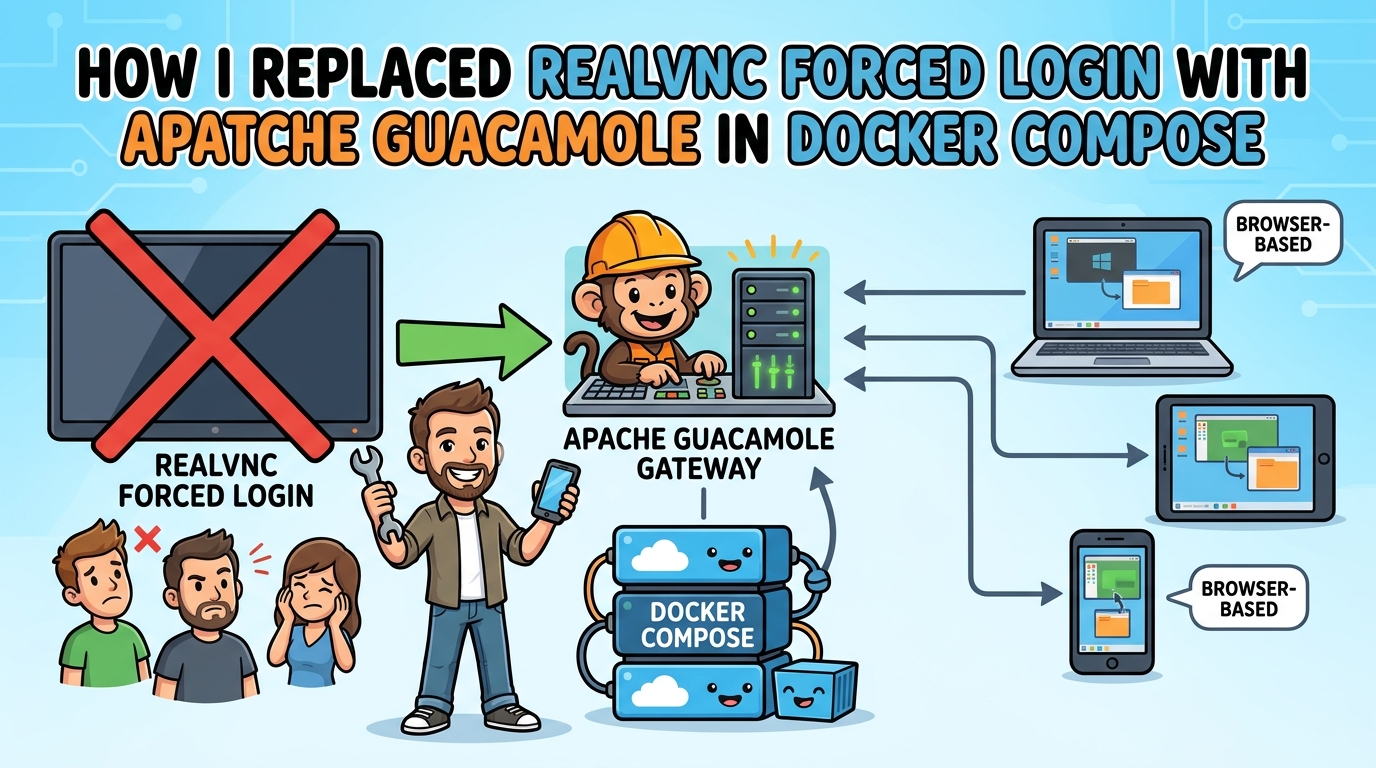
I’ve been a long-time RealVNC user, but recently they started requiring an account login just to use the Viewer app. No thanks. That sent me down a rabbit hole looking for a proper replacement — not just a bare VNC viewer, but something that could replace the “address book” workflow I actually rely on: saved connections, organized by client, with credentials stored and ready to go.
If you’ve ever used mRemoteNG on Windows, you’ll know the pattern — a tree view down the side, folders per client or environment, and a double-click to jump into an RDP/VNC/SSH session. I wanted that same experience without being tied to Windows, and without a forced account system.
Why Apache Guacamole
After weighing a few options (Remmina, mRemoteNG under Wine, RoyalTS), I landed on Apache Guacamole. It’s a fundamentally different approach: instead of a desktop app, Guacamole is a clientless, browser-based remote desktop gateway. You deploy it once on a server, and after that all you need to connect to any saved machine is a web browser — no client software, no per-machine plugin installs.
It supports VNC, RDP, SSH, and telnet out of the box, and connections can be organized into nested groups — exactly the “folder per client” structure I wanted.
The Architecture
A typical Guacamole deployment is three containers working together:
- guacd — the daemon that actually speaks VNC/RDP/SSH to your target machines. It’s a passive proxy with no authentication of its own, so it should never be exposed outside your internal Docker network.
- guacamole — the Tomcat-based web application. This is the actual UI you log into, and where connections/groups/credentials are managed.
- A database (PostgreSQL or MySQL) — stores users, connections, and groups.
Guacamole reads its configuration from environment variables in the Docker images, rather than the traditional guacamole.properties file, which makes it a good fit for Docker Compose stacks.
Deploying with Docker Compose
Here’s the compose file I ended up with, running on an existing LXC alongside a few other self-hosted services:
yaml
services:
  guacd:
    container_name: guacd
    image: guacamole/guacd:1.6.0
    restart: unless-stopped
    networks:
      - guac_net
    volumes:
      - ./drive:/drive:rw
      - ./record:/record:rw

  postgres:
    container_name: guac_postgres
    image: postgres:16-alpine
    restart: unless-stopped
    environment:
      POSTGRES_DB: ${POSTGRES_DB}
      POSTGRES_USER: ${POSTGRES_USER}
      POSTGRES_PASSWORD: ${POSTGRES_PASSWORD}
      PGDATA: /var/lib/postgresql/data/guacamole
    networks:
      - guac_net
    volumes:
      - ./init:/docker-entrypoint-initdb.d:ro
      - ./pgdata:/var/lib/postgresql/data:rw

  guacamole:
    container_name: guacamole
    image: guacamole/guacamole:1.6.0
    restart: unless-stopped
    depends_on:
      - guacd
      - postgres
    environment:
      GUACD_HOSTNAME: guacd
      POSTGRESQL_HOSTNAME: postgres
      POSTGRESQL_DATABASE: ${POSTGRES_DB}
      POSTGRESQL_USERNAME: ${POSTGRES_USER}
      POSTGRESQL_PASSWORD: ${POSTGRES_PASSWORD}
    networks:
      - guac_net
    ports:
      - 8080:8080

networks:
  guac_net:
    driver: bridge
All the secrets live in a separate .env file in the same directory, which Docker Compose loads automatically:
env
POSTGRES_DB=guacamole_db
POSTGRES_USER=guacamole_user
POSTGRES_PASSWORD=<your-own-strong-password>
Keeping both the postgres and guacamole services pulling from the same .env variables matters more than it might seem — more on that below. I also chmod 600 the .env file and make sure it’s excluded via .gitignore if the stack directory is under version control anywhere.
Initializing the database
Unlike a lot of self-hosted apps, Guacamole doesn’t create its own database schema automatically — you generate the init SQL once, drop it into the Postgres init folder, and it runs on first container start:
bash
mkdir -p init drive record pgdata
docker run --rm guacamole/guacamole:1.6.0 \
  /opt/guacamole/bin/initdb.sh --postgresql > init/initdb.sql
docker compose up -d
The Gotcha: Password Mismatches
Here’s a mistake worth flagging in case it saves someone else the same debugging loop. On first boot, Postgres uses POSTGRES_PASSWORD to set up the guacamole_user account — but only on that very first initialization of an empty data directory. If you later go back and change the password in one service’s environment block but not the other, they’ll silently drift apart, and Guacamole will throw:
FATAL: password authentication failed for user "guacamole_user"…even though everything else (the container, the network, guacd) is working perfectly fine. The fix is twofold:
- Make sure both services reference the same environment variable (this is exactly why the
.envfile approach above is worth doing from the start — one source of truth, no drift possible). - If Postgres has already initialized with a stale password, you need to wipe the data directory and let it reinitialize:
bash
docker compose down
sudo rm -rf ./pgdata
mkdir pgdata
docker compose up -d
Reverse Proxying Under a Path
Guacamole’s web app doesn’t run at the domain root — it lives under /guacamole/. Hitting the bare domain returns a Tomcat 404, which looks alarming the first time you see it but is entirely expected.
For the reverse proxy (I use NPMPlus with CrowdSec), no path-splitting or custom location rules are needed — a standard proxy host pointed at the container’s internal port handles the /guacamole/ path automatically as part of normal proxying:
- Forward Hostname/IP: the Guacamole container’s name (if proxy and Guacamole share a Docker network) or its IP
- Forward Port:
8080 - Websockets Support: must be enabled — without it, sessions will authenticate and appear to connect, but the remote screen will never actually render or accept input, since Guacamole streams the session over a WebSocket tunnel.
If you want the bare domain to redirect straight to /guacamole/ instead of showing a 404, a small custom Nginx snippet handles it:
nginx
location = / {
    return 301 /guacamole/;
}
Organizing Connections Like an Address Book
Once logged in (and after immediately changing the default guacadmin credentials — this login is public knowledge and should never be left as-is), the connection management screen is where the mRemoteNG-style workflow comes together:
- Create Connection Groups first — one per client, environment, or purpose
- Nest groups if useful (e.g. a client’s servers vs. workstations)
- Add individual Connections underneath, each with its own protocol, host, port, and stored credentials
The result is the same tree-view, double-click-to-connect experience I was used to, just delivered through a browser tab instead of a desktop app — and reachable from any device, not just one workstation.
Wrapping Up
For anyone in the same boat — annoyed by a vendor tool suddenly demanding an account, and wanting a proper self-hosted alternative rather than a stripped-down viewer — Guacamole has turned out to be a genuine upgrade over what I had before. Browser-based access, no per-machine client installs, and organizational structure that scales as more machines get added.
If you hit the password-mismatch error above, hopefully this saves you the same debugging loop it cost me.
Leave a Reply