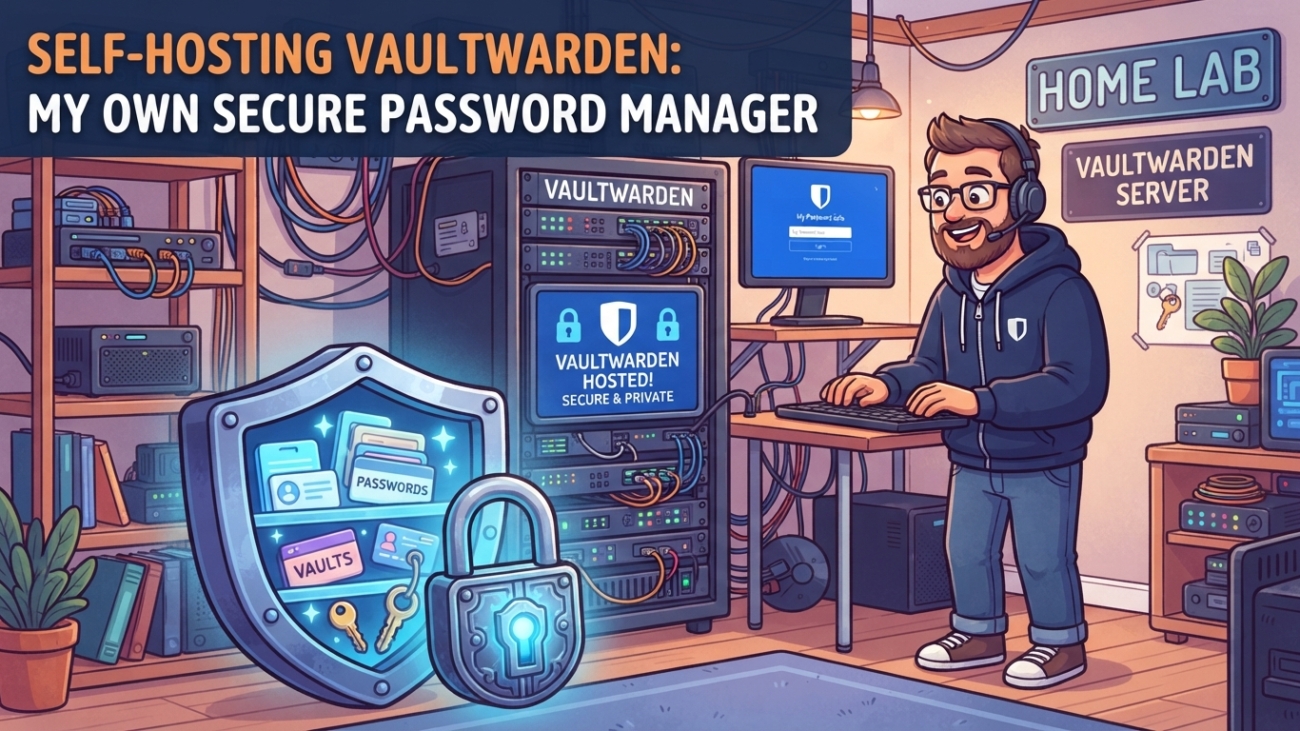
I’ve been meaning to self-host my password manager for a while, and this week I finally moved it onto my homelab properly. This post walks through how I deployed Vaultwarden (the lightweight, Bitwarden-compatible server written in Rust) in Docker, put it behind my reverse proxy, got email and mobile push notifications working, and sorted out backups. I’ve also included the handful of gotchas that tripped me up along the way, so hopefully they don’t trip you up too.
My setup
For context, here’s what my homelab looks like for this project:
- Proxmox hosting several Docker LXCs, with stacks managed through Dockge and living under
/opt/stacks/with bind mounts - proteus – the LXC that runs my auth and monitoring services (and now Vaultwarden)
- sabre – the LXC running NPMPlus (with CrowdSec) as my reverse proxy
- Cloudflare for DNS, AdGuard Home for local DNS, and Proxmox Backup Server for backups
Throughout this post I’ll use vault.example.com as the domain, 192.168.1.121 for the Docker host and 192.168.1.120 for the reverse proxy. Swap in your own.
Hardware requirements (spoiler: basically none)
Vaultwarden is a single Rust binary backed by SQLite. For a personal or family instance it sits at around 10–50 MB of RAM and is effectively idle on CPU. The heavy key-derivation work for your master password happens on your devices, not the server. The database for a few users with thousands of entries is only a few MB. It runs happily on a Raspberry Pi, so I didn’t bother bumping my LXC’s resources at all. Compare that with the official Bitwarden server, which wants 2 GB+ of RAM.
Step 1: Generate a hashed admin token
Vaultwarden has an admin panel at /admin. Rather than a plaintext token, give it an Argon2 hash:
docker run --rm -it vaultwarden/server /vaultwarden hash --preset owaspEnter a strong password (this is what you’ll type at /admin), and it spits out a string beginning with $argon2id$.... Keep the password somewhere safe outside the vault you’re about to build.
Step 2: The Docker Compose stack
In Dockge I created a new stack called vaultwarden with this compose file:
services:
  vaultwarden:
    image: vaultwarden/server:latest
    container_name: vaultwarden
    restart: unless-stopped
    ports:
      - "8222:80"
    volumes:
      - ./data:/data
    environment:
      DOMAIN: "https://vault.example.com"
      SIGNUPS_ALLOWED: "true"          # flip to false after creating your account
      INVITATIONS_ALLOWED: "true"
      SHOW_PASSWORD_HINT: "false"
      ADMIN_TOKEN: "${ADMIN_TOKEN}"
      TZ: "Africa/Johannesburg"
      LOG_LEVEL: "warn"
      # SMTP
      SMTP_HOST: "mail.example.com"
      SMTP_PORT: "465"
      SMTP_SECURITY: "force_tls"
      SMTP_FROM: "[email protected]"
      SMTP_FROM_NAME: "My Vault"
      SMTP_USERNAME: "${SMTP_USERNAME}"
      SMTP_PASSWORD: "${SMTP_PASSWORD}"
      # Mobile push notifications
      PUSH_ENABLED: "true"
      PUSH_INSTALLATION_ID: "${PUSH_ID}"
      PUSH_INSTALLATION_KEY: "${PUSH_KEY}"
All the secrets live in the stack’s .env file (Dockge has an editor for it right under the compose file):
ADMIN_TOKEN='$argon2id$v=19$m=65540,t=3,p=4$...your-hash...'
[email protected]
SMTP_PASSWORD='your-mailbox-password'
PUSH_ID=your-installation-id
PUSH_KEY=your-installation-key
A couple of notes on that:
- Single quotes are your friend. Inside single quotes in the
.env, Compose treats everything literally:$,#,!, spaces, the lot. That matters for both the Argon2 hash and any password with “funny” characters. The only character that breaks it is a single quote inside the value itself. - If you paste the hash straight into the compose file instead, you have to double every
$to$$, or Compose will mangle it and your admin login will silently fail. Keeping it in.envavoids that headache entirely. - No port 3012 needed. Older guides tell you to expose a separate WebSocket port. Modern Vaultwarden serves live sync on the main port, so ignore that advice.
Deploy the stack and confirm http://192.168.1.121:8222 loads on your LAN before moving on.
Step 3: SMTP (cPanel-style hosting)
Email is needed for user invites, email verification and email-based 2FA. My mail is on a typical cPanel host, which offers SMTP on port 465. The key detail is that 465 uses implicit TLS, so the setting is SMTP_SECURITY: "force_tls", not starttls. If your ISP blocks outbound 465, try port 587 with starttls instead.
Also make sure SMTP_FROM matches the mailbox you’re authenticating as. cPanel mail servers generally reject or flag mail sent “from” a different address.
Step 4: Mobile push notifications
Without push, the mobile apps only pick up changes when they sync. To get instant updates:
- Go to bitwarden.com/host, enter an admin email and choose the United States data region.
- Copy the Installation ID and Installation Key into your
.envasPUSH_IDandPUSH_KEY. - Redeploy, then log out and back in on your phone so it registers for push.
If you pick the EU region instead, you also need to set PUSH_RELAY_URI and PUSH_IDENTITY_URI to the bitwarden.eu endpoints. With the US region the defaults just work.
Step 5: DNS and the reverse proxy
In Cloudflare I added a proxied DNS record for vault.example.com. Then in NPMPlus I created a proxy host:
- Forward to:
http→192.168.1.121:8222 - Websockets Support: on (needed for live sync)
- Block Common Exploits: on
- SSL: a proper certificate, with Force SSL, HTTP/2 and HSTS enabled
Locking the admin panel to the LAN
There’s no reason for /admin to be reachable from the internet. In the proxy host’s Advanced tab I added:
location /admin {
    allow 192.168.1.0/24;
    allow 192.168.0.0/24;
    deny all;
    proxy_pass http://192.168.1.121:8222;
    proxy_set_header Host $host;
    proxy_set_header X-Real-IP $remote_addr;
    proxy_set_header X-Forwarded-For $proxy_add_x_forwarded_for;
    proxy_set_header X-Forwarded-Proto $scheme;
}
Two things caught me here:
- Allow every subnet you’ll admin from. My servers and my PC live on different subnets, so allowing only the server subnet would have locked me out with a 403. If your router NATs between subnets, check the NPMPlus access log to see which source IP actually arrives.
- Your LAN traffic has to hit the proxy directly. If your PC resolves the domain via public DNS, the request goes out through Cloudflare and comes back from a public IP, which gets denied. I added a DNS rewrite in AdGuard Home pointing
vault.example.comat the proxy’s LAN IP. That fixes it and makes local access snappier too.
Step 6: Create your account, then close the doors
- Browse to
https://vault.example.comand create your account. The master password cannot be recovered, so choose it carefully. - Set
SIGNUPS_ALLOWED: "false"and redeploy. - Log in at
/adminand use SMTP → Send test email to confirm mail works. - Turn on two-step login for your vault account (Settings → Security). Store that TOTP somewhere other than the vault itself, and keep the recovery code offline.
Gotcha: anything you save in the admin panel is written to data/config.json, and it overrides your compose environment variables. If you change something in compose and it “doesn’t take”, that file is why.
Step 7: Managing users
With signups closed, everything happens in the admin panel’s Users tab:
- Invite users by email. They set their own master password from the link.
- Deauthorize sessions to log someone out everywhere (handy for a lost phone).
- Disable/Enable, Remove 2FA for someone locked out, or Delete.
What you can’t do is see anyone’s passwords or reset a master password, because everything is end-to-end encrypted. To protect against a forgotten password, have users set up Emergency Access. Put shared logins (family, Wi-Fi, etc.) in an Organization with Collections, so they don’t disappear with one person’s account.
If you’d rather let people self-register from your own domain only, SIGNUPS_DOMAINS_WHITELIST: "example.com" does exactly that.
Step 8: Connecting the apps
In the Bitwarden browser extension, desktop app or mobile app, pick Self-hosted on the login screen and enter your server URL. Then log in as normal. To migrate from another password manager, use Tools → Import data in the web vault.
Gotcha (a.k.a. the most embarrassing one): my first mobile login failed with a java.net.UnknownHostException. The cause? I’d typed .co.zs instead of .co.za in the server URL. If you see “Unable to resolve host”, read the hostname in the error very carefully before you start debugging DNS. Also make sure the URL you use everywhere matches the DOMAIN variable exactly, or you’ll get odd login and attachment issues later.
Step 9: Backups
Everything important lives in ./data: db.sqlite3 (and its -wal/-shm files), attachments/, sends/, the rsa_key* files and config.json.
One thing not to do is rsync or rclone the live SQLite files. I’ve been bitten by that before: it copies files one at a time while they’re changing, and you end up with an inconsistent database.
Because my stacks use bind mounts inside an LXC, my existing Proxmox Backup Server jobs already capture the whole thing. A snapshot-mode backup is a crash-consistent, point-in-time copy of the filesystem, and SQLite in WAL mode is designed to survive exactly that. PBS also supports file-level restore, so I can pull just the data folder back without rolling back every other service on the host. Things worth doing if you go this route:
- Use Snapshot mode, which needs ZFS or LVM-thin storage under the LXC.
- Test a file-level restore once and check
db.sqlite3is there. - Occasionally do an encrypted Export vault from the web vault and keep it somewhere separate, in case your backup server is down on the day you need it.
If you don’t have PBS, the ttionya/vaultwarden-backup container is a nice alternative. It takes a consistent SQLite backup, zips it with a password and ships it anywhere rclone can reach, including S3-compatible storage.
Updating
Updating is just hitting Update on the stack in Dockge to pull the latest image. Take a backup before major version bumps, and glance at the Vaultwarden release notes on GitHub every so often.
Wrapping up
All in, this was one of the smoother self-hosting projects I’ve done. Vaultwarden is tiny, the Bitwarden clients are excellent, and it slots neatly into an existing Docker + reverse proxy setup. The gotchas were all small (quoting in .env, the TLS mode for port 465, subnet rules on the admin lock, and one very silly typo), but each one could eat an afternoon if you didn’t know to look for it. Hopefully this saves you that afternoon.