TL;DR: I replaced my standard Nginx Proxy Manager instance with NPMPlus (an enhanced fork) and integrated CrowdSec for automated threat detection and blocking — including Cloudflare Turnstile captcha challenges. The whole stack runs in Docker, managed via Dockge, and sits behind itself as a reverse proxy. Here’s exactly how I did it, including the gotchas I hit along the way.
Why Bother?
If you’re self-hosting services behind Nginx Proxy Manager, you’ve probably wondered how to add some real security beyond just SSL termination. The standard jc21/nginx-proxy-manager image doesn’t support CrowdSec natively, and bolting it on manually is messy.
Enter NPMPlus — a fork of NPM maintained by ZoeyVid that comes with CrowdSec bouncer support built in, HTTP/3 (QUIC) support, and various performance improvements. Combined with CrowdSec’s community-driven threat intelligence, you get a reverse proxy that can automatically ban or captcha-challenge malicious IPs based on crowd-sourced blocklists and your own log analysis.
The best part? This very blog you’re reading is sitting behind this exact setup.
What You’ll End Up With
- NPMPlus as your reverse proxy (drop-in replacement for NPM)
- CrowdSec Security Engine parsing your access logs and making ban/captcha decisions
- NPMPlus acting as a CrowdSec bouncer, enforcing those decisions at the nginx level
- Cloudflare Turnstile captcha challenges for suspicious IPs (instead of just hard bans)
- AppSec Component enabled for application-layer attack detection
- Everything managed via Dockge with bind mounts under a single stack directory
Prerequisites
- Docker and Docker Compose installed
- An existing Nginx Proxy Manager instance (for migration — fresh installs can skip the migration steps)
- Dockge or another Docker management tool (optional, but this guide assumes Dockge at
/opt/stacks/) - Ports 80/TCP, 443/TCP, and 443/UDP available on the host
- A Cloudflare account if you want Turnstile captcha (free)
Step 1: Back Up Your Current NPM Data
Before touching anything, back up your existing NPM data. You’ll thank yourself later.
bash
cd /opt/stacks/nginx_proxy_manager
cp -r data data.bak
cp -r letsencrypt letsencrypt.bak
Step 2: Pre-Pull the Docker Images
Since there will be a brief window of downtime between stopping the old NPM and starting NPMPlus, pre-pull the images first to minimise it.
bash
docker pull docker.io/zoeyvid/npmplus:latest
docker pull docker.io/crowdsecurity/crowdsec:latest
Step 3: Create the NPMPlus Stack
If you’re using Dockge, create a new stack called npmplus. Dockge will create /opt/stacks/npmplus and place the compose file there. Here’s the compose.yaml:
yaml
name: npmplus
services:
  npmplus:
    container_name: npmplus
    image: docker.io/zoeyvid/npmplus:latest
    restart: unless-stopped
    network_mode: host
    volumes:
      - "./npmplus-data:/data"
      - "/opt/stacks/nginx_proxy_manager/letsencrypt:/etc/letsencrypt"
    environment:
      - "TZ=Africa/Johannesburg"
      - "[email protected]"
      - "LOGROTATE=true"

  crowdsec:
    container_name: crowdsec
    image: docker.io/crowdsecurity/crowdsec:latest
    restart: unless-stopped
    network_mode: bridge
    ports:
      - "127.0.0.1:7422:7422"
      - "127.0.0.1:8080:8080"
    environment:
      - "TZ=Africa/Johannesburg"
      - "USE_WAL=true"
      - "COLLECTIONS=ZoeyVid/npmplus"
    volumes:
      - "./crowdsec/conf:/etc/crowdsec"
      - "./crowdsec/data:/var/lib/crowdsec/data"
      - "./npmplus-data/nginx/logs:/opt/npmplus/nginx/logs:ro"
A few things to note about this compose file:
NPMPlus uses network_mode: host — it binds directly to ports 80, 443 (TCP and UDP), and 81 on the host. There are no Docker port mappings. This means you need to make sure nothing else is listening on those ports.
The LOGROTATE=true environment variable is essential. Without it, NPMPlus doesn’t write access logs to disk, and CrowdSec has nothing to parse.
The Let’s Encrypt volume mount (/opt/stacks/nginx_proxy_manager/letsencrypt:/etc/letsencrypt) is temporary — it’s only there so NPMPlus can import your existing certificates during migration. You’ll remove it later.
All bind mounts use relative paths (./), which Dockge resolves to /opt/stacks/npmplus/. Everything stays neatly under one stack directory.
Don’t start the stack yet — there’s some prep work to do first.
Step 4: Create the CrowdSec Acquisition Config
CrowdSec needs to know where to find the logs and what parsers to use. Create the config directory and file:
bash
mkdir -p /opt/stacks/npmplus/crowdsec/conf/acquis.dThen create /opt/stacks/npmplus/crowdsec/conf/acquis.d/npmplus.yaml:
yaml
filenames:
  - /opt/npmplus/nginx/*.log
labels:
  type: npmplus
---
filenames:
  - /opt/npmplus/nginx/*.log
labels:
  type: modsecurity
---
listen_addr: 0.0.0.0:7422
appsec_config: crowdsecurity/appsec-default
name: appsec
source: appsec
labels:
  type: appsec
Important: The paths in this file are container paths — CrowdSec sees the logs mounted at
/opt/npmplus/nginx/logsinside its container. The actual files on your host live at/opt/stacks/npmplus/npmplus-data/nginx/logs/. This confused me initially, but the bind mount in the compose file handles the mapping.
Step 5: Migrate Your Existing NPM Data
Copy your existing NPM data into the new NPMPlus data directory:
bash
mkdir -p /opt/stacks/npmplus/npmplus-data
cp -r /opt/stacks/nginx_proxy_manager/data/* /opt/stacks/npmplus/npmplus-data/
Step 6: Stop the Old NPM and Start NPMPlus
This is the moment of downtime. Stop your old NPM stack:
bash
cd /opt/stacks/nginx_proxy_manager
docker compose down
Then fire up the new stack (via Dockge or manually):
bash
cd /opt/stacks/npmplus
docker compose up -d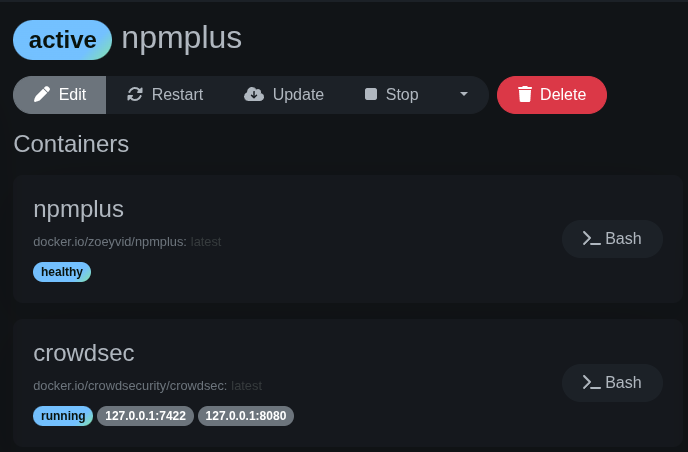
Step 7: Check the Logs and Handle the Certificate Migration
This is where I hit my first surprise. Instead of seeing an initial admin password in the logs, I got this:
All certbot certs have been copied, please remove the /etc/letsencrypt
mountpoint and redeploy to continue the migration!
NPMPlus imported the certificates and now wants you to remove the migration mount before continuing. Edit your compose.yaml and remove the Let’s Encrypt line so the NPMPlus volumes become just:
yaml
volumes:
  - "./npmplus-data:/data"
Then redeploy:
bash
cd /opt/stacks/npmplus
docker compose up -d
Pitfall: Don’t panic when you don’t see an initial admin password. Because this is a migration from an existing NPM database, NPMPlus uses your existing credentials. Log in at
https://<your-server-ip>:81with the same email and password you used on your old NPM instance.
NPMPlus doesn’t need a separate Let’s Encrypt mount long-term — it stores certificates within its own data directory.
Step 8: Connect NPMPlus as a CrowdSec Bouncer
Now wire up NPMPlus to enforce CrowdSec’s decisions. Generate a bouncer API key:
bash
docker exec crowdsec cscli bouncers add npmplus -o rawCopy the key that’s output, then edit /opt/stacks/npmplus/npmplus-data/crowdsec/crowdsec.conf:
- Set
ENABLED=true - Set
API_KEY=<the-key-you-just-copied>
Pitfall: This config file doesn’t exist until NPMPlus has started for the first time. If you’re looking for it before Step 6, it won’t be there.
Restart NPMPlus to apply:
bash
docker restart npmplusCheck the logs for confirmation:
bash
docker logs npmplusYou should see lines indicating NPMPlus is connected to CrowdSec.
Step 9: Adding Cloudflare Turnstile Captcha
Rather than just hard-banning suspicious IPs, I wanted to give legitimate users a chance to prove they’re human. CrowdSec supports Cloudflare Turnstile as a captcha provider, and it’s configured in the same crowdsec.conf file.
First, go to the Cloudflare dashboard → Turnstile → Add Site. You’ll get a Site Key and a Secret Key.
Then edit /opt/stacks/npmplus/npmplus-data/crowdsec/crowdsec.conf and update the captcha section:
CAPTCHA_PROVIDER=turnstile
SECRET_KEY=your-turnstile-secret-key
SITE_KEY=your-turnstile-site-key
Restart NPMPlus again:
bash
docker restart npmplusYou can test this by adding a captcha decision for a test IP (use a VPN so you don’t lock yourself out):
bash
docker exec crowdsec cscli decisions add --ip <test-ip> --duration 5m --type captchaThat IP will now see a Turnstile challenge instead of a ban page.
Step 10: Enroll in the CrowdSec Console
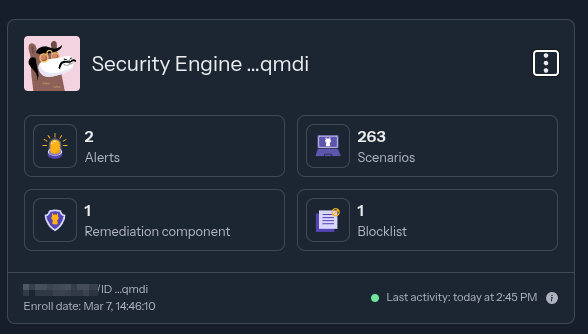
The CrowdSec Console gives you a web dashboard to monitor alerts, view blocked IPs, and access the community blocklist. It’s free and worth setting up.
Sign up or log in at app.crowdsec.net, go to the Security Engines page, and click “Add Security Engine”. You’ll see an enrollment key.
Run:
bash
docker exec crowdsec cscli console enroll <your-enrollment-key> --name "your-server-name"Then go back to the console, find your engine on the Engines page, and click Accept. Restart CrowdSec afterwards:
bash
docker restart crowdsecYou can rename your engine at any time from the console — no need to re-enroll.
A Note on Ports and Firewalls
NPMPlus enables HTTP/3 (QUIC) by default, which runs over UDP 443. If you’re behind a firewall (I’m running a MikroTik), you’ll need to add a UDP 443 forward alongside your existing TCP 80 and TCP 443 rules.
If you don’t want HTTP/3 or can’t forward UDP, add this to your NPMPlus environment variables:
yaml
- "DISABLE_H3_QUIC=true"Your sites will still work perfectly fine over HTTP/2 and HTTP/1.1.
Using Cloudflare Proxy? Read This
If your DNS entries are proxied through Cloudflare (the orange cloud), there’s an important extra step. By default, NPMPlus does not trust Cloudflare’s IP ranges — which means all traffic appears to come from Cloudflare’s IPs rather than your actual visitors. CrowdSec would end up seeing every request as the same source, making it useless at best and dangerous at worst (it could ban Cloudflare’s IPs entirely).
The fix is simple — add TRUST_CLOUDFLARE=true to your NPMPlus environment variables:
yaml
    environment:
      - TZ=Africa/Johannesburg
      - [email protected]
      - LOGROTATE=true
      - TRUST_CLOUDFLARE=true
This tells NPMPlus to fetch Cloudflare’s IP ranges and extract the real visitor IP from the headers Cloudflare sends. CrowdSec then sees and acts on actual visitor IPs.
A few things to be aware of when running behind Cloudflare proxy:
- Set your Cloudflare SSL/TLS mode to “Full (strict)” — go to your domain in the Cloudflare dashboard → SSL/TLS → Overview → set encryption mode to Full (strict). Without this, you’ll get redirect loops or connection errors.
- Cloudflare overrides some NPMPlus settings — things like HSTS headers, HTTP/3, and TLS configuration may need to be configured again in the Cloudflare dashboard, as Cloudflare applies its own settings on top.
- Cloudflare has a 100MB per-request limit — large file uploads or downloads may fail if chunking isn’t used.
- CrowdSec and Cloudflare complement each other — think of Cloudflare as your outer wall (DDoS, bulk bot traffic) and CrowdSec as your inner wall (brute force, vulnerability scanning, application-layer attacks). They’re not redundant.
Pitfall: The
TRUST_CLOUDFLAREenvironment variable was recently renamed fromSKIP_IP_RANGES(with inverted logic) in the 2026-02-19-r3 release. If you’re following older guides, they may reference the old name — useTRUST_CLOUDFLARE=trueinstead.
The Final Directory Structure
With everything set up, the stack directory looks like this:
/opt/stacks/npmplus/
├── compose.yaml
├── npmplus-data/           # NPMPlus data, certs, and config
│   ├── crowdsec/
│   │   └── crowdsec.conf   # Bouncer config
│   ├── nginx/
│   │   └── logs/           # Access logs (shared with CrowdSec)
│   └── ...
└── crowdsec/
    ├── conf/               # CrowdSec config
    │   └── acquis.d/
    │       └── npmplus.yaml
    └── data/               # CrowdSec data and decisions
Everything under one directory. Clean, easy to back up, easy to migrate.
Useful CrowdSec Commands
Once you’re up and running, these are the commands you’ll reach for most:
docker exec crowdsec cscli decisions list— view active bans and captcha challengesdocker exec crowdsec cscli alerts list— view recent alertsdocker exec crowdsec cscli bouncers list— check bouncer connection statusdocker exec crowdsec cscli metrics— view parsing and decision metricsdocker exec crowdsec cscli decisions add --ip x.x.x.x --duration 24h --type ban— manually ban an IPdocker exec crowdsec cscli decisions delete --all— clear all active decisions
Wrapping Up
The whole migration took me about 30 minutes, including the troubleshooting. NPMPlus is a solid drop-in replacement for the standard Nginx Proxy Manager — the web UI is familiar, all my proxy hosts and certificates migrated cleanly, and the built-in CrowdSec integration means I didn’t have to hack together a custom bouncer setup.
The fact that this blog post is being served through the very stack I just described is a nice bit of dogfooding. If a malicious bot tries to hit this site, CrowdSec will catch it, and NPMPlus will either block it outright or serve a Turnstile challenge — all without me lifting a finger.
If you’re running NPM today and want to level up your security, this is a straightforward upgrade that’s well worth the half hour of effort.
Useful links: