Gemini_Generated_Image_lqpvj0lqpvj0lqpv

Supercharge Your Photo Library: Hosting Immich on Proxmox LXC with TrueNAS & NVIDIA

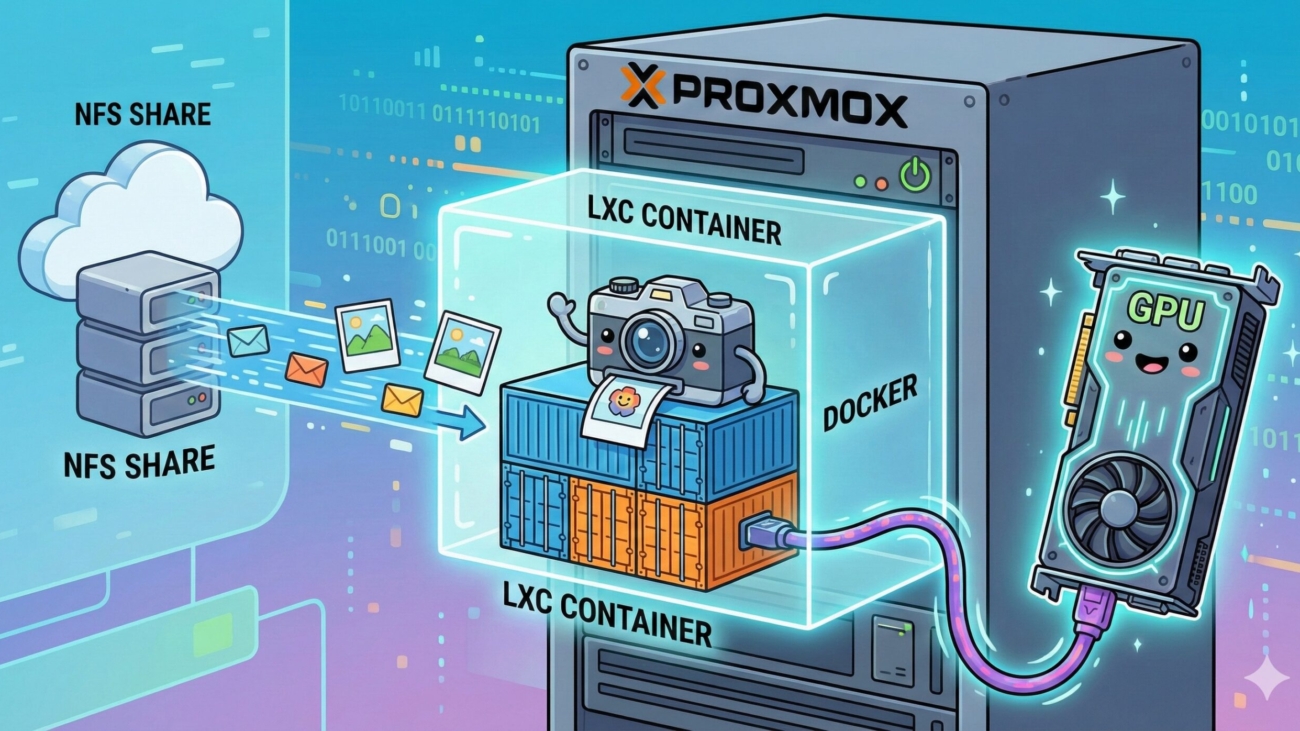
Immich on a Proxmox LXC with Nvidia GPU Passthrough and using a TrueNAS NFS share to store the library.

Moving away from cloud photo services is a rite of passage for any home lab enthusiast. For my setup, I wanted a robust, self-hosted solution where my wife and I could each have our own organized, backed-up photo libraries. Immich was the obvious choice.

However, I didn’t want a simple, standalone install. My architecture requirements were strict:

  1. Lightweight: It had to run in an unprivileged Proxmox LXC container.
  2. Secure Storage: The photos needed to live on my TrueNAS SCALE server via NFS, utilizing proper least-privilege user permissions.
  3. Hardware Acceleration: It needed to utilize my GTX 1080ti for blazing-fast video transcoding and AI facial recognition.
  4. Management: The Docker stack had to be managed cleanly via Dockge.

Getting an unprivileged LXC container to play nicely with TrueNAS NFS permissions—while also passing through a GPU—takes a bit of configuration. Here is the exact step-by-step guide on how to build this stack.

Step 1: The Proxmox LXC Container

First, create a standard Ubuntu or Debian LXC container in Proxmox. Make sure it is an Unprivileged container for better security.

When configuring the container in the Proxmox Web UI, go to the Options tab and edit the Features. The only thing you need to check here is Nesting (which allows Docker to run inside the LXC). You do not need to enable FUSE or NFS/CIFS for this method.

Start the container, run your updates, and install Docker along with Dockge.

Step 2: Secure TrueNAS Storage & Permissions

Because we are using an unprivileged container, the LXC’s root user is mapped to a high-numbered UID on the Proxmox host. If we just mount a standard NFS share, we’ll get a “Permission Denied” (Status 13) error.

Instead of opening the share to the root user, we are going to do this the secure way.

  1. Create a User & Group: Log into TrueNAS SCALE. Go to Credentials and create a new local user called Immich, along with a primary group also called Immich.
  2. Dataset Permissions: Go to your Storage Datasets and create your immich-library dataset. Edit the permissions and ensure your new Immich user has Modify rights to this dataset.
  3. NFS Share Settings: Go to your NFS Shares and edit the export for the Immich dataset. Under Advanced Options, set both the Mapall User and Mapall Group to Immich.

This setup ensures that all traffic coming across the NFS mount is safely treated as the Immich user on TrueNAS, bypassing the unprivileged LXC ID mismatch without giving away root access.

Step 3: Mounting the Share via the Proxmox Host

We don’t mount the NFS share directly inside the LXC. Instead, we mount it on the Proxmox Host, and then pass it through to the container.

  1. Mount your TrueNAS NFS share to a folder on your Proxmox Host (e.g., /mnt/immich-storage-nas).
  2. Run this command in the Proxmox host shell to pass the mount into your container (replace 129 with your LXC ID):

Bash

pct set 129 -mp0 /mnt/immich-storage-nas,mp=/mnt/immich-library

Step 4: NVIDIA GPU Passthrough

To use your NVIDIA GPU for hardware acceleration, we have to pass it from the Proxmox host into the container. Because device IDs can vary depending on your specific hardware and driver version, you need to find your unique system IDs first.

1. Find Your GPU Device IDs Open your Proxmox Host shell and run the following command to list your NVIDIA devices:

Bash

ls -l /dev/nvidia*

You will see an output that looks something like this:

Plaintext

crw-rw-rw- 1 root root 195,   0 Feb 21 12:00 /dev/nvidia0
crw-rw-rw- 1 root root 195, 255 Feb 21 12:00 /dev/nvidiactl
crw-rw-rw- 1 root root 234,   0 Feb 21 12:00 /dev/nvidia-uvm
crw-rw-rw- 1 root root 234,   1 Feb 21 12:00 /dev/nvidia-uvm-tools

Look closely at the numbers immediately preceding the comma (in this example, 195 and 234). These are your device “major numbers.” Write these down, as you will need them for your configuration file.

2. Edit the LXC Configuration Next, open your container’s config file on the Proxmox host (e.g., nano /etc/pve/lxc/129.conf) and append the pass-through instructions to the bottom.

Make sure to replace 195 and 234 in the cgroup2 lines below with the major numbers you found in the previous step!

Plaintext

# Allow the container to access your specific NVIDIA device IDs
lxc.cgroup2.devices.allow: c 195:* rwm
lxc.cgroup2.devices.allow: c 234:* rwm

# Mount the NVIDIA devices into the container
lxc.mount.entry: /dev/nvidia0 dev/nvidia0 none bind,optional,create=file
lxc.mount.entry: /dev/nvidiactl dev/nvidiactl none bind,optional,create=file
lxc.mount.entry: /dev/nvidia-uvm dev/nvidia-uvm none bind,optional,create=file
lxc.mount.entry: /dev/nvidia-uvm-tools dev/nvidia-uvm-tools none bind,optional,create=file

Note: Restart your LXC after adding these lines and booting it up. You will also need to run apt update && apt install nvidia-container-toolkit inside the LXC so Docker knows how to utilize the GPU we just handed it.

Step 5: Deploying Immich with Dockge

Now for the fun part. Open up your Dockge web interface and create a new stack for Immich.

Since we are starting fresh and uploading directly into Immich (rather than importing an existing library), our volume mounts are very simple. In your .env file, point the upload location directly to the mount point we created in Step 3:

Plaintext

UPLOAD_LOCATION=/mnt/immich-library
TZ=Africa/Johannesburg

In your compose.yaml, you only need the standard upload volume mapped to /usr/src/app/upload. You can safely leave the /etc/localtime:/etc/localtime:ro mount in place—it works perfectly.

To enable the GPU, ensure you have downloaded the hwaccel.transcoding.yml and hwaccel.ml.yml files from the Immich repository into your Dockge stack folder. Then, extend your services in the compose file:

YAML

services:
  immich-server:
    # ...
    extends:
      file: hwaccel.transcoding.yml
      service: nvenc

  immich-machine-learning:
    image: ghcr.io/immich-app/immich-machine-learning:${IMMICH_VERSION:-release}-cuda
    extends: 
      file: hwaccel.ml.yml
      service: cuda

Conclusion

Click “Deploy” in Dockge, and your stack will spin up.

Because we configured everything natively, my wife and I were able to immediately create our individual accounts and start uploading our photos directly from the Immich mobile app. The media is safely stored on TrueNAS under the secure Immich user, and thanks to the GTX 1080ti passthrough, video transcoding and facial recognition are virtually instantaneous.

Gemini_Generated_Image_bta7q3bta7q3bta7

From Wasted Space to Unified Storage

Running Proxmox Backup Server inside TrueNAS Scale

In the homelab world, it’s easy to fall into the trap of over-provisioning hardware for a single task. Until recently, I had a dedicated bare-metal machine running Proxmox Backup Server (PBS). It had 2TB of usable storage, but my actual Proxmox VE backups only totaled around 350GB.

Leaving all that unused space locked strictly to backups felt like a massive waste. At the same time, I didn’t have a dedicated NAS appliance on my network. I really needed a centralized place for shared storage—dropping family photos, storing videos, and keeping all my Batocera save files synced up.

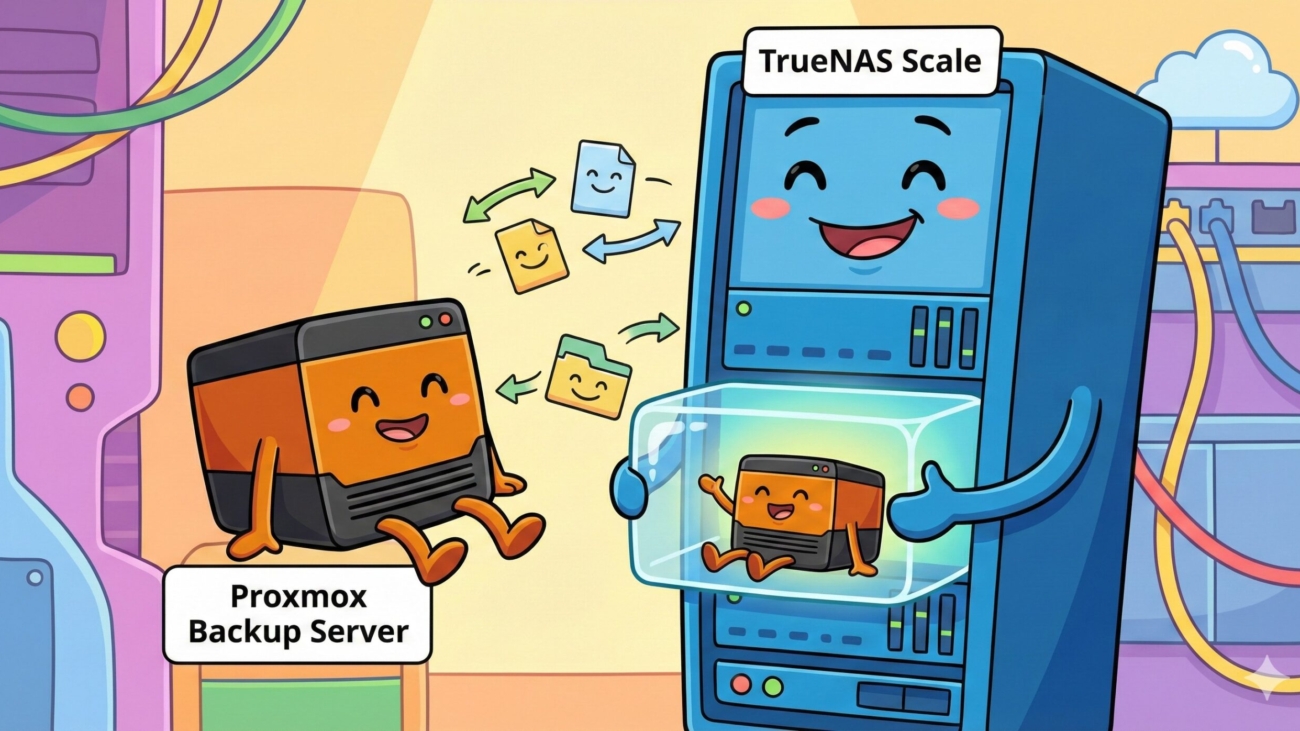
The solution? Nuke the bare-metal PBS installation, turn the hardware into a TrueNAS Scale appliance, and run Proxmox Backup Server on top of TrueNAS inside a lightweight Linux container. Here is a detailed look at how I pulled it off.
The Hardware: Working Within Constraints

The system I repurposed isn’t exactly a fire-breathing enterprise server, but it gets the job done:

  • CPU: Intel Pentium Gold G5420
  • RAM: 12GB
  • Boot Drive: 60GB SSD
  • Storage Array: 3 x 1TB HDDs (1x Seagate Barracuda, 2x WD Red) configured in a RaidZ1 pool, giving me roughly 2TB of usable space with single-drive redundancy.

You might be looking at that 12GB of RAM and sweating a little, knowing how memory-hungry ZFS can be. It is definitely tight! However, I’ve left the ZFS ARC (Adaptive Replacement Cache) settings on auto, and TrueNAS Scale handles it surprisingly well without running out of memory. I eventually plan to swap in a new motherboard/CPU combo with 64GB of RAM, but until the budget allows for new sticks and drives, this 12GB setup is holding the line perfectly.

The Architecture: TrueNAS Scale Containers

For the operating system, I went with TrueNAS Scale 25.10.1 (Goldeye). Because Scale is Debian-based, it has excellent native support for containers.

Rather than spinning up a full, heavy Virtual Machine for PBS—which would eat into my limited RAM and add virtualization overhead to my storage I/O—I opted for a native Debian 12 container. This gives PBS near-instant, direct access to the underlying ZFS storage while maintaining its own dedicated network identity.

How to Build It: Step-by-Step

If you want to replicate this setup, here is the roadmap of how I configured the storage, network, and container.

1. Creating the TrueNAS Dataset

First, you need a dedicated place for the backups to live. Inside TrueNAS, I navigated to my main Z1-3TB storage pool and created a new Dataset named pbs-storage.

(Note: Depending on your exact container setup, you will need to ensure the container’s user has the correct ACLs/Unix permissions to read and write to this dataset. If permissions are wrong, PBS will fail to initialize the datastore later!)

2. Spinning Up the Debian 12 Container

In the TrueNAS Scale UI, head over to the Containers section.

  1. Create a new container and select Debian 12 (Trixie) from the catalog.
  2. Networking: I unchecked the default network options and added a Bridge Adapter. This is vital. It gives the Debian container its own dedicated IP address on my local network, making it behave exactly like a standalone LXC container on Proxmox VE.
  3. Storage Mapping: In the container settings, I mapped the storage so the container could see it. I set the Source to /mnt/Z1-3TB/pbs-storage and mapped it to the Destination /mnt/pbs-storage inside the container.

3. Installing Proxmox Backup Server

Once the container is running with its own IP, access its shell via TrueNAS (or SSH). Because it’s just a clean Debian 12 environment, installing PBS is as simple as adding the official repositories:

  1. Download the Proxmox release key.
  2. Add the PBS no-subscription repository to your sources.list.
  3. Run apt update && apt upgrade.
  4. Run apt install proxmox-backup-server.

During the installation, you don’t need to configure a mail server unless you specifically want email alerts.

4. Connecting the Storage to PBS

Once installed, navigate to the container’s IP address on port 8007 (e.g., https://<Container-IP>:8007) and log in with the container’s root credentials.

Under the Datastore tab in the PBS web interface, I added a new datastore named Backups. I pointed the absolute path to /mnt/pbs-storage/datastore.

Because the TrueNAS dataset was mapped directly into the container, PBS instantly recognized the storage. Right now, my datastore is sitting at a sweet 9.41 deduplication factor and is currently using about 207.23 GB of the 1.76 TB available.

After verifying the datastore, I grabbed the fingerprint from the PBS dashboard, headed over to my main Proxmox VE cluster, and added the new TrueNAS-hosted PBS instance as a storage target.

Final Thoughts

This project was a massive win for my homelab efficiency. My bare-metal hardware is no longer trapped serving a single, underutilized purpose. TrueNAS Scale is now happily managing my SMB shares, while Proxmox Backup Server purrs along quietly in a low-overhead container, securely catching my nightly VM and CT backups.

If you have hardware sitting around with trapped storage capacity, I highly recommend this approach. Just keep an eye on your memory usage, and don’t be afraid to dive into container bind-mount permissions!