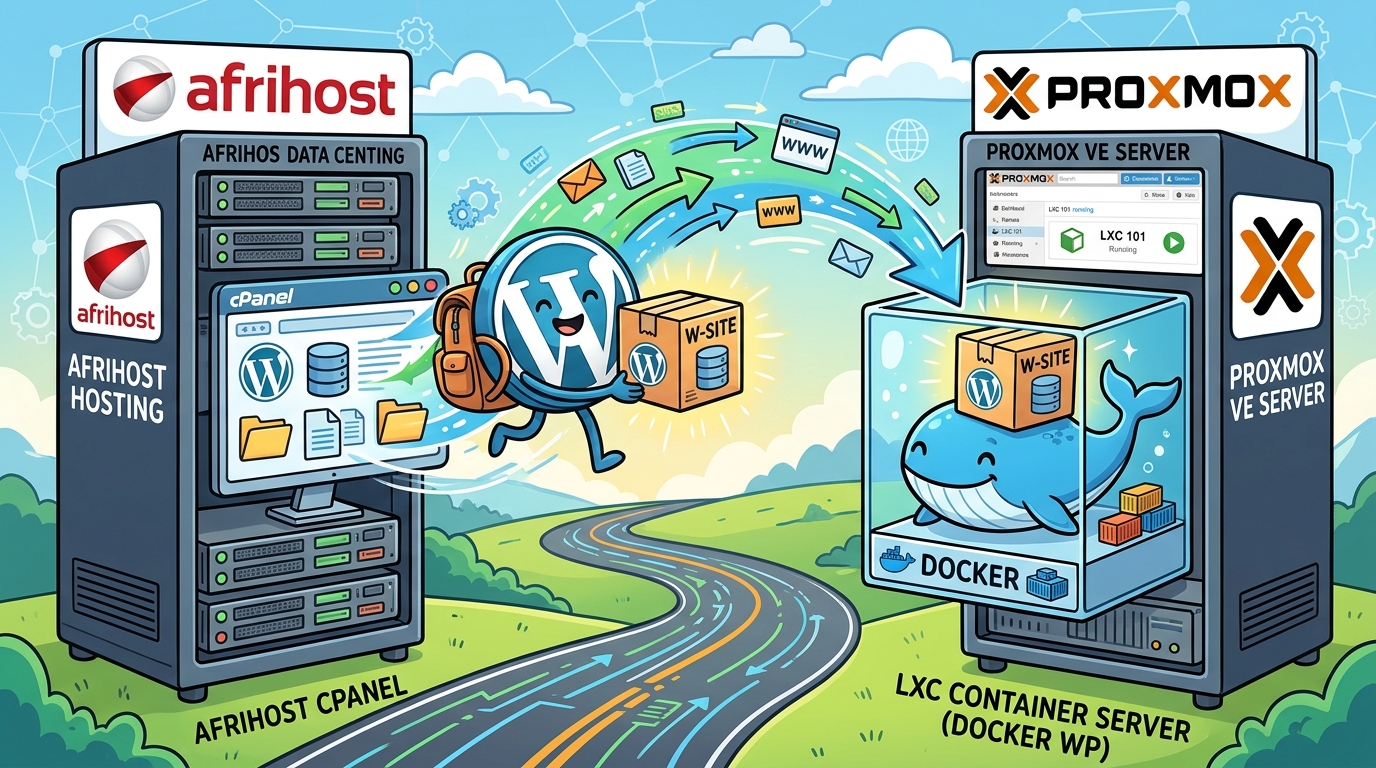
My business website has been sitting on cPanel shared hosting since I built it. It works, but every other WordPress site I look after already runs in Docker on my homelab, behind the same Cloudflare Tunnel, NPMPlus and CrowdSec setup as everything else. Having one site off on its own, managed a completely different way, was starting to bug me.
So I moved it. Website only, for now. Email stays with the shared host, because moving email is a much bigger job and I didn’t want to do both in one night.
On paper this should take about an hour. In practice my own security stack tried very hard to stop me, which is the more interesting part of this post.
The starting point
- WordPress on cPanel shared hosting, with a custom theme
- Email hosted on the same cPanel account
- DNS already on Cloudflare, with the website records proxied
- At home: Proxmox with Docker LXCs managed through Dockge, a Cloudflare Tunnel into NPMPlus, and CrowdSec with AppSec in front of everything
Rule number one: only touch the web records
When the website and email live in the same place, it’s easy to break mail by accident. Before changing anything, I went through the DNS records and sorted them into two groups.
- Moving: the root domain A record and the
wwwA record. - Not touching: MX,
mail.,cpanel.,autodiscover./autoconfig., and all the TXT records.
Two things are worth checking here. First, make sure your MX record points at a mail hostname like mail.example.com, not the bare domain. If MX points at the root domain, your mail follows the website when you move it. Second, make sure none of the mail records are CNAMEs pointing at the root domain, for the same reason.
I also had to fix my SPF record. Mine had +a in it, which roughly means “whatever server the website is on may send mail for this domain”. Once the website sits behind Cloudflare, that would authorise Cloudflare’s IPs to send my mail, which isn’t what I want. I dropped it and kept +mx plus the host’s include, which still covers the real mail server:
v=spf1 +mx include:spf.yourhost.example ~allThe Docker stack
My existing WordPress stacks were all copies of the same quick template, with passwords sitting in plain text in the compose file and the same password reused across sites. Not great. Since I was building a new one anyway, I cleaned up the template and went back and fixed the others too.
Here’s what changed compared to the usual quick-start compose:
- Secrets live in
.env. Dockge has an env editor right under the compose editor, so this is easy. I moved the database name and username there too. They aren’t secret, but each one appears twice in the compose, and one variable keeps them in sync. - MariaDB instead of
mysql:8.0. MySQL 8.0 is end of life. MariaDB is lighter and is what most WordPress hosts run anyway. I left my existing sites on MySQL for now; switching a live site’s database engine is a separate job. - A higher PHP upload limit, set in the compose itself. The
configs:block with inlinecontent:writes anuploads.iniinto the container without needing a separate file on the host. The default upload limit is too small for a site import. depends_on,restart: unless-stopped, and a random root password.
services:
  wordpress:
    image: wordpress
    restart: unless-stopped
    depends_on:
      - db
    ports:
      - 8080:80
    environment:
      WORDPRESS_DB_HOST: db
      WORDPRESS_DB_NAME: ${DB_NAME}
      WORDPRESS_DB_USER: ${DB_USER}
      WORDPRESS_DB_PASSWORD: ${DB_PASSWORD}
    volumes:
      - ./data/wordpress:/var/www/html
    configs:
      - source: php_uploads
        target: /usr/local/etc/php/conf.d/uploads.ini
  db:
    image: mariadb:11.4
    restart: unless-stopped
    environment:
      MARIADB_DATABASE: ${DB_NAME}
      MARIADB_USER: ${DB_USER}
      MARIADB_PASSWORD: ${DB_PASSWORD}
      MARIADB_RANDOM_ROOT_PASSWORD: "1"
    volumes:
      - ./data/db:/var/lib/mysql

configs:
  php_uploads:
    content: |
      upload_max_filesize = 512M
      post_max_size = 512M
      memory_limit = 512M
      max_execution_time = 300
DB_NAME=site_db
DB_USER=site_user
DB_PASSWORD=a-long-random-passwordA gotcha when moving existing sites to .env
When you convert an existing stack, copy the current values into .env exactly as they are. MySQL and MariaDB only read the user and password from the environment the first time they create the database. If you put a new password in .env, the database keeps the old one, WordPress tries the new one, and you get “Error establishing a database connection”. Change passwords properly inside the database first, then update .env.
“But how do I update WordPress if I pin the image?”
I asked myself this too. The official image only copies WordPress into the volume the first time, when the folder is empty. After that, the files in your bind mount are the real install, and core updates happen from wp-admin exactly like on any host. The image tag really controls the PHP and Apache versions. I went with the unpinned wordpress tag for this small site. If a pull ever brings a PHP jump that breaks something, pinning back to the previous phpX.Y-apache tag is an easy rollback.
Testing before cutover
I wanted to test the new copy on the real domain without the public seeing it. Rather than editing hosts files, I added two DNS rewrites in AdGuard Home pointing the root domain and www at my NPMPlus box. That way my whole home network sees the new site, and everyone else still sees the old one.
A few things to watch with this approach:
- Add only the exact names. A wildcard rewrite would also catch your mail and admin subdomains.
- Browsers with Secure DNS (DNS over HTTPS) turned on bypass AdGuard and keep showing the old site.
- Remove the rewrites after cutover, so home traffic goes through Cloudflare like everyone else’s.
In NPMPlus I added a proxy host for both names pointing at the new container, and got a Let’s Encrypt certificate using the Cloudflare DNS challenge. That works even while the domain still points at the old host.
The migration, and where it went wrong
For the actual move I used All-in-One WP Migration. You install it on the old site and export, install it on a fresh WordPress on the new host and import, and it handles the database, themes, plugins and uploads in one file. The export was about 170MB, well within the free version’s limits.
The upload hit 100%, and then I got this:
CrowdSec Access Forbidden. You are unable to visit the website.
CrowdSec’s AppSec component had decided that a large binary archive being pushed into admin-ajax.php looked like an attack. Fair enough, honestly. My LAN IP wasn’t banned (cscli decisions list only showed the usual internet scanners), and the CrowdSec logs had nothing useful about the block.
Attempt two: just stop CrowdSec for a few minutes
I stopped the CrowdSec container, with a background timer to start it again automatically in case I forgot:
docker stop crowdsec && nohup sh -c 'sleep 600; docker start crowdsec' >/dev/null 2>&1 &Every site behind NPMPlus immediately started showing the Forbidden page. My NPMPlus bouncer is set to fail closed: if it can’t reach CrowdSec, it blocks everything instead of letting traffic through. That’s arguably the safer default, but it’s not what you want to find out by accident at 10pm. A quick docker start crowdsec brought everything back.
If you run a similar setup, it’s worth knowing which way yours fails before you need to know.
Attempt three: go around the proxy entirely
The fix was to skip NPMPlus and CrowdSec altogether and import directly to the container on its LAN IP and port. The catch is that WordPress redirects every request to its configured site URL, so you have to tell it to use the IP temporarily:
      WORDPRESS_CONFIG_EXTRA: |
        define('WP_HOME', 'http://192.168.1.50:8080');
        define('WP_SITEURL', 'http://192.168.1.50:8080');
The first time I browsed to that address I got “refused to connect”, even though the containers were up. A curl -I from another box on the same subnet came back fine, so WordPress was answering; the problem was between my PC and the server. Once that was sorted, the import went through on the first try.
One side effect: All-in-One WP Migration rewrites every URL in the imported database to match the site it’s importing into. So after the import, all my links pointed at the LAN IP. Better Search Replace fixed that. I ran it twice across all tables, with “dry run” unticked:
http://192.168.1.50:8080→https://example.comhttp:\/\/192.168.1.50:8080→https:\/\/example.com(the JSON-escaped version some plugins store)
Then I removed the WORDPRESS_CONFIG_EXTRA block, redeployed, logged in through the real domain, and saved permalinks twice to get rid of 404s.
If you can’t reach the container directly, there’s also a fully manual route: export the database from phpMyAdmin, zip wp-content in File Manager, copy both to the server, import the SQL with docker compose exec -T db mariadb ..., and drop wp-content into the bind mount. If you go that way, check $table_prefix in the old wp-config.php. Softaculous installs often use a random prefix, and you’ll need to set it with WORDPRESS_TABLE_PREFIX.
Cutover
With the new copy tested, going live took a couple of minutes:
- Delete the root and
wwwA records in Cloudflare. You have to do this first, or Cloudflare refuses to create the tunnel records. - Add both hostnames as public hostnames on the Cloudflare Tunnel, pointing at NPMPlus like everything else.
- Remove the AdGuard rewrites and purge the Cloudflare cache.
To confirm my phone on mobile data was reaching the new host, I watched the container logs in Dockge while loading the page. New request lines meant it was hitting my server. You can’t tell from DNS, because both the old and new sites sit behind Cloudflare and look the same from outside.
Don’t forget outgoing mail
On shared hosting, WordPress can send mail with PHP’s built-in mail() and it just works. A Docker container has no local mail server, so contact form messages silently go nowhere. I configured SMTP to authenticate against the mailbox at the existing host: port 465, SSL, with the full email address as the username. Because mail still comes from the real mail server, SPF stays happy.
My first attempt failed with “Could not authenticate”. If that happens to you, check that the username is the full address, that the password works in webmail, and that encryption is SSL rather than STARTTLS. Don’t hammer it with retries, either; cPanel’s brute-force protection will start rejecting even the correct password.
Wrapping up
- Deleted the migration plugins from the new site.
- Deleted the old WordPress files from the shared host. The hosting package stays for now because email lives there.
- Added the site to my BackWPup backups to off-site S3 storage.
- Still on the to-do list: a proper, narrowly scoped CrowdSec AppSec exclusion for the import endpoint, rather than routing around it.
The move itself was easy. The lessons were all about the stack around it: know which DNS records your email depends on, know whether your security layer fails open or closed, and remember that a container won’t send mail on its own. Next up is moving email off the shared host as well, but that’s a much bigger project and a separate post.
Leave a Reply
You must be logged in to post a comment.