unnamed

Switching from Windows 11 to CachyOS Linux

Goodbye Windows 11, Hello CachyOS: My Journey to Linux Gaming


I’ve been a Windows user for as long as I can remember, but recently, Microsoft made the decision to leave for me.

It wasn’t a sudden crash or a blue screen of death that pushed me over the edge. It was the nagging. Every single day, I would boot up my PC only to be greeted by a full-screen popup demanding I set up Copilot and other “features” I didn’t want. The worst part? There was no “No” button—only a “Remind me in 3 days” option.

That artificial limit was my breaking point. I decided it was time to take back control of my hardware.

Here is my experience switching my main gaming rig from Windows 11 to CachyOS, an Arch-based Linux distribution focused on speed and performance.

The Hardware

Before we dive into the software, here is the rig I’m running. It’s a pretty modern AMD-heavy setup, so I was curious to see how Linux would handle the drivers.

  • CPU: AMD Ryzen 7 7700X
  • GPU: Radeon 7900 GRE
  • RAM: 32GB DDR5

Why CachyOS?

There are hundreds of Linux distributions out there. Why pick CachyOS?

I already run a Proxmox server at home with various Debian LXCs and VMs, so I’m not a total stranger to the command line. However, I wanted to try something different from the Debian ecosystem. I’d seen a lot of YouTube videos praising CachyOS for its performance optimizations and aggressive CPU scheduling. Since this is primarily a gaming rig, that performance promise was a huge selling point.

Plus, I wanted to dip my toes into the Arch Linux world without the headache of a manual install.

The Installation Experience

The installation was straightforward, though it required a little patience. At one point during the process, the installer seemed to freeze completely. I almost hit the reset button, but I decided to wait it out—and thankfully, it pushed through. Lesson learned: Patience is key.

Once I booted into the desktop, the difference was immediate. The OS felt snappier and cleaner than Windows ever did. No bloat, no popups, just my desktop.

KDE Plasma & The “Task Manager” Confusion

I stuck with KDE Plasma, mostly because it was the default choice, though I have used GNOME on Ubuntu before.

The transition wasn’t entirely seamless. One funny hurdle I hit was terminology. In Windows, you right-click the taskbar to get the “Task Manager.” In KDE, the bar at the bottom is called the “Task Manager,” and the app to kill processes is the “System Monitor.” It took a minute to rewire my brain, but the customization options in Plasma are incredible.

Gaming on the Radeon 7900 GRE

This was the big test. Could Linux handle my gaming library?

To set things up, I used the CachyOS Hello app, which is a fantastic tool that pre-installs necessary gaming packages and libraries. I didn’t even have to touch the Steam Proton settings; everything just worked out of the box.

I’m currently deep into EVE Online. With VSync enabled, I’m getting a rock-solid 165 FPS to match my 165Hz monitor. I haven’t done strictly scientific benchmarking, but the game feels just as smooth, if not smoother, than it did on Windows.

The App Ecosystem: Flatpak vs. AUR

I did run into one snag with Pyfa (a fitting tool for EVE Online). I initially installed it from the AUR (Arch User Repository), but the version there was out of date. I switched to the Flatpak version via Flathub, and it worked perfectly.

This is a good tip for newcomers: if it’s not in the main repo or the AUR is acting up, check Flatpak!

Work Workflow: The Proxmox Connection

I don’t use this machine just for gaming; I also need it for work. However, instead of dual-booting or installing work apps directly on my clean Linux install, I use a Windows 10 Virtual Machine hosted on my Proxmox server.

I connect to the VM using Remmina, and the experience is surprisingly smooth.

  • Audio: Required a little tweaking to get meeting audio to pipe through to my local headphones, but it works fine now.
  • Webcam: I haven’t figured out webcam passthrough yet, but that’s a project for another weekend.

I prefer this setup because it decouples my work environment from my physical hardware. If I’m traveling with my laptop, I can just RDP into the same VM and pick up exactly where I left off.

The Verdict

Do I miss Windows 11? Not really.

The only thing I miss is the mindless simplicity of double-clicking an .exe file to install something. Getting used to package managers (Pacman, Flatpak, AUR) is a shift, but once you understand how they work, you realize they are actually much better for system health and updates.

Should You Switch?

If you are tired of Microsoft’s aggressive updates and ads, do it.

  • For total beginners: You might want to look at Pop!_OS or Linux Mint for a softer landing.
  • For gamers & enthusiasts: CachyOS has been GREAT.

Unless you are strictly tied to Adobe Creative Cloud or specific Microsoft Office features that don’t work on the web, the Linux gaming ecosystem is finally ready for prime time. I’m not looking back.

extend-volume-greyed-out-how-to-increase-c-drive-s

How to Extend Your C: Drive by Managing the Recovery Partition

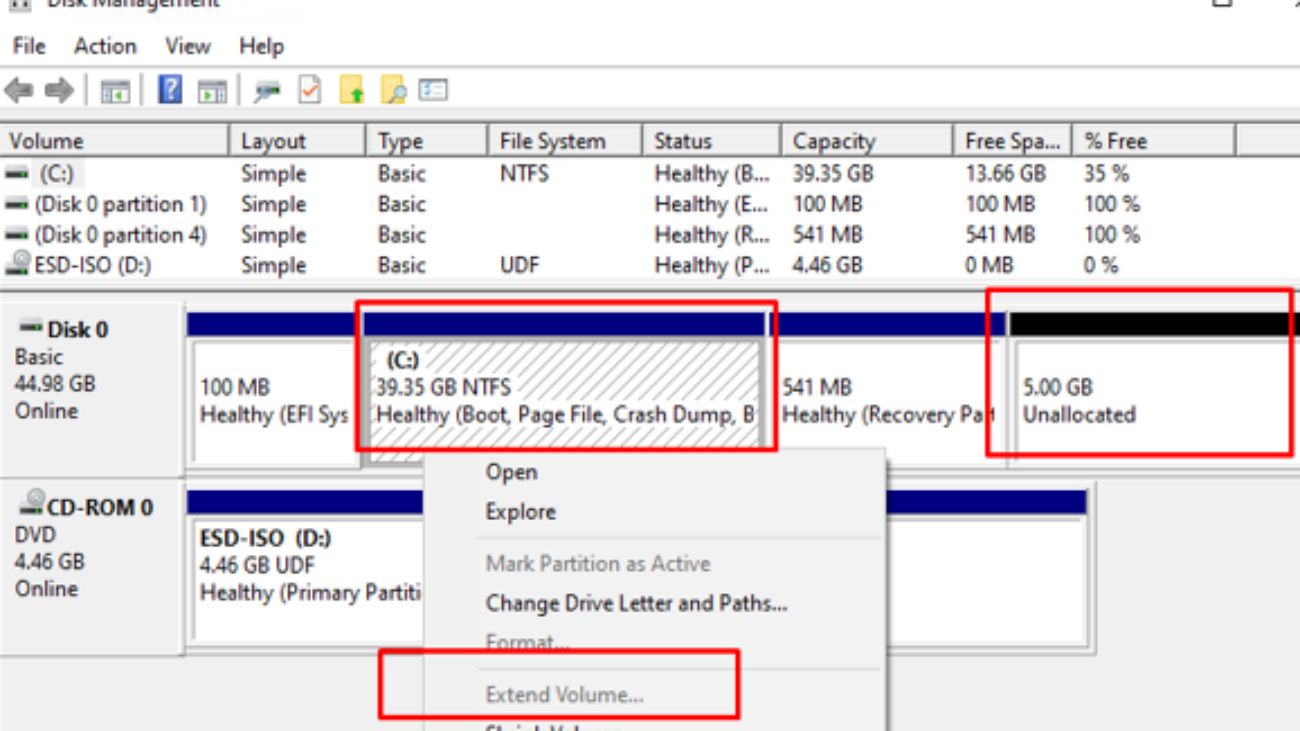
When your C: drive is running low on space, extending it can seem straightforward, especially if you have unallocated space on your hard drive. However, a common hurdle arises when another partition, such as a “Recovery Partition,” sits between your C: drive and the available unallocated space. Windows’ built-in Disk Management tool cannot extend a partition over an intervening partition.

Why This Happened to Me

I encountered this exact issue when managing a Windows 11 server. I had to increase the size of the virtual disk for the server. After extending the virtual disk in Proxmox, the additional space appeared in Windows as unallocated space. However, I couldn’t extend the C: drive because the recovery partition was positioned directly between my C: drive and the new, unallocated space. This is a common scenario in both physical and virtual environments, and it’s precisely why this guide is so important.

This guide provides detailed steps on how to overcome this by deleting the existing recovery partition to create contiguous unallocated space, allowing you to extend your C: drive. Optionally, we’ll also cover how to recreate a new, basic Windows Recovery Environment (WinRE) partition.

🚨 IMPORTANT WARNING: Backup Your Data! 🚨

This process involves deleting partitions and making significant changes to your disk layout. Incorrect steps can lead to permanent data loss or an unbootable system. It is absolutely critical that you ALWAYS back up all your important data before proceeding with these steps.

  • External Hard Drive/Cloud Storage: Copy all your essential documents, photos, videos, and other files to an external drive or cloud service.
  • System Image Backup (Highly Recommended): Consider creating a full system image backup using Windows’ built-in tools or a third-party backup solution. This will allow you to restore your entire system to its current state if something goes wrong.

Part 1: Delete the Existing Recovery Partition

This step uses the DiskPart command-line utility, which has more capabilities than graphical Disk Management, to remove the recovery partition preventing your C: drive from being extended.

  1. Open Command Prompt as Administrator:
    • Right-click the Start button (or press Windows Key + X).
    • Select “Terminal (Admin)”, “Windows PowerShell (Admin)”, or “Command Prompt (Admin)”.
    • If prompted by User Account Control (UAC), click Yes.
  2. Launch DiskPart:
    • In the Command Prompt window, type diskpart and press Enter. You will see a new DISKPART> prompt.
  3. List Disks to Identify Your Hard Drive:
    • Type list disk and press Enter.
    • Identify your main hard drive (e.g., Disk 0) by its size.
  4. Select Your Disk:
    • Type select disk <disk number> (e.g., select disk 0) and press Enter.
    • You should see confirmation: “Disk X is now the selected disk.”
  5. List Partitions to Identify the Recovery Partition:
    • Type list partition and press Enter.
    • Carefully examine the list. Locate the “Healthy (Recovery P)” partition (often small, like 649 MB). Note its “Partition ###” number. Double-check this number to ensure you select the correct partition!
  6. Select the Recovery Partition:
    • Type select partition <recovery_partition_number> (e.g., select partition 3 if the recovery partition is Partition 3) and press Enter.
    • You should see confirmation: “Partition X is now the selected partition.”
  7. Delete the Partition:
    • Type delete partition override and press Enter.
    • The override command is crucial for deleting protected partitions.
    • You should receive confirmation: “DiskPart successfully deleted the selected partition.”
  8. Exit DiskPart:
    • Type exit and press Enter to exit DiskPart.
    • Type exit again and press Enter to close the Command Prompt window.

Part 2: Extend Your C: Drive

Now that the recovery partition has been deleted, the unallocated space should be directly next to your C: drive, allowing you to extend it using Disk Management.

  1. Open Disk Management:
    • Right-click the Start button and select “Disk Management.”
  2. Verify Unallocated Space:
    • You should now see the space previously occupied by the recovery partition as “Unallocated,” and it should be contiguous with your C: drive, merging with any existing unallocated space.
  3. Extend the C: Drive:
    • Right-click on your C: drive partition.
    • Select “Extend Volume…”
    • The Extend Volume Wizard will open. Click “Next >”.
    • The available unallocated space should be automatically selected. You can choose to use all of it or specify a smaller amount. Click “Next >”.
    • Click “Finish” to complete the extension.

Your C: drive should now be larger, utilizing the previously unallocated space!

Part 3: Recreate a New Recovery Partition (Optional, but Recommended)

While your system might still function without it, having a recovery partition is crucial for troubleshooting and system repair options like “Reset this PC” or “Startup Repair.” This section guides you through creating a new basic Windows Recovery Environment (WinRE) partition.

The original recovery partition from your computer manufacturer (OEM) often contains specific drivers, utilities, and a full factory reset image unique to your model. Recreating a recovery partition with these steps will provide a generic Windows Recovery Environment. It will not include those OEM-specific features unless you specifically create and embed a custom recovery image, which is a more advanced process not covered here.

  1. Prepare Unallocated Space for the New Recovery Partition:
    • You’ll need a small amount of unallocated space for the new recovery partition (e.g., 500 MB to 1 GB is usually sufficient for WinRE). If you used all unallocated space to extend C:, you’ll need to shrink your C: drive again.
    • In Disk Management, right-click on your C: drive.
    • Select “Shrink Volume…”.
    • Enter the amount of space to shrink (e.g., 650 for 650 MB) and click “Shrink.” This will create new unallocated space.
  2. Open Command Prompt as Administrator and launch diskpart again.
  3. Select Your Disk and List Partitions:
    • list disk -> select disk <disk number> (e.g., select disk 0)
    • list partition (to see the newly created unallocated space).
  4. Create the New Primary Partition:
    • create partition primary size=<size_in_mb> (e.g., create partition primary size=650)
  5. Select the Newly Created Partition:
    • list partition (to identify the new partition).
    • select partition <new_partition_number> (select the partition you just created).
  6. Format the Partition:
    • format quick fs=ntfs label="Recovery"
  7. Assign the Correct Partition ID (Crucial for Windows Recognition!):
    • Based on your disk layout (e.g., presence of an EFI System Partition), your disk is very likely GPT (GUID Partition Table).
    • Type set id="de94bba4-06d1-4d40-a16a-bfd50179d6ac" and press Enter.
    • Then, type gpt attributes=0x8000000000000001 and press Enter.
    • (If your disk were MBR/Legacy BIOS, you would use set id=27 instead of the above two commands.)
  8. Remove any assigned drive letter (prevents it from showing up in File Explorer):
    • remove letter
  9. Exit DiskPart:
    • exit (twice to close DiskPart and Command Prompt).

Part 4: Configure Windows Recovery Environment (WinRE)

After creating the partition, you need to tell Windows to recognize and use this new partition for its recovery features.

  1. Disable WinRE (if it was previously enabled elsewhere):
    • Open Command Prompt as Administrator.
    • Type reagentc /disable and press Enter.
  2. Locate the WinRE.wim File:
    • The core Windows Recovery Environment image file, WinRE.wim, is typically located in C:\Windows\System32\Recovery on your system.
    • You might need to enable “Show hidden files, folders, and drives” in File Explorer options to see the hidden “Recovery” folder.
  3. Create Directory on New Recovery Partition:
    • Temporarily assign a drive letter to your new recovery partition in Disk Management (e.g., right-click the new partition -> “Change Drive Letter and Paths…” -> Add -> R:).
    • Open Command Prompt as Administrator and create the necessary directory structure on your new partition: mkdir R:\Recovery\WindowsRE (replace R: with your assigned letter)
  4. Copy the WinRE.wim File:
    • Copy the WinRE.wim file from C:\Windows\System32\Recovery to the new directory on your recovery partition: copy C:\Windows\System32\Recovery\WinRE.wim R:\Recovery\WindowsRE
  5. Remove the Temporary Drive Letter (Recommended):
    • Go back to Disk Management, right-click on the recovery partition, and select “Change Drive Letter and Paths…”
    • Select the assigned letter (e.g., R:) and click “Remove.” This hides the partition from normal view.
  6. Enable and Register the New Recovery Partition:
    • Open Command Prompt as Administrator.
    • Type reagentc /setreimage /path R:\Recovery\WindowsRE (replace R: with the actual letter you temporarily assigned. If you removed the letter, you can use its volume GUID instead, but assigning a temporary letter for the copy step is generally easier).
    • Type reagentc /enable and press Enter.
  7. Verify WinRE Status:
    • Type reagentc /info and press Enter.
    • It should now show “Windows Recovery Environment (WinRE) status: Enabled” and indicate the correct path to your newly configured recovery partition.

Conclusion

You have successfully extended your C: drive and, optionally, recreated a functional Windows Recovery Environment partition. Remember that regular data backups are your best defense against data loss, especially when performing disk operations.